


Predefined Queries & Lists: Using SIRAS Presets
SIRAS includes predefined queries and predefined lists for common monitoring, compliance, and review tasks. Use this article to understand what those presets do before selecting one.
Predefined List = changes which fields are displayed
A predefined list may be paired with a recommended search, and a predefined query may open a useful corresponding list. Watch for options that let you keep your current query or current list.
Contents
| 1. Predefined Queries | 2. Predefined Lists |
| 3. Presets That Apply Both | 4. Common Specialized Presets |
| 5. Customize After Using a Preset | 6. Save or Share the Result |
1. Predefined Queries
Predefined Queries are saved SIRAS search criteria for common questions. Selecting one can replace the current Found Set with students who meet that predefined condition.
Examples include upcoming or overdue compliance concerns, data-monitoring conditions, Initial Evaluation timelines, transition indicators, and other configured monitoring groups.
See Search Help for general query building and Compliance Monitoring: Upcoming, Overdue & As-Of Meeting Projections for the compliance-query family.
2. Predefined Lists
Predefined Lists are SIRAS-built field layouts for common review tasks. When a preset changes only the list, the same students remain in the Found Set and only the displayed columns change.
Examples include management, services, assessment, contact, placement/program, accommodations, transportation, referral, and other task-specific field sets.
See Student Lists: View, Customize, Sort & Group for general List mechanics.
3. Presets That Apply Both a Query and a List
Some preset buttons are designed as a complete review setup: SIRAS first selects the appropriate students and then displays the recommended fields.
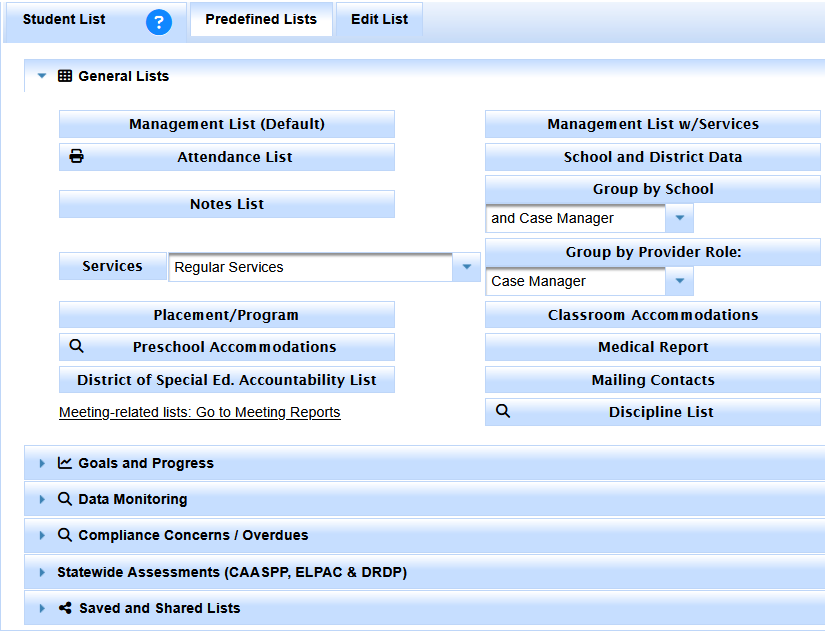
Some preset controls combine a field set with a recommended search.
When a preset runs its associated search, your existing Found Set is replaced. When an option allows you to bypass the search or keep the existing list, use that option only when you intentionally want to preserve your current work.
4. Common Specialized Presets
| Purpose | Where to learn more |
|---|---|
| New referrals, SSID, Parent Consent, and Pending As Of monitoring | New Referral List – SSID & Pending As Of Monitoring |
| Transportation review and cleanup | Transportation List |
| Service-focused list layouts | Service Lists |
| Upcoming, overdue, and projected meeting compliance | Compliance Monitoring |
| Census Day credential review | Credential Audit |
| Provider and assignment snapshot | All Provider Report |
The exact available presets can change as SIRAS monitoring needs evolve. Use the current SIRAS menu as the source of truth for the labels available to your account.
5. Customize After Using a Preset
A preset is a starting point. After loading it, you can still:
- modify the Search criteria to refine the Found Set;
- open Edit List to add, remove, or reorder fields;
- group or sort the resulting Student List; and
- save the customized query or list when it is worth reusing.
Use Search Help for the population and Student Lists for the fields.
6. Save, Link, Share, or Export the Result
After a preset has been customized into a useful repeatable setup:
- save the query when you want to reuse the population criteria;
- save the list when you want to reuse the field layout;
- link the saved list to the saved query when they belong together;
- share the saved work when other staff should use the same setup; or
- load the Saved List in Data Export when you need the same fields outside SIRAS.
See Saved Lists & Queries: Save, Link, Share & Reuse and Data Export Help.
Queries select students and Lists show individual records. Statistical Reports summarize counts and groupings. See Statistical Reports Help.

