


Use Reporting → Bulk Progress Reports. SIRAS builds a Found Set of students who may be eligible for progress reporting, then lets you work through their Current Goals from one screen.
| Only entering progress for one student? Use Progress Report Help for the individual-student workflow and the underlying progress-report concepts. |
Active IEP was created outside SIRAS and goals are missing? First establish those inherited goals as Current Goals; then return to Bulk Progress Reports. |
Before entering a new reporting period, verify that the students are associated with the goals from their active IEPs. Do not reuse an old Current Goal record for a new IEP year simply to keep progress entry available.
Complete and send Progress Reports at the intervals specified in the student's IEP. They are generally sent at the same time as report cards unless the IEP specifies a different reporting schedule.
When to Complete Progress Reports
Open Bulk Progress Reports
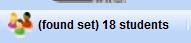
Go to Reporting → Bulk Progress Reports. SIRAS searches for active records that may be eligible for progress reporting. This can take some time while the Found Set is built.
Remove Students You Do Not Need
The initial result may contain students who are not part of the work you intend to complete. Before entering progress, narrow the group to the students you are responsible for.
Mark the records you do not want and choose Omit marked, or use the reusable marked-record workflow to create the intended group. See Finding Students by Marked Records.
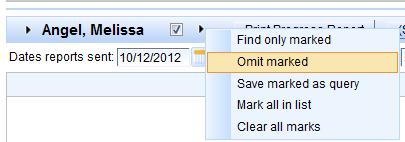
The Bulk Progress Report page is working from the active student population. If the group is not what you expect, verify the Found Set before proceeding.
Enter the Report Date
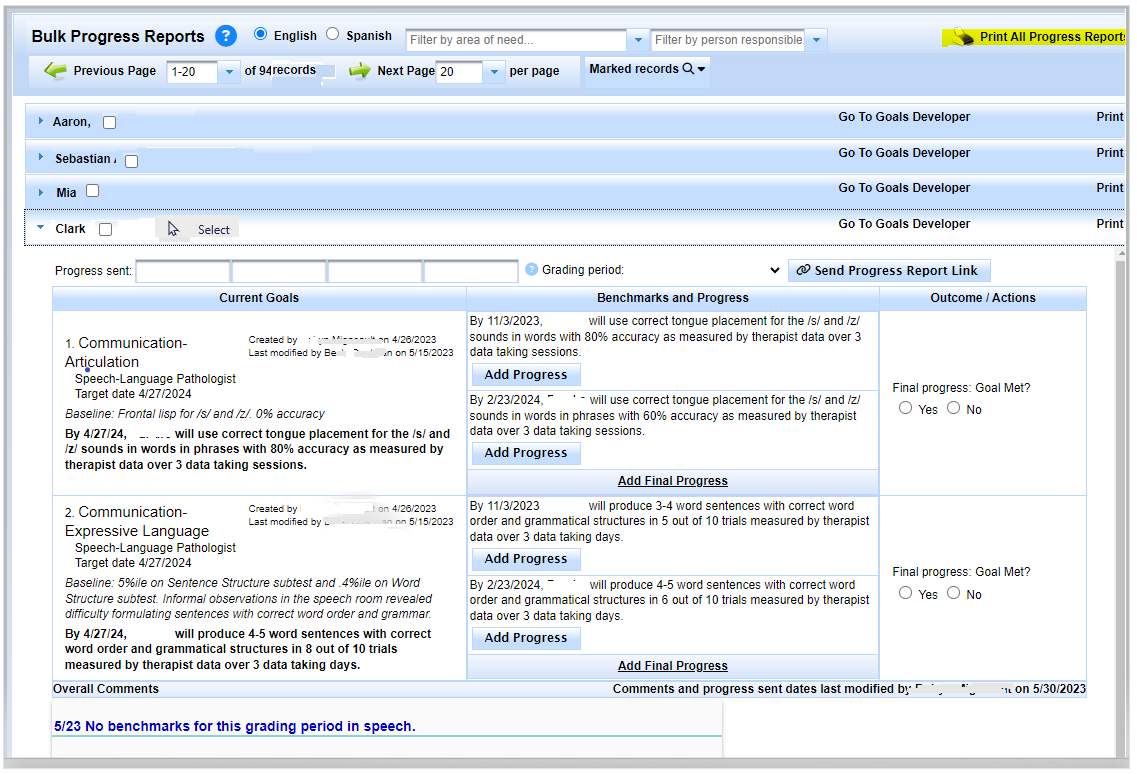
Work through the student list from the top. Enter the Date Report Sent for each student before adding the goal-level progress. The report dates may differ from student to student.

Enter Progress for Each Current Goal
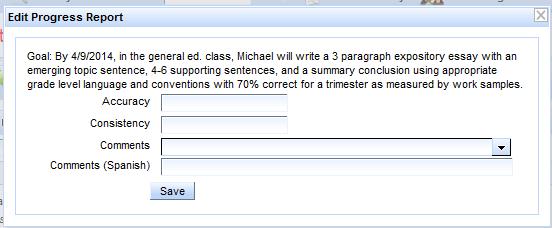
Select Add Progress Report for the applicable goal. The student's report date is carried into the new progress entry. Enter progress using the same measurement terms used by the goal.
- Accuracy: how well the student is performing using the goal's stated measure.
- Consistency: how often that performance level was demonstrated using the goal's stated measure.
- Comments: optional explanation or summary; comments do not replace the required progress measures.
Benchmarks
When a goal contains benchmarks, report on the applicable benchmark according to the IEP's reporting sequence. Continue through the scheduled reporting periods until the goal/benchmark sequence is complete.

Final Progress Report for the IEP Cycle
At the final reporting period for the IEP cycle, use the goal's Action control to indicate whether the goal was Met or Not Met.
When the next IEP becomes Current, the previous Current Goals and their progress should remain together in archived history. For development of the next IEP, use Goals Developer Help. Creating new goals is the suggested practice for the new IEP; Keep/Revise is secondary and should not be used for academic goals under current SELPA guidance.
If the meeting had already been finalized and was later reactivated, do not assume that Bulk Progress Reports are actually incomplete. See Problems With Reactivated Meetings for the known reactivation-specific validation scenario.
Repeat for the Remaining Students
Continue through the Found Set until the scheduled Progress Report has been completed for each intended student. If you need to review the progress-report concepts or enter one student outside the bulk screen, return to Progress Report Help.

