


What do you need to do?
| Enter progress for one student Open the student's Progress Report, choose the report date/grading period, and enter progress for each Current Goal or benchmark. | Enter progress for a caseload or group Use Bulk Progress Report Help when you are entering progress for multiple students. |
| The active IEP was created outside SIRAS and the goals are missing Do not open a meeting just to make progress reporting work. First establish the inherited goals as Current Goals, then return here. | Print, preview, or attach Progress Reports with meeting forms Use Print Preview Forms and Options for the Forms Manager print/preview controls, including the Attach Progress Report option. |
Before entering a new reporting period, verify that you are working on the goals from the student's active IEP. Do not use an old Current Goal record for a new IEP year just to keep progress entry available; prior-year goals and their progress need to remain together as historical records.
Enter Progress for One Student
Open the student and go to Student Info → Data Collection and Progress → Progress Report. This is the most convenient path when you are entering collected data for one student.
For multiple students, use Bulk Progress Report Help. Both paths work with students who have active goals in SIRAS. A student whose active goals have not yet been established in SIRAS will not appear as expected in the progress-report workflow.
Choose the reporting date and grading period
Enter the date when you are actually completing the Progress Report, then select the applicable grading period such as quarter, semester, or trimester. The reporting date becomes part of the student's progress history.

Enter progress for each goal or benchmark
Select Add Progress Report for the applicable goal or benchmark. Enter the progress data using the same measurement terms used by the goal.
- Accuracy — required. Report how well the student is performing using the same type of measure used in the goal or benchmark, such as percentage, number of times, errors, prompts, or another stated accuracy measure.
- Consistency — required. Report how often that level of accuracy was demonstrated using the same type of measure used in the goal or benchmark, such as trials, weeks, observations, or another stated consistency measure.
- Comments — optional. Use comments to explain or summarize the reported levels. Comments do not replace Accuracy and Consistency.
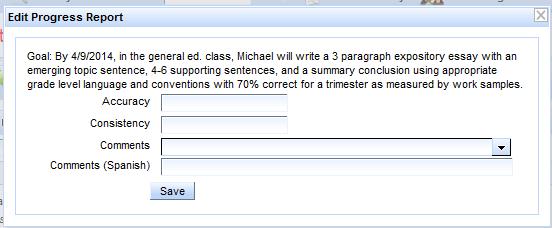
If you use a provided English comment that has an available Spanish translation, SIRAS can populate the corresponding Spanish comment. If you change or add wording, review and complete the Spanish translation as needed.
Select Save, then repeat the process for every applicable goal and benchmark. If an entry needs correction, reopen it with Edit Progress Report.
Complete Each Scheduled Reporting Period
Repeat the progress-report process at every interval specified in the IEP. Progress Reports are generally sent at the intervals defined by the IEP and commonly align with report-card periods unless the IEP specifies otherwise.
If a goal is added after one or more progress-report dates already exist, open the prior report dates as needed so the goal can reach the current reporting period. The existing guidance is to enter a brief dated comment such as Goal added on [date] for earlier periods when there was no progress to report on that newly added goal.
If you see a blank goal or a goal containing incomplete placeholders such as blank lines or XXX, correct the goal in Goals Developer Help before relying on the Progress Report.
Final Progress Report for the IEP Cycle
At the final reporting period associated with the IEP cycle, indicate whether each goal was Met or Not Met under the goal's Action control. If the selection was made accidentally, use the available Clear option to remove it and correct the status.
The final status appears on the printed Progress Report and identifies goals that need to be addressed when the next IEP is developed. Complete the required final goal statuses before finalizing the IEP when SIRAS requires them.
When the next IEP becomes Current, the previous Current Goals and their Current Progress should remain together in archived history. For development of the next IEP, follow the current goal-development guidance in Goals Developer Help. Creating new goals is the suggested practice for the new IEP; Keep/Revise is a secondary option and should not be used for academic goals under the current SELPA guidance.
Overall Comments
The Overall Comments area can be used for additional information about the student's progress. These comments print with the Progress Report and remain available at the next reporting time. Dating cumulative comments can make the sequence easier to understand.
If a Spanish Progress Report is needed, review the Spanish Overall Comments as well; free-text English comments may require separate translation.
Print Progress Reports
From the individual Progress Report screen, print the student's report in the available language. From the Bulk Progress Report area, you can print reports for the active group of students.
When you need a specific subset of students, mark the intended records and use the marked-record controls to narrow the active group before printing. See Finding Students by Marked Records for the reusable marked-record workflow.
When the Progress Report should be included with meeting forms or a draft packet, use Print Preview Forms and Options and select the Attach Progress Report option.

