


CALPADS 16.21: DINC 1 Overdue Plan Review & Reevaluation Monitoring
Last updated: Aug 17, 2026
CALPADS 16.21 — DINC 1 MonitoringUse this report to review annual plan-review and reevaluation records that CALPADS currently categorizes as late, overdue, or pending.
You are here: Monitor → CALPADS 16.21.
DINC 1 = Annual / Triennial compliance checkpoint. CALPADS 16.21 is the CALPADS-side monitoring view used to research annual plan-review and reevaluation timeliness. Use Meeting Compliance Quick Actions for the SIRAS-side work queues.
What Do You Need to Do?
| Run 16.21 for the date you care aboutChoose the As Of date that answers the monitoring or reporting question. | Focus the DINC 1 exception populationUse compliance and census-related fields without assuming every exception is a true late event. |
| Understand why CALPADS categorized a recordHeld late, overdue/no pending, and overdue/pending require different questions. | Look for possible Plan Adoption candidatesTreat district/plan mismatches as candidates for review, not automatic adoptions. |
| Export/filter a working copyPreserve the existing Excel/CSV workflow for larger reviews and local notes. | The result does not make senseInvestigate → correct → submit → verify; do not add a delay reason just to clear the report. |
16.21 is a monitoring signal, not proof by itself.
If staff believe the meeting was timely, determine whether CALPADS is missing the applicable MEET history, enrollment/exit changed the population, or another historical condition explains the result.
On This Page
Run the CALPADS 16.21 Report
- Log in to CALPADS.
- Select Reports from the left navigation.
- Select Accountability/Monitoring Reports.
- Open the 16.21 Monitoring report.
- Choose the As Of date that matches the monitoring question. For a reporting snapshot, use the applicable census/reporting date.
- Select View Report.


Use a meaningful As Of date.
For routine monitoring, use the date that answers the actual question. For Fall/EOY review, use the applicable reporting or census date rather than carrying forward an old example date from prior years.
For routine monitoring, use the date that answers the actual question. For Fall/EOY review, use the applicable reporting or census date rather than carrying forward an old example date from prior years.
Focus the Review
For compliance monitoring, review the report fields that identify whether the record is compliant and why it is being categorized.
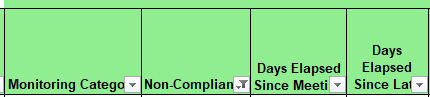
- Filter Non-Compliant = Y when you want a focused exception review.
- Periodically review the broader population as well so filtering assumptions do not hide a pattern.
- Use Enrolled on Recent Census Date = Y when you need to focus on the population applicable to the current census data set.


Every exception still needs context.
If a record appears late or overdue but staff believe the meeting was timely, do not add a delay reason just because the report shows an exception. Use Data Monitoring Investigation Guide to determine whether CALPADS is missing a MEET record, an enrollment/exit changed the population, a continuation date was used incorrectly, or another historical condition explains the result.
If a record appears late or overdue but staff believe the meeting was timely, do not add a delay reason just because the report shows an exception. Use Data Monitoring Investigation Guide to determine whether CALPADS is missing a MEET record, an enrollment/exit changed the population, a continuation date was used incorrectly, or another historical condition explains the result.
Understand the Monitoring Categories
Need to interpret the MEET fields themselves? Use the 16.21 page to work the report; use the MEET reference when you need to understand Meeting Date, Evaluation Type, Plan Review Indicator, Pending As Of, or Delay Code. See MEET Component: Evaluation and Review Events.
| Category | Primary question to investigate |
|---|---|
| Plan Review Held Late | Was the most recent annual/initial meeting actually held late, or is CALPADS missing or misreading the applicable MEET history? |
| Reevaluation Held Late | Was the reevaluation actually late, or is the most recent reevaluation/initial evaluation MEET history missing or incorrect? |
| Overdue Plan Review — No Pending Record | Is the annual truly overdue as of the report date, and is a Pending As Of transaction required by the district's monitoring/reporting situation? |
| Overdue Plan Review — Pending Record | Does the Pending As Of transaction accurately represent that the meeting had not yet occurred as of that date, with the appropriate documented delay reason when required? |
| Overdue Reevaluation — No Pending Record | Is the reevaluation truly overdue, and is a Pending As Of reporting workflow required? |
| Overdue Reevaluation — Pending Record | Does the pending transaction accurately represent the unresolved reevaluation as of the monitoring date? |
A Pending As Of record is not a substitute for a meeting that already happened.
If the meeting occurred, investigate whether the actual meeting/MEET history is missing or incorrect. If the meeting had not occurred as of the monitoring date, use the documented Pending As Of workflow when applicable.
If the meeting occurred, investigate whether the actual meeting/MEET history is missing or incorrect. If the meeting had not occurred as of the monitoring date, use the documented Pending As Of workflow when applicable.
Pending As Of timing: use the current report-specific workflow and CALPADS rule for the reporting question being reviewed. Do not create a Pending As Of record solely because 16.21 shows an overdue category.
Use 16.21 to Find Possible Plan-Adoption Candidates
The 16.21 report can help surface incoming students whose Plan LEA/SELPA information does not match the district now serving the student.
Treat these as candidates for review, not automatic Plan Adoptions.
- Verify the student is enrolled and will participate in special education in the receiving district.
- Compare the current SIRAS record, CALPADS history, and information from the field.
- If Plan Adoption is appropriate, use Plan Adoption — Incoming Students & CALPADS Reporting.
- If the student will not participate, use New or Returning Students to determine the correct status/workflow.
Export and Filter the 16.21 Report
Export the report when you need to sort, filter, annotate, or preserve a local working copy.
- Use the CALPADS export control and choose Excel when you want to preserve formatting and add working notes.
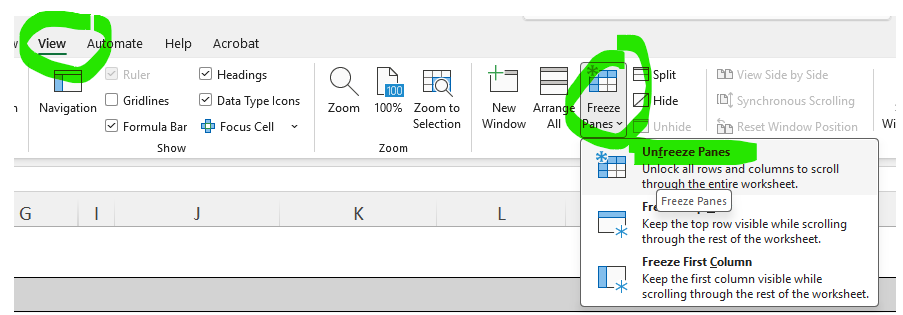
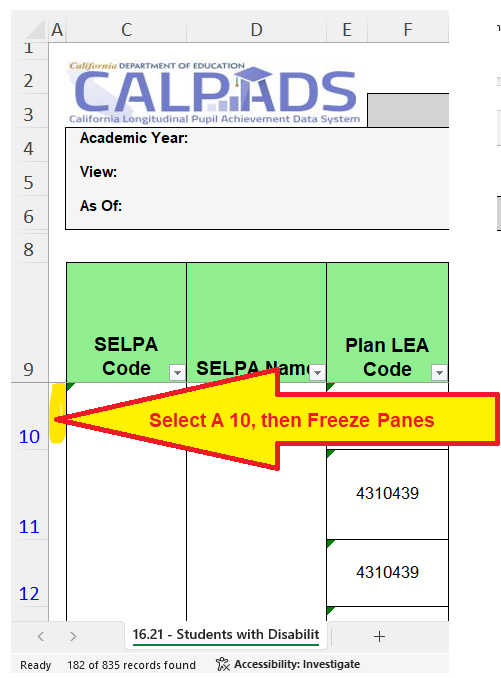
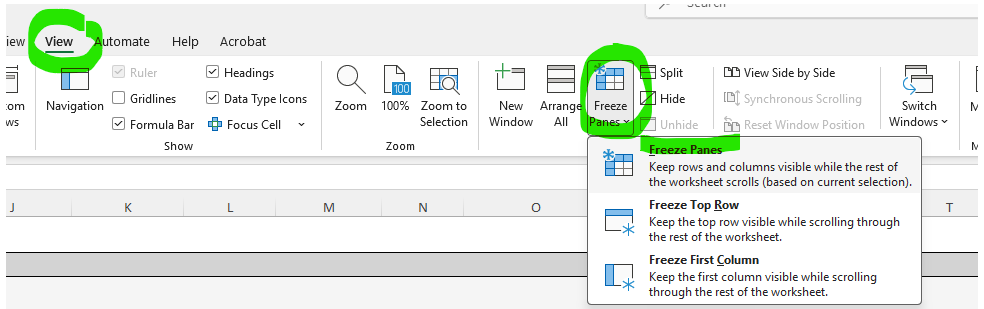
- Freeze the report header so the column labels remain visible while scrolling.
- Apply filters to the full report, not just one selected column.
- For CSV, select the header row and apply Data → Filter.


Protect student information in working copies.
The source article recommends removing Student Name, Birthdate, Gender, and Ethnicity before sharing a working list by ordinary email. Use your district's approved secure method for any file that still contains student PII.
The source article recommends removing Student Name, Birthdate, Gender, and Ethnicity before sharing a working list by ordinary email. Use your district's approved secure method for any file that still contains student PII.
A local notes column can be useful for documenting investigation status, owner, and next action. The notes do not replace correction in SIRAS/CALPADS or official source documentation.
Investigate and Correct 16.21 Findings
When 16.21 and the expected student history do not agree:
- Investigate: use Data Monitoring Investigation Guide.
- Correct: use Process for Error Resolution.
- Submit: use Reporting data to CALPADS when a corrected transaction must be sent.
- Verify: use CALPADS Submission Log Help.
- Reconcile: rerun 16.21 and compare the CALPADS result to SIRAS. For SIRAS-side previously overdue lists, use DINC 1 Previously Overdue Meetings.
- Repeat monitoring: return to Data Monitoring Tasks.
16.21 review is complete when:
Each reviewed exception is either corrected and no longer appears unexpectedly, or is understood, documented, and accurately represented with the applicable meeting/delay history.
Each reviewed exception is either corrected and no longer appears unexpectedly, or is understood, documented, and accurately represented with the applicable meeting/delay history.

