


Use Manage Caseload to request that a student be added to or removed from your assigned caseload. District users with Administrator-level access review these requests. Submitting a request does not immediately change your assignments.
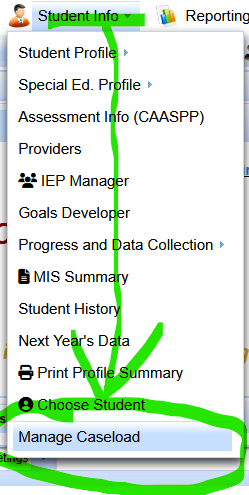
In SIRAS, select Student Info → Manage Caseload. If you already have the student you want to remove open, keep that student selected before opening Manage Caseload.
Contents
| 1. Open Manage Caseload | 2. Request to Add a Student |
| 3. Request to Remove a Student | 4. After You Submit a Request |
1. Open Manage Caseload
- Open the Student Info menu.
- Select Manage Caseload. Its position in the menu varies depending on whether a student record is currently selected.

2. Request to Add a Student
Use this route when a student is missing from your caseload. You can open Manage Caseload without selecting a student first.
- In Manage Caseload, choose the Role you are requesting for this student.
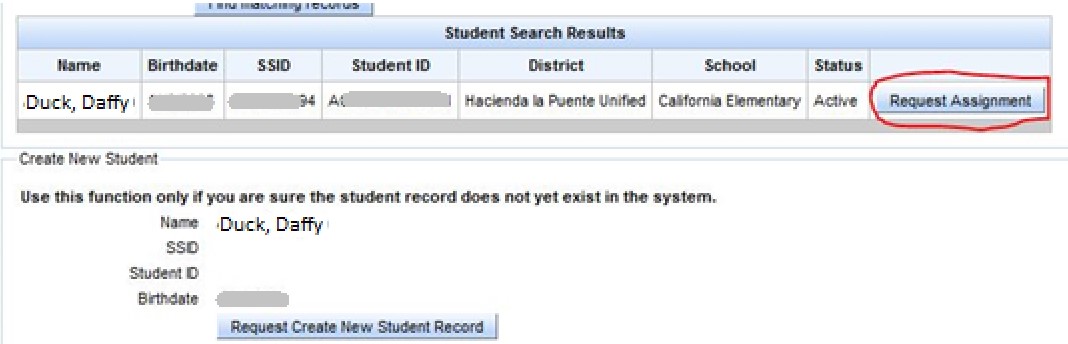
- Search for the student using the SSID or the student's name and date of birth.
- Select Find Matching Records.
- If the correct student appears, select Request Assignment beside that record.

3. Request to Remove a Student
Start with the student's record when possible. This makes it easier to identify the correct student for the removal request.
- Find and open the student you want removed from your caseload.
- Go to Student Info → Manage Caseload.
- Follow the removal-request options shown for that student.
If you opened Manage Caseload without a student selected, SIRAS displays a no student selected message. Use its link to search for the student by name or ID, select the correct record, and continue the removal request.

4. After You Submit a Request
Your request is available for review by district users with Administrator-level access. If the administrator approves an assignment request, you receive a message when the assignment is completed.
If you still cannot find the student, first confirm that the request was approved and that you are viewing the appropriate assigned-student scope. See How to Find Individually Assigned Students or Search Help.
Related help
- Support Center - Providers — provider help organized by task.
- Getting Started for Providers — getting oriented to student and caseload work.
- SIRAS Home Help — original related reference.
SIRAS Customer Documentation
This article provides general guidance for SIRAS users. Available features, permissions, and local procedures may differ by district or user role. For questions about district procedures or access, contact your district SIRAS administrator or SPED office. For SIRAS application assistance, contact [email protected].

