


This procedure is for a District SPED Clerk or another administrator authorized to manage SIRAS user accounts.
If the user can use self-service password reset, send them to Change or Reset Your Own SIRAS Password. Use the administrator steps below when self-service is unavailable, the account is blocked for inactivity, or the stored email address cannot be used.
SIRAS path: Tools → Manage Users / My Account → Choose User → select the user → Edit Account Details
| Before You Reset the Account | Select the User Account |
| Open Account Details | Reset the Password |
| If the Account Is Blocked for Inactivity | Finish and Verify |
| Related Help |
Contents
Before You Reset the Account
- Confirm the user is signing in to the correct SIRAS server.
- Confirm the username and the identity of the person requesting assistance.
- Ask whether the user tried Email Password Reset.
- Review the email address stored in the account.
- Confirm that your role permits user-account management. See SIRAS User Access Roles and Permissions.

Select the User Account
- Open Tools → Manage Users / My Account.
- Select Choose User.
- Search for and select the user whose access must be restored.

For more about searching the user list, see Choose User.
Open Account Details
- Select the user's username.
- Select Edit Account Details.


Reset the Password
- Select Reset Password.
- Review the SIRAS notice showing the temporary password.
- Complete any confirmation prompt.
- Select the account-update button if SIRAS requires the page to be saved.
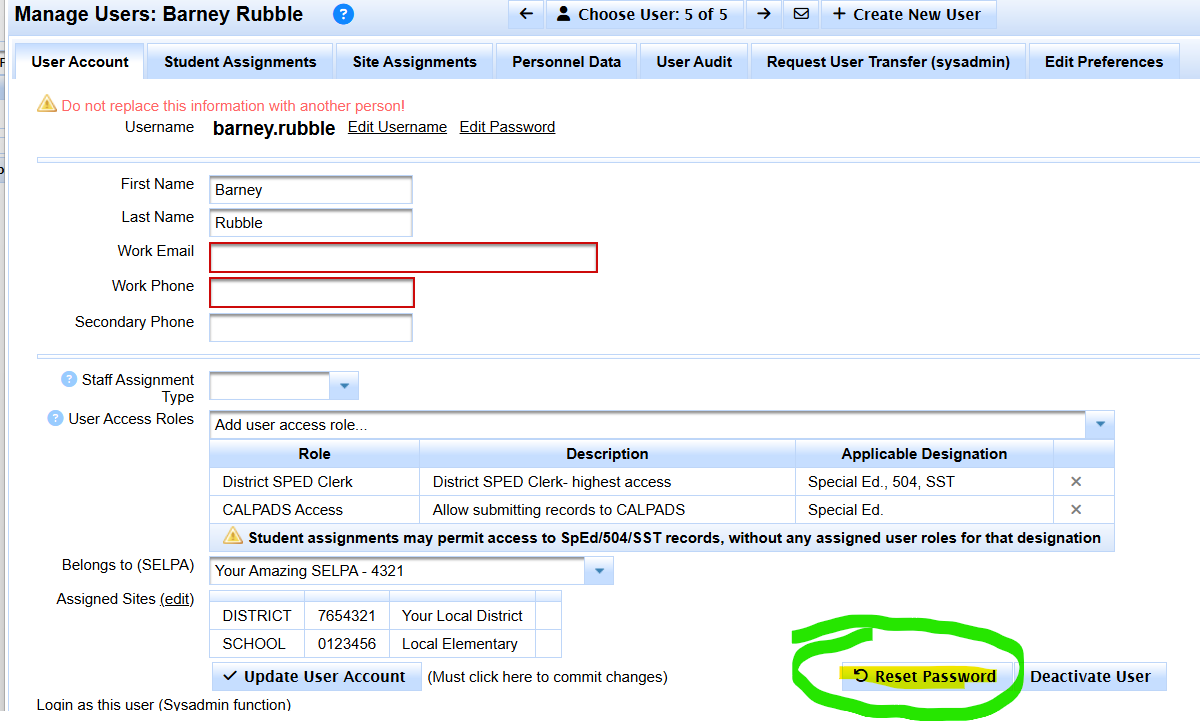
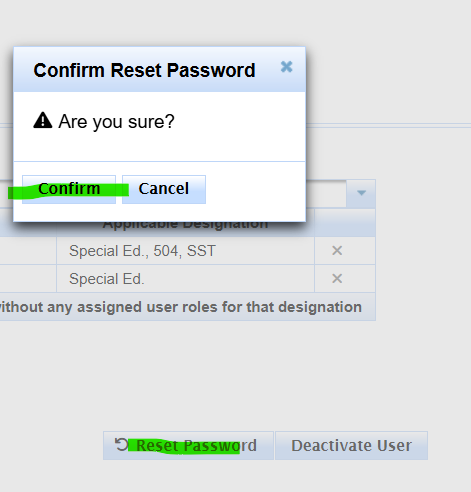
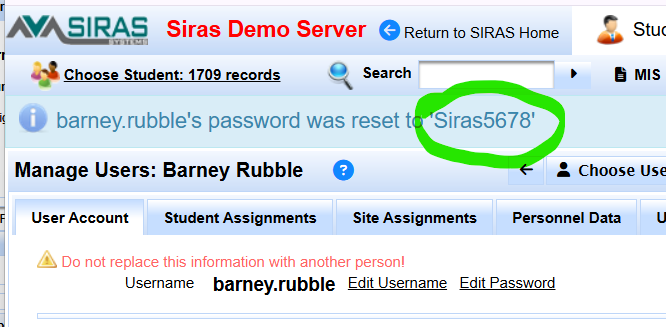
Result: the user can sign in with the temporary password and should change it after login.
If the Account Is Blocked for Inactivity
SIRAS may block or deactivate an account after an extended period without login. If the account is still assigned to your district and the user's access should continue, restore the account and then have the user change the temporary password.

If the user was intentionally deactivated because they left the district, or if you need to intentionally deactivate/reactivate an account, use Reactivating / Deactivating SIRAS User Account instead.
Finish and Verify
- Save the user-account changes.
- Tell the user which SIRAS server and username to use.
- Provide the temporary-password information according to local procedure.
- Have the user change the temporary password after signing in.
- Confirm the user can access the correct designation, district/school, or assigned students.

