


Use this administrator procedure when a SIRAS user should be intentionally deactivated because they no longer need access, or when a previously deactivated user returns and should be reactivated.
SIRAS path: Tools → Manage Users / My Account → Choose User → select the user → Edit Account Details
If the person now works in another SIRAS district, use the User Account Transfer Request Process.
Find an Active or Deactivated User
- Open Tools → Manage Users / My Account.
- Select Choose User.
- Search by name, or use the User Type filter and select Deactivated Users when needed.
- Select the user account.
For more about the user-search controls, see Choose User.
Before Deactivating a User
A user who leaves the district should be deactivated so the account can no longer access SIRAS and the user's name no longer appears as an active provider choice.
If student assignments remain, remove or reassign them before deactivation:
- Open the user's Student Assignments tab.
- Select Show Inactive when you also need to include inactive student records.
- Use Select All, or select the applicable students.
- Select Remove or Reassign as appropriate.
See Student Assignments for the complete assignment-management procedure.
Deactivate the User
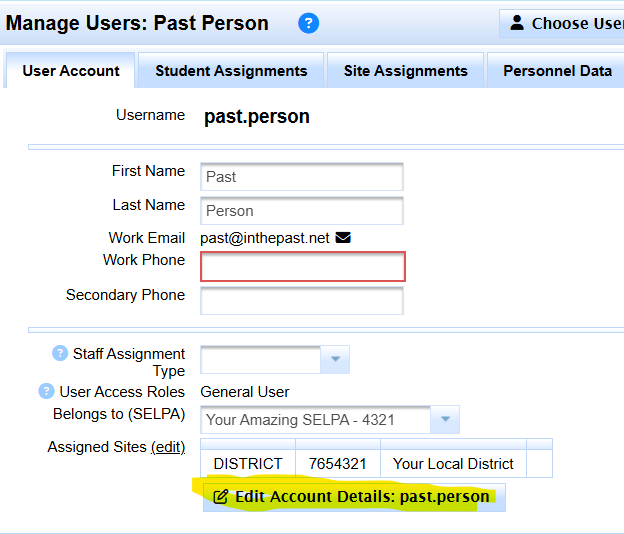
- Open the user's User Account tab.
- Select Edit Account Details.
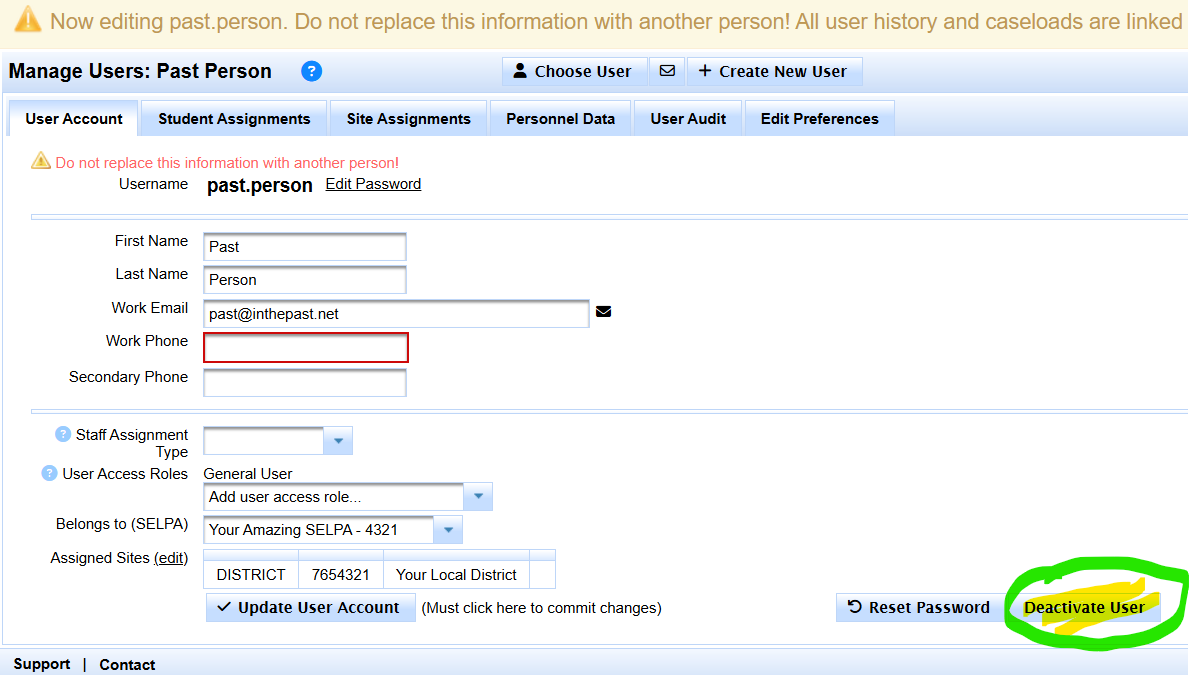
- Select Deactivate User.
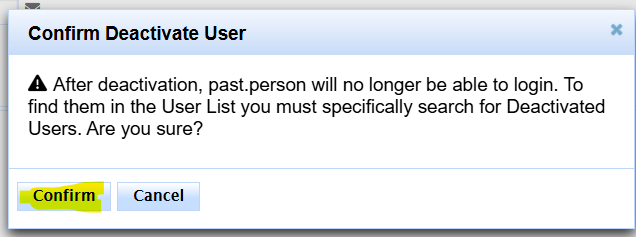
- Confirm the action.
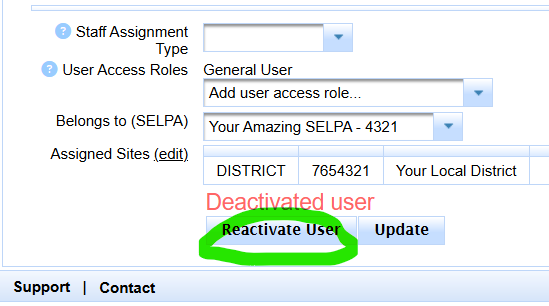
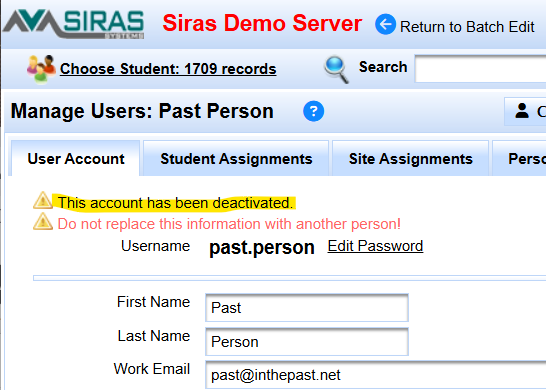
- Verify that SIRAS shows the account as deactivated.
Reactivate a Returning User
- Locate the existing account through Choose User, including the Deactivated Users filter when needed.
- Select Reactivate User.
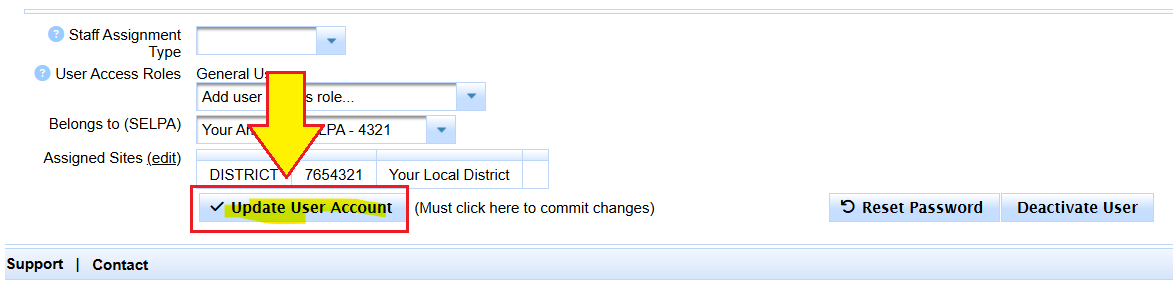
- Review and update the user's email address, phone number, site assignments, roles, and student assignments as appropriate.
- Select Update User Account to save the changes.
The user is expected to login with 30 days of reactivation.
If the account is blocked only because of inactivity and the user needs password assistance, use Restore access to a SIRAS account.
Verify Access After Reactivation
Confirm that the user's current role, site assignment, and student assignments match the person's current job. Assign the narrowest access that supports the work. See SIRAS User Access Roles and Permissions.

