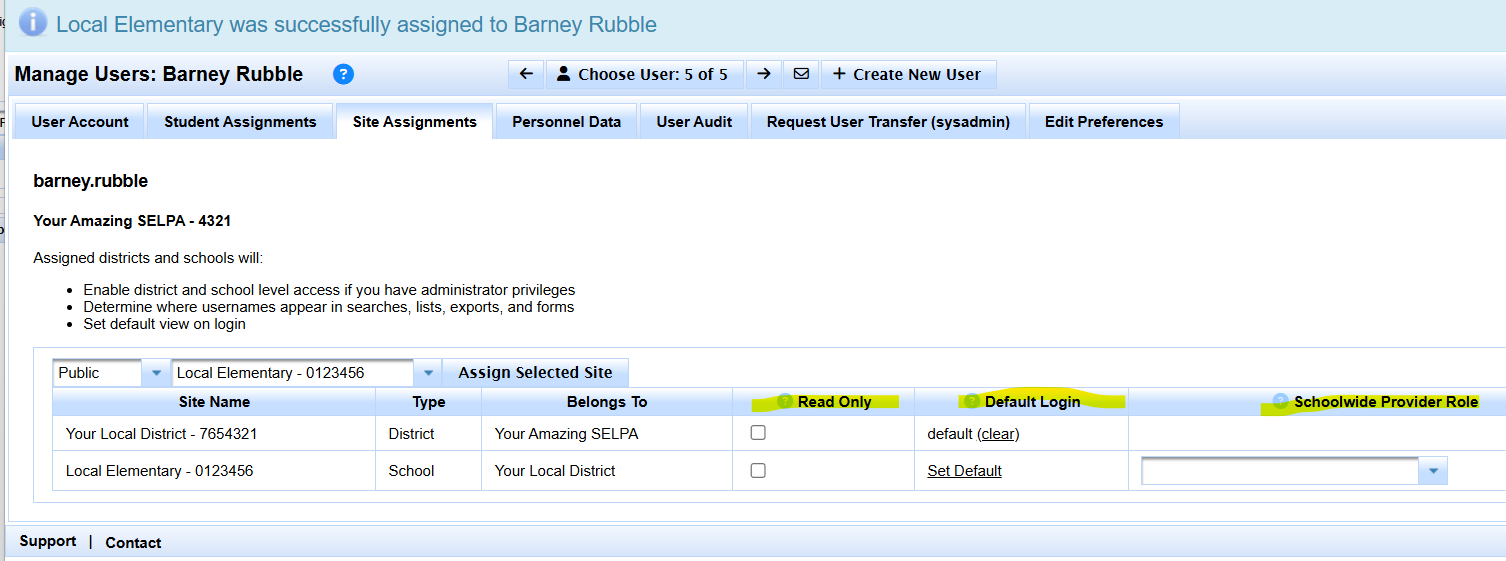
Users should be assigned to the District(s) and School(s) to which they belong. For a user with District Level access (as determined by User Roles) assigning a district will grant permissions to all students at that district. For a user with School Level access, they will similarly need to be assigned a school. Multiple districts and/or schools can be assigned to enable the user to navigate between them.
First, select the District or School from the menu. This hierarchical menu works similarly to other areas of the program, where to access a school you must first select the district- this will populate the menu for the schools that belong to the district.
If logged in at SELPA Level
You may have to add the missing district site default every district user should have
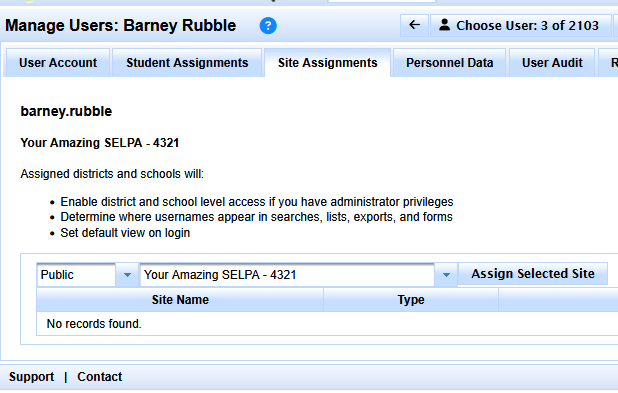
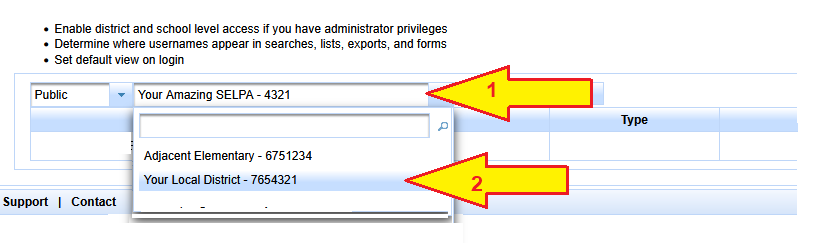
Click on your SELPA
Select the Users home district
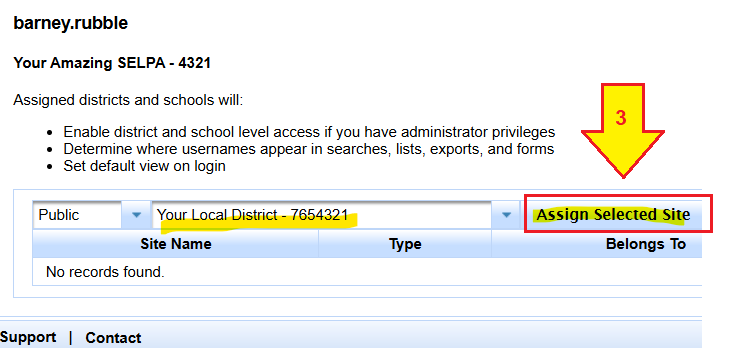
Then click the Assign Selected Site
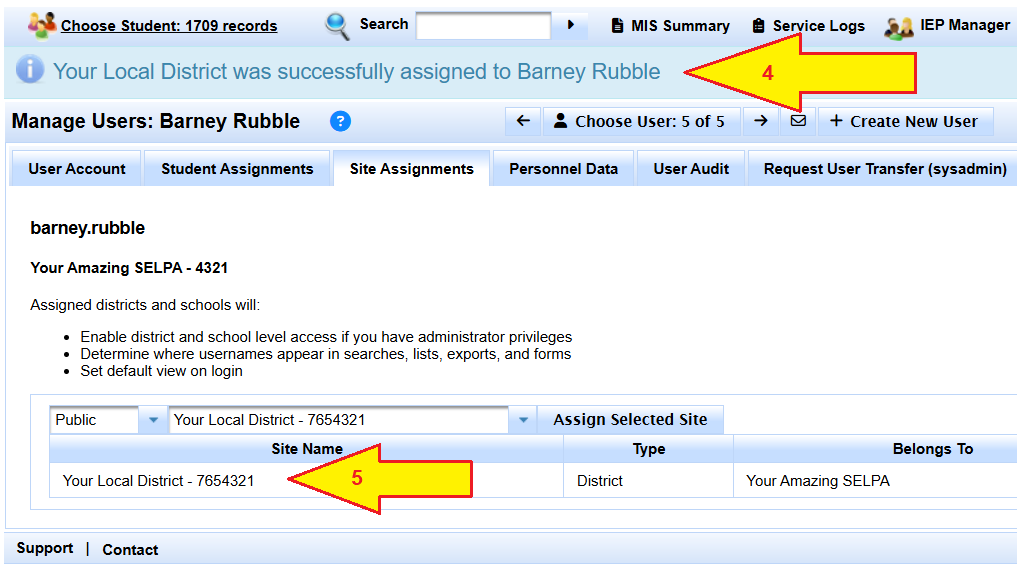
When site is selected look for confirmation from SIRAS of successful creation of assignment.
It is at the top of the page in blue.
Also in the actual Site Assignments area, look to see the site was added.
District or School
Once a District is selected, one can continue with the menu to select a specific school
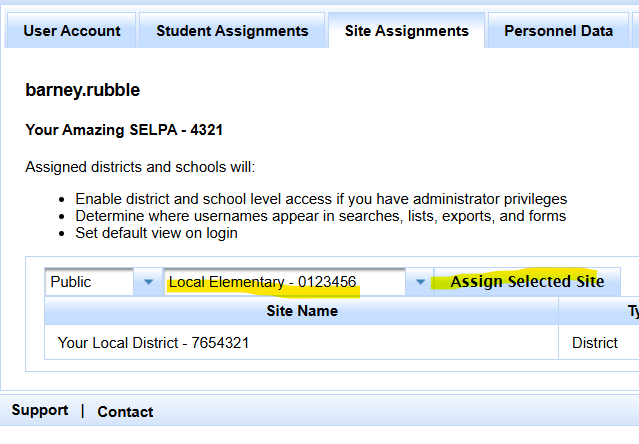
This menu operates like the Scope menu
Third, select the button "Assign Selected Provider" button
Within the list of assigned Sites there are a few options:
'Read Only' checkbox: This will make students chosen from the assigned site available only as Read Only Access.
Default Login: The selected site will be the initial view scope for the user when they login.
Schoolwide Provider Role: This is a special function for Providers who serve an entire School or even an entire District. Selecting a role here will have this person appear as a Provider on forms, lists, and other areas of SIRAS for all students at that site.