


The reviewer account is maintained by SIRAS Systems on behalf of the SELPA. Confirm the reviewer's name with your SELPA before assigning student records. If you cannot find the correct account, contact [email protected].
An FMTA generally needs only one SIRAS account even when working with multiple SELPAs, although SELPA preference may result in separate accounts. The important step for your LEA is to locate the correct existing reviewer account and assign access to the specific student record.
Find the student: Quick Search
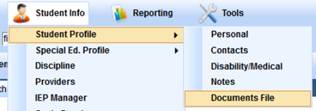
Optional document upload: Student Info → Student Profile → Documents File → Upload File
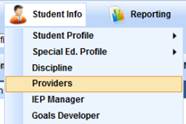
Assign reviewer access: Student Info → Providers → Select Provider to Assign → assign role CDE Access
Workflow at a Glance
| 1. Find the student Open the correct student record before changing access. |
2. Add review documents if needed Upload only documents the reviewer needs that are not already available in SIRAS. |
3. Assign CDE Access Find the existing FMTA account and assign it to the student with the CDE Access role. |
1. Find the Student Record
Use the SIRAS Quick Search box to open the student who needs to be reviewed.

One search method is to enter the first two letters of the student's first name, a space, and the first two letters of the student's last name, then press Enter. You can also search by student ID, date of birth, or SSID.
When the result list appears, open the correct student. You can also right-click or Control-click the student's name when you need the SIRAS navigation menu.
2. Add Additional Review Documentation — Only If Needed
This step is only for supporting documentation the CDE/FMTA reviewer needs that is not already available in the student's SIRAS record.
For this review workflow, additional documents should be in PDF format so the reviewer can preview them in SIRAS. If the source is a Microsoft Word document, convert it to PDF using your computer's Print to PDF or Save as PDF option. If necessary, ask local IT for help or scan a paper document to PDF.
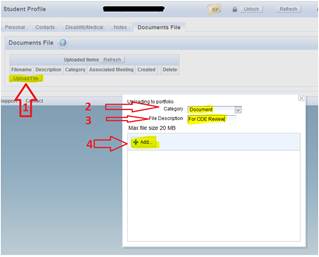
- Select Upload File.
- Choose an appropriate Category, such as Document.
- Enter a short, clear File Description.
- Select +Add… and browse to the PDF on your computer.
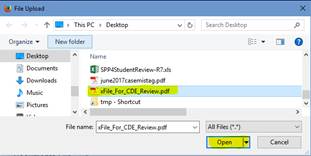
- Select the correct file and choose Open.
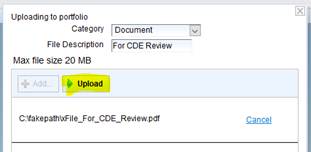
- Verify the selected file, then select Upload.
- Repeat only when additional review documents are needed.
For broader document-upload help, see Documents File Form Manager Help.
3. Assign the Existing FMTA Account to the Student
Open Student Info → Providers. CDE/FMTA reviewer accounts are searched at the SELPA level, so the first search may require you to broaden the normal district scope.
Search for the reviewer account
- Use Any Role when searching for the reviewer for the first time.
- Broaden the district/category search to the SELPA level.
- Enter the reviewer's first or last name in Search by name.
- Select Select Provider to Assign to open the user-selection window.
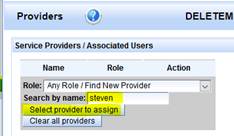
Use the district menu to broaden the search. The current source workflow uses the blank option at the top of that menu to search the wider available account list. After the reviewer has been assigned to a student in your district once, the account may be easier to find on later assignments.
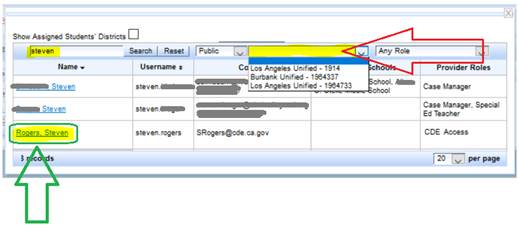
Select the correct account and assign CDE Access
When the correct reviewer account appears, select the person's name on the left side of the result list.
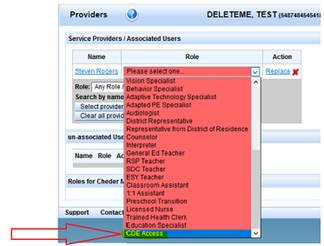
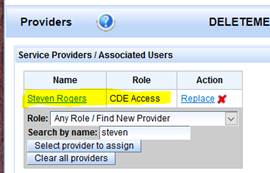
Assign the role CDE Access. This uses the same student-provider assignment mechanism used for other general-user assignments, but the reviewer account itself is an existing SELPA-level account.
Verify the Result
The correct FMTA reviewer account is assigned to the student with the CDE Access role. Only the specific student record has been assigned; no new reviewer account was created.
If you cannot locate the correct FMTA account, or the account/scope shown does not match what your SELPA expects, stop before creating or assigning a different account and contact SIRAS Support.
Found Set: Preserved.
View: You work in the selected student's Providers area.
Data: Adds the selected reviewer as a provider/access assignment for that student.
Persistence: Saved until the assignment is changed or removed.

