


What do you need to do on the Special Education MIS Summary?
| Review what is Current for this studentStatus, enrollment context, eligibility, plan, services, providers, and reporting information. | Understand changes coming from an IEP meetingMeeting information can be proposed/pending before approved changes become Current. |
| Correct Current data directlyAdministrator-level users can unlock the MIS Summary when a direct correction is appropriate. | Resolve a warning or errorReview the underlying Current or historical data instead of clearing the symptom. |
| Review or create reporting historyOpen an archived transaction or use Archive for Reporting when the documented workflow requires one. | Change or understand Active / Pending / InactiveUse the status that reflects what is actually happening with Special Education participation. |
The Special Education MIS Summary is the central page for the student's Current SIRAS record. It brings together the principal Special Education data used by student workflows, meetings, monitoring, and SEDS/CALPADS reporting.
The MIS Summary normally shows what is Current now. SIRAS preserves dated reporting history in archived transactions that can contain SWDS, MEET, PLAN, and/or SERV components.
| MIS Summary ToolbarActions available for the current student record. | Field DefinitionsUse the question-mark help beside fields. |
| Archive for ReportingCreate a manual reporting transaction when the documented workflow calls for one. | Current vs. Archived RecordsInspect the dated SEDS reporting history. |
Review the Current Special Education Record
Use the MIS Summary to review the student's Current Special Education information. Depending on the record and local configuration, this can include:
- district, school, enrollment, and demographic context;
- referral, eligibility, and participation status;
- providers and case-management information;
- plan and program information;
- current plan-service information; and
- SEDS/CALPADS reporting and validation information.
For the underlying Current-data model, see Data Record - Current Data.
Relationship Between the MIS Summary and IEP Manager
SIRAS uses a push-and-pull relationship between Current data and IEP Manager. When a meeting event is opened, applicable Current information populates the meeting forms.
Information developed in the meeting can remain proposed or pending until the meeting outcome, Parent Response, and finalization workflow determine what should become Current.
Applicable approved changes can become Current on the MIS Summary. This includes accepted plan-service changes. The finalized event also preserves the applicable dated reporting state in an archived transaction.
Parent Response matters. For partial consent, disagreement, stay-put, or other non-full-acceptance outcomes, verify Current and Pending Changes carefully.
See Pending Changes: What Moves from a Meeting into Current Data and Parent Response - Impact Table.
MIS Summary Toolbar
The toolbar provides actions available for the current student record.
Screenshot of:
1) CALPADS Reporting Information (Status of Transaction Data)
2) Validate Button
3) Archive for reporting button
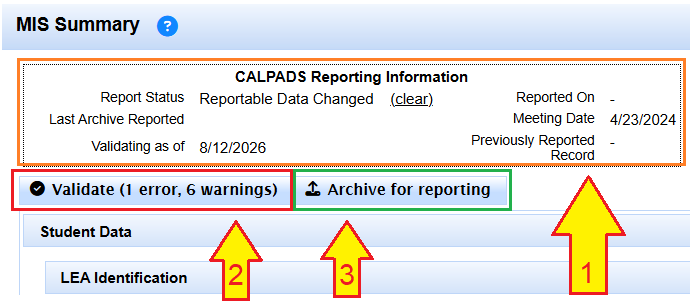
The toolbar provides other actions available for the non-current student record, an archived record.
Click the Open Record for Editing button
The Edit CALPADS Reporting button appears
This button allows you to change transaction reporting properties.
Please seek assistance with [email protected] before attempting any changes to archived transactions.

The available toolbar actions depend on the student record and the user's access.
Unlocking Current for a Direct Correction
Most Special Education plan changes should flow through the applicable meeting or reporting workflow. Administrator-level users may unlock the MIS Summary when an authorized direct correction to Current data is necessary.
Unlock exposes fields that are normally protected from direct editing.
If the same incorrect value was preserved in an older archived transaction, determine whether Current, the archive, or both need correction. Use Data Monitoring Investigation Guide when the correct source is not obvious.
Field Definitions
Many MIS Summary fields include a small question-mark help icon. Place the pointer over or use the available help control to review the field definition.

Use field-level help before changing a value whose purpose or reporting meaning is unclear.
Archive for Reporting
When a reportable Special Education event or change occurs outside the ordinary meeting-finalization workflow, Archive for Reporting may be the documented method for preserving a dated reporting transaction.

Archive for Reporting creates a dated transaction from verified data when the applicable procedure calls for a manual archive.
First establish what event actually occurred and which dated transaction should represent it.
See Archive for Reporting for the procedure.
Warnings, Errors, and Validation
Errors
Errors identify missing or conflicting information that requires correction before the applicable reporting process can succeed.
Warnings
Warnings identify an anomaly that should be reviewed. A warning does not automatically prove the data is wrong.
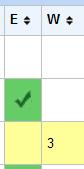
Errors and warnings can also be visible from Choose Student, helping staff identify records that need review.
Use Process for Error Resolution after the correction owner is known. For CALPADS error-code help, see CALPADS Error Summary.
Current and Archived SEDS/CALPADS Records
The MIS Summary normally displays the Current record. The Archived Records menu contains dated transactions created by meeting/reporting workflows.

Choose a dated archive to inspect stored reporting history; return to Current when finished.
An archived transaction can contain one or more reporting components:
Use Data Record - Archived Transaction to inspect or correct a specific archive and Archived Transaction Components to understand the component model.
Active, Pending, and Inactive Special Education Status
| Status | General meaning |
|---|---|
| Active | The current Special Education record is the participating record. |
| Pending | A referral/evaluation, participation, arrival, or other documented follow-up state is unresolved. |
| Inactive | The record is not the current participating Special Education record, or the applicable Special Education workflow has ended. |
Do not change status merely to remove a student from a list, bypass an access problem, or force a reporting result.
See SIRAS Record Status and When Students Leave, Stop Participating, or Become Inactive.
Optional / Local Status Fields
Configured fields such as local Designation, Placement, or other status indicators should be interpreted separately from the student's Active/Pending/Inactive record status and from SEDS/CALPADS historical components.

