


A group of students already has—or may already have—a provider assigned in a role, and you need to add another provider in the same role without replacing the existing assignment.
The purpose of this workflow is to preserve an existing provider assignment. Batch Edit has no Undo, so verify the student group, role, provider, and add/replace choice before applying the change.
Select the Marked Student Group
Open Batch Edit
Go to Tools → Batch Edit.
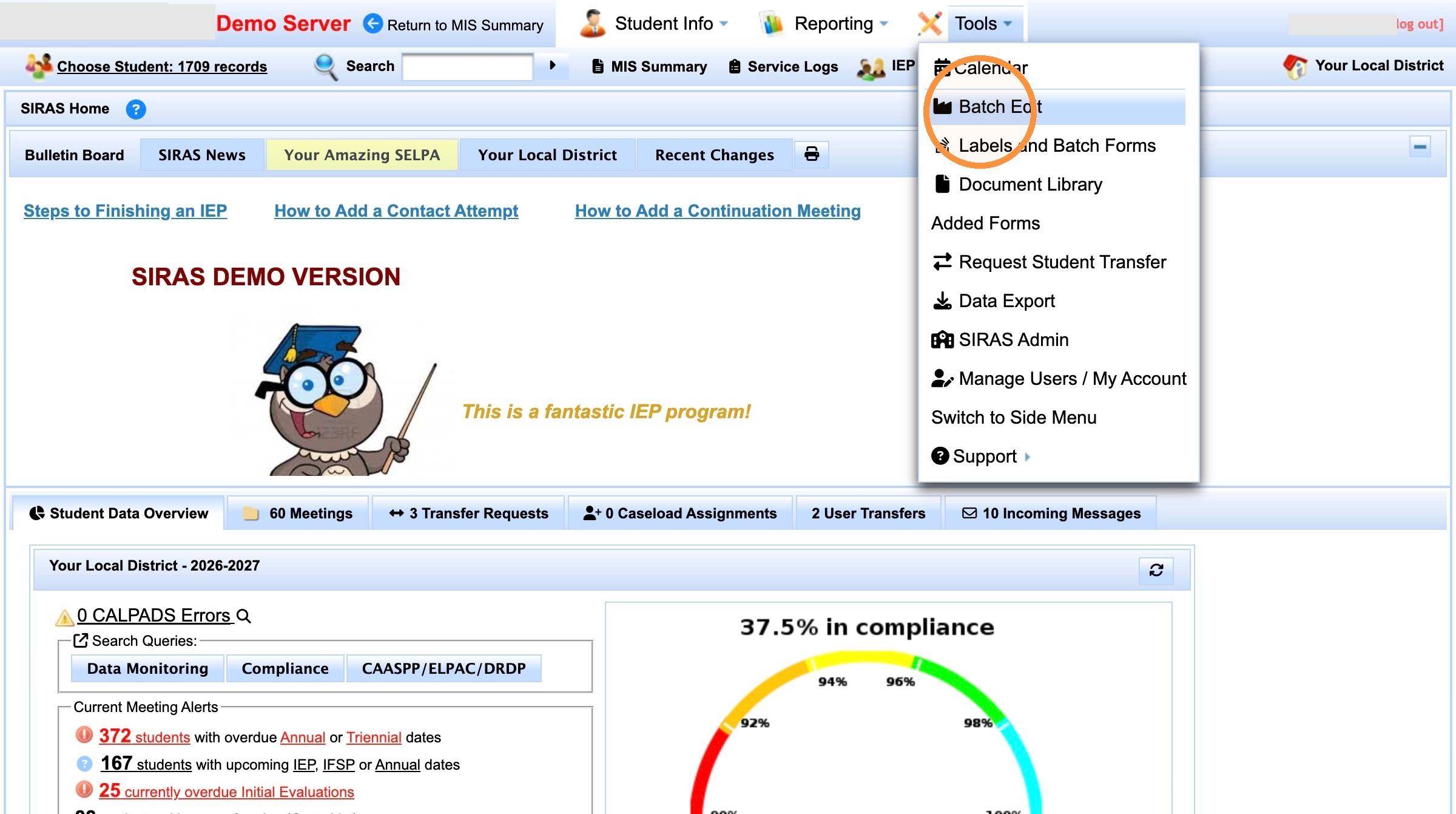
Open Tools → Batch Edit.
Limit the action to the marked students
Open the marked-record menu and choose Find only marked students. This assumes the intended students have already been marked. If not, use Finding Students by Marked Records first.
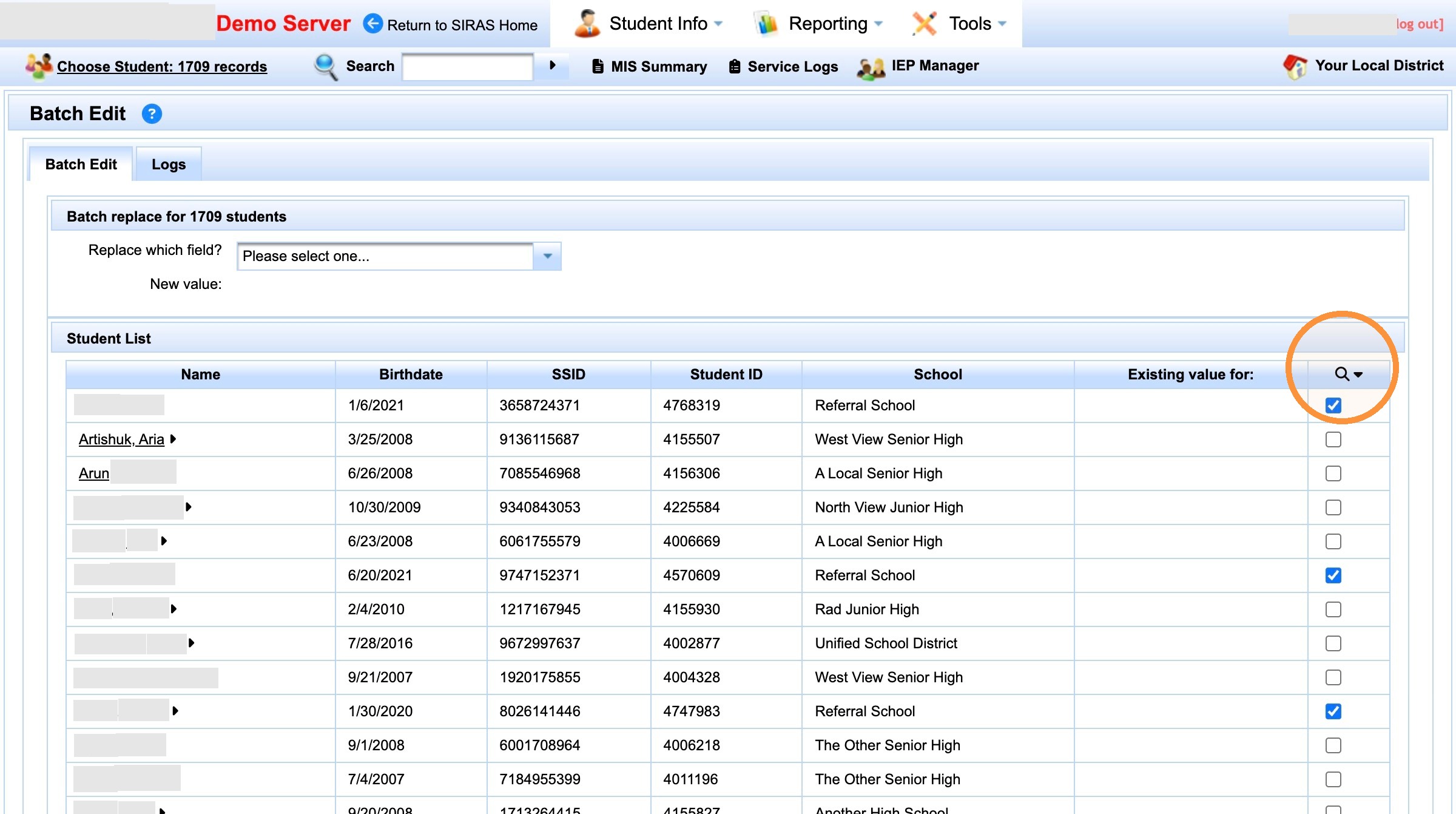
Open the marked-record controls.
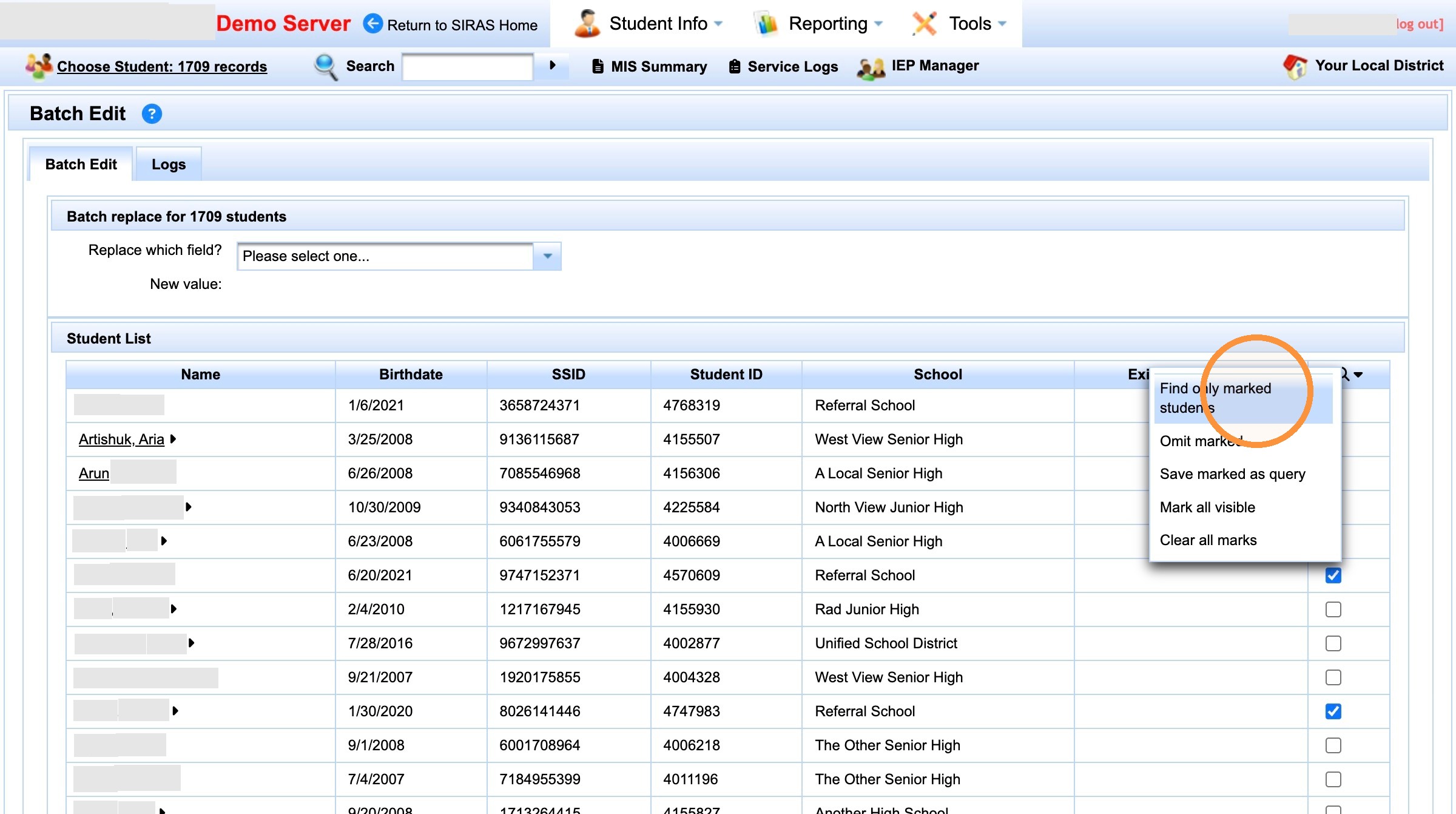
Choose Find only marked students to stabilize the target group.
Select and Find the Provider
Choose Provider Role and the role to add
Select Provider Role, then choose the provider role you need to assign. The walkthrough uses Special Ed Teacher.
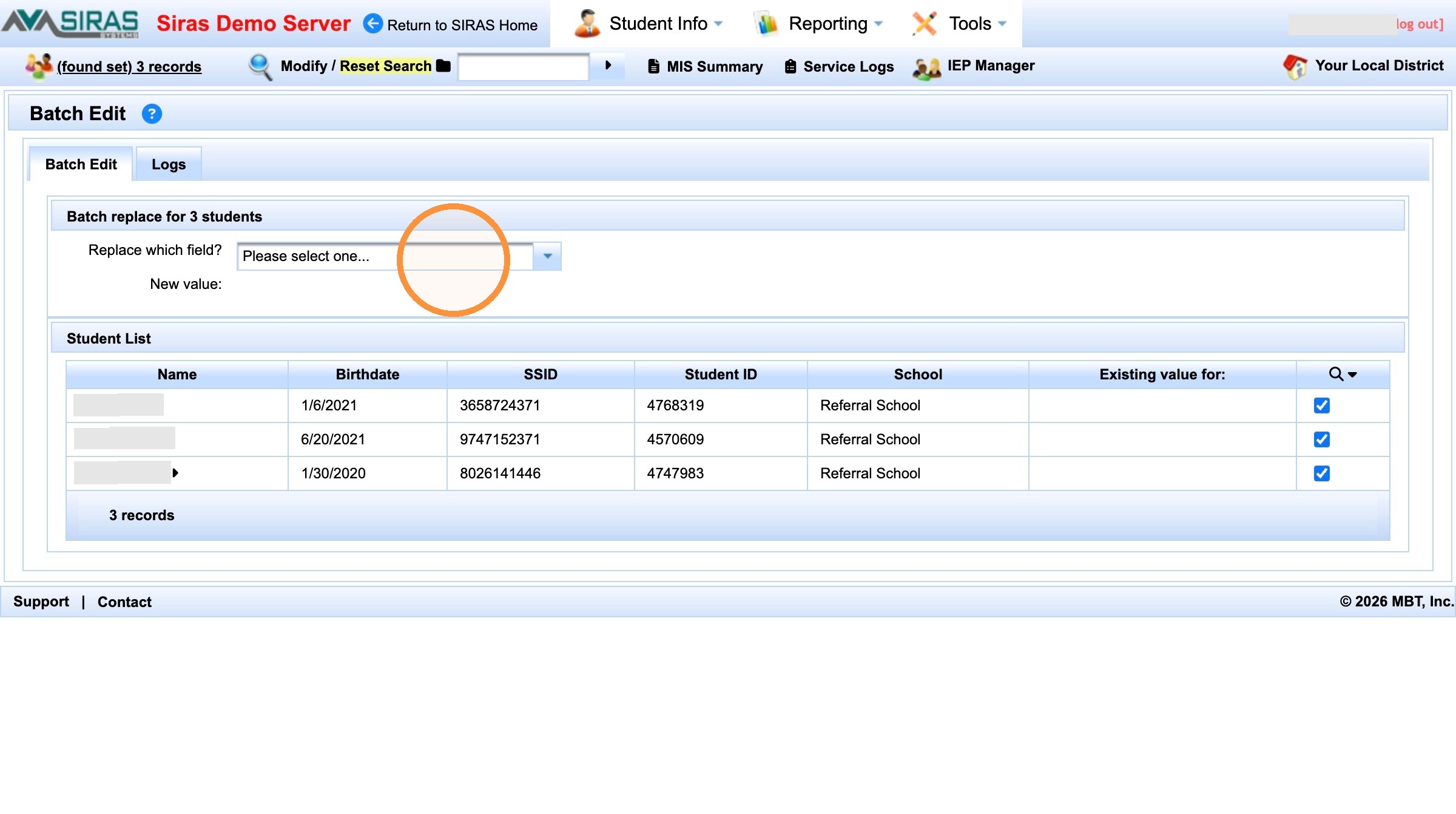
Open the field selector.
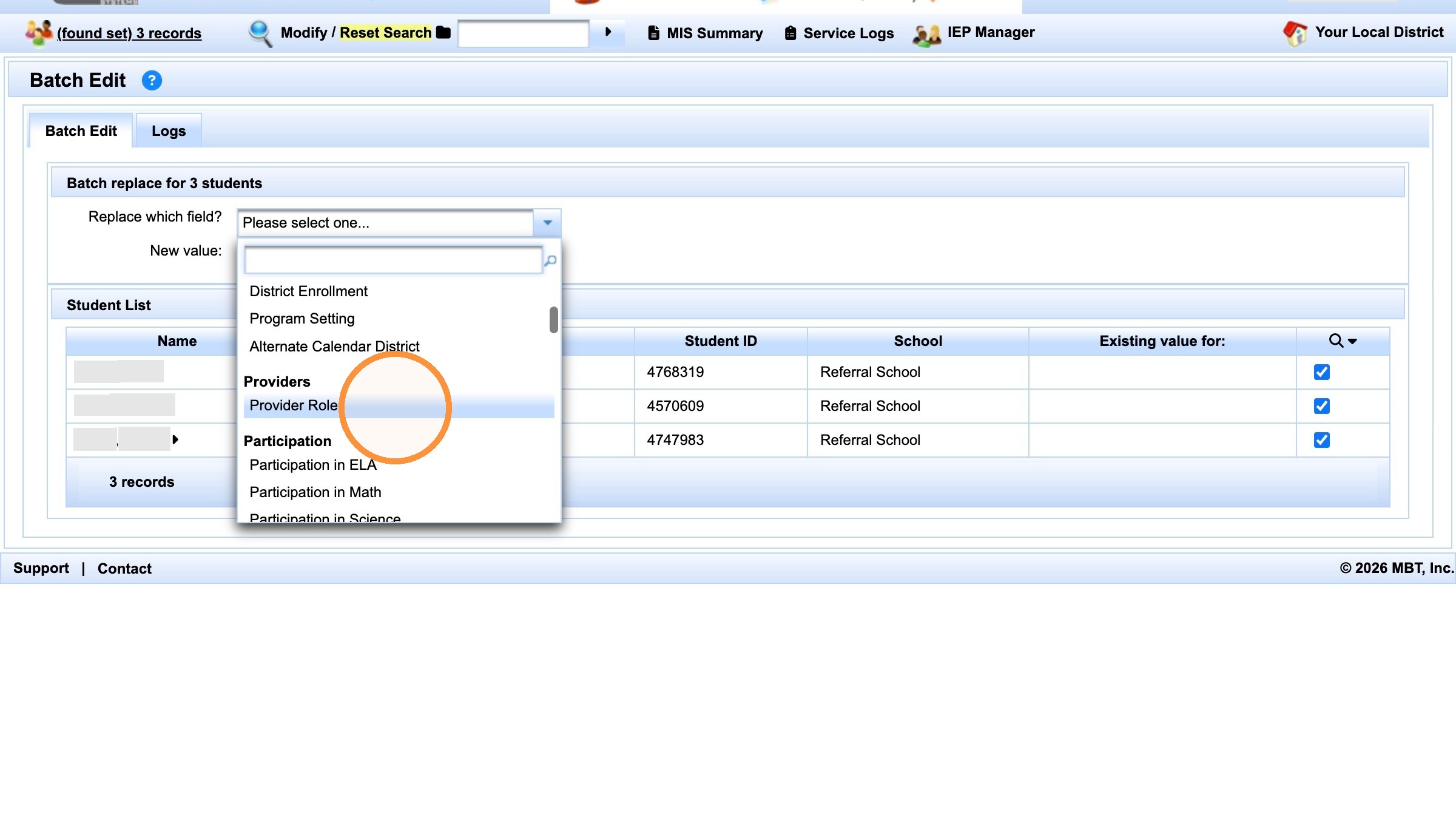
Select Provider Role.
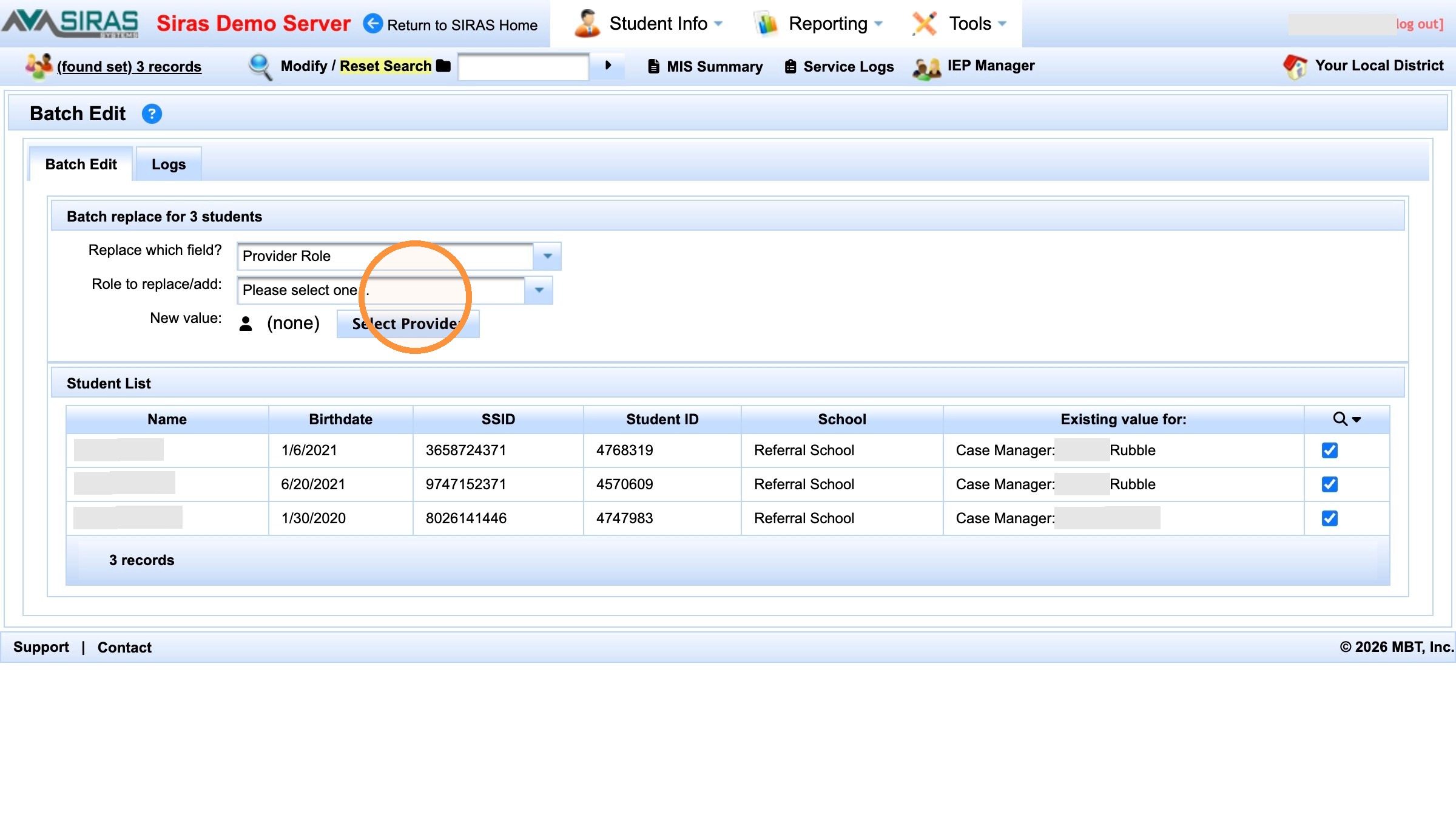
Open the provider-role list.
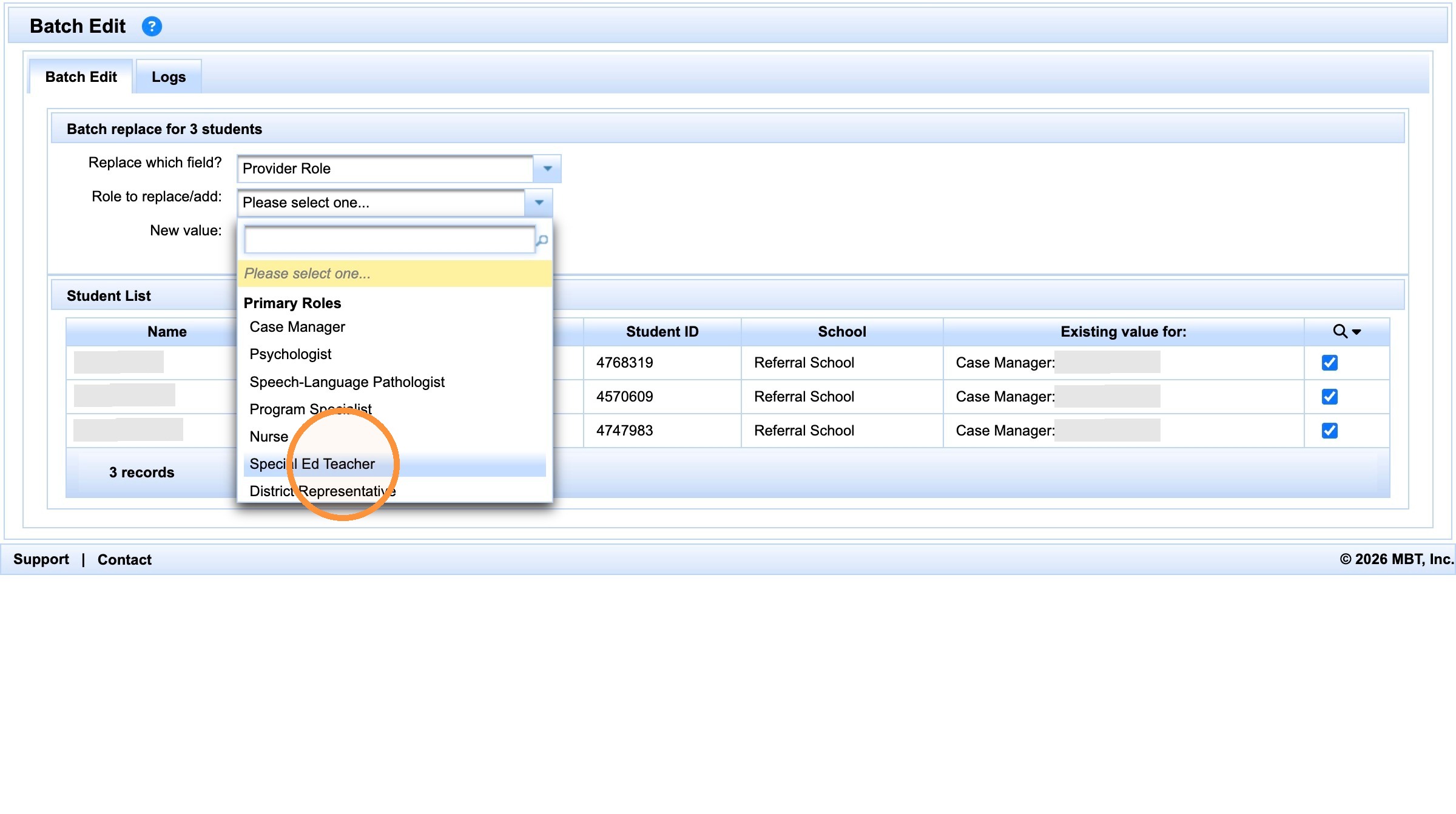
Select the provider role to assign.
Search for the provider
Select Select Provider, enter part of the person's name, and search.
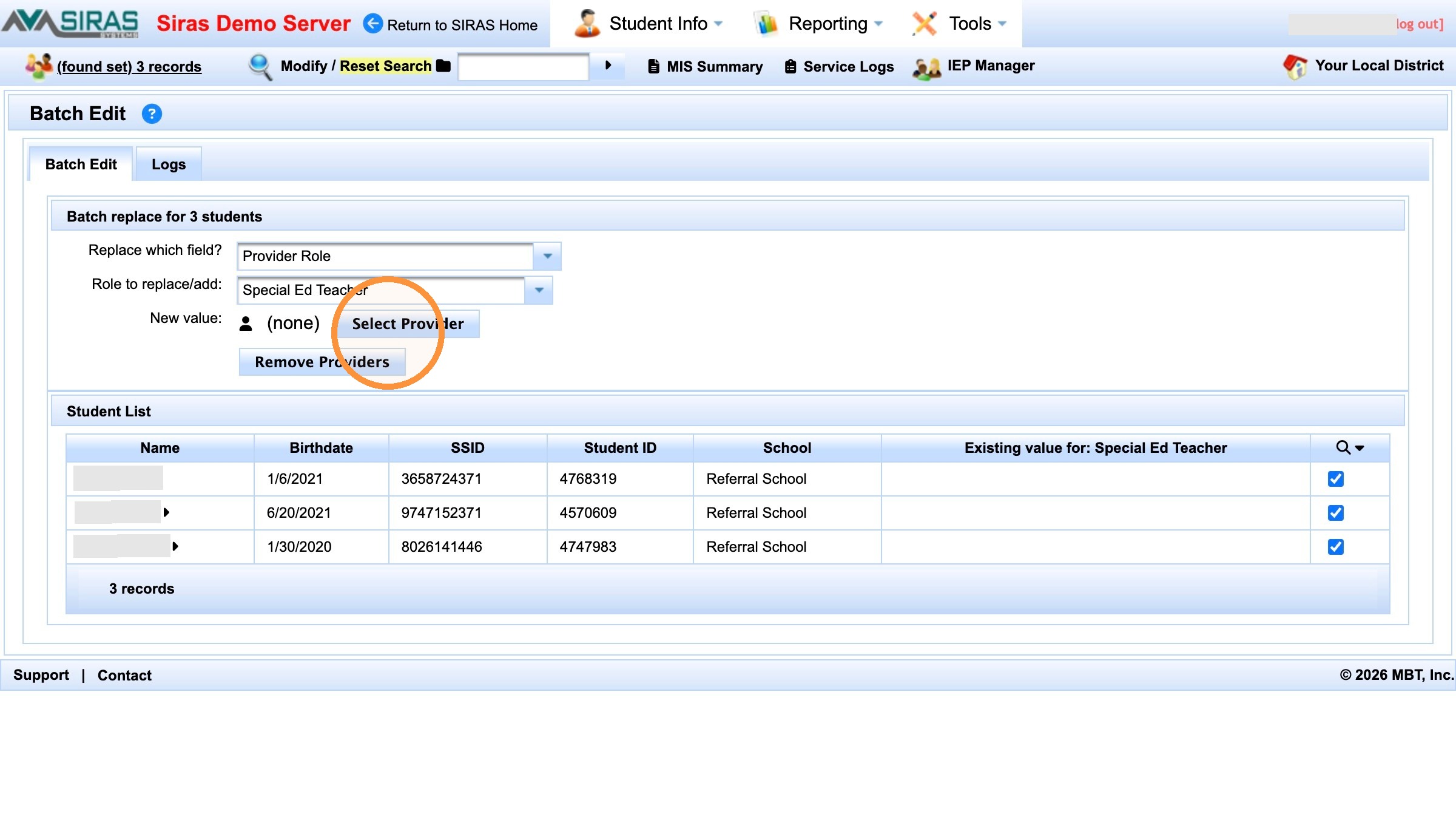
Open the provider selector.
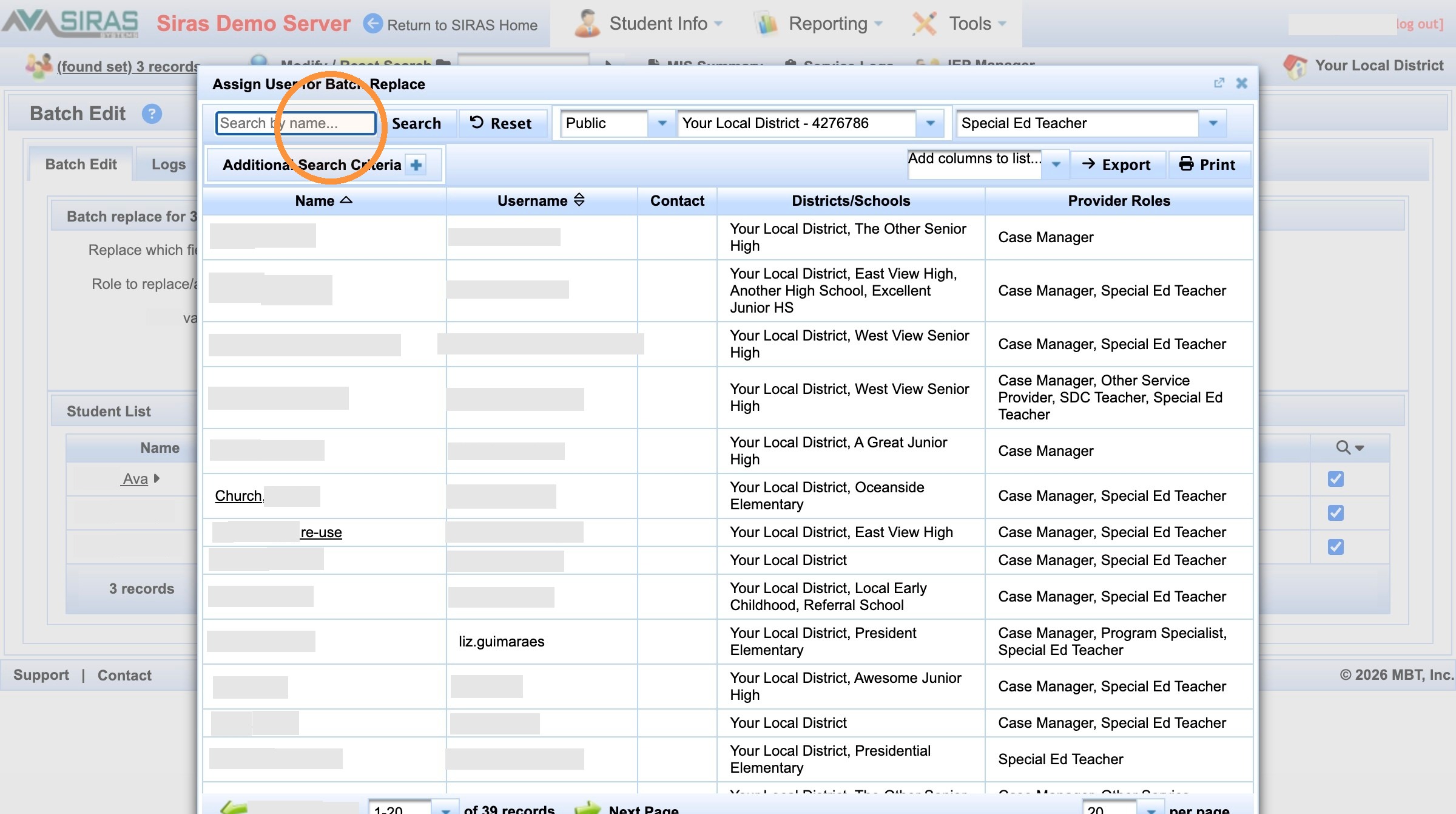
Enter part of the provider's name.
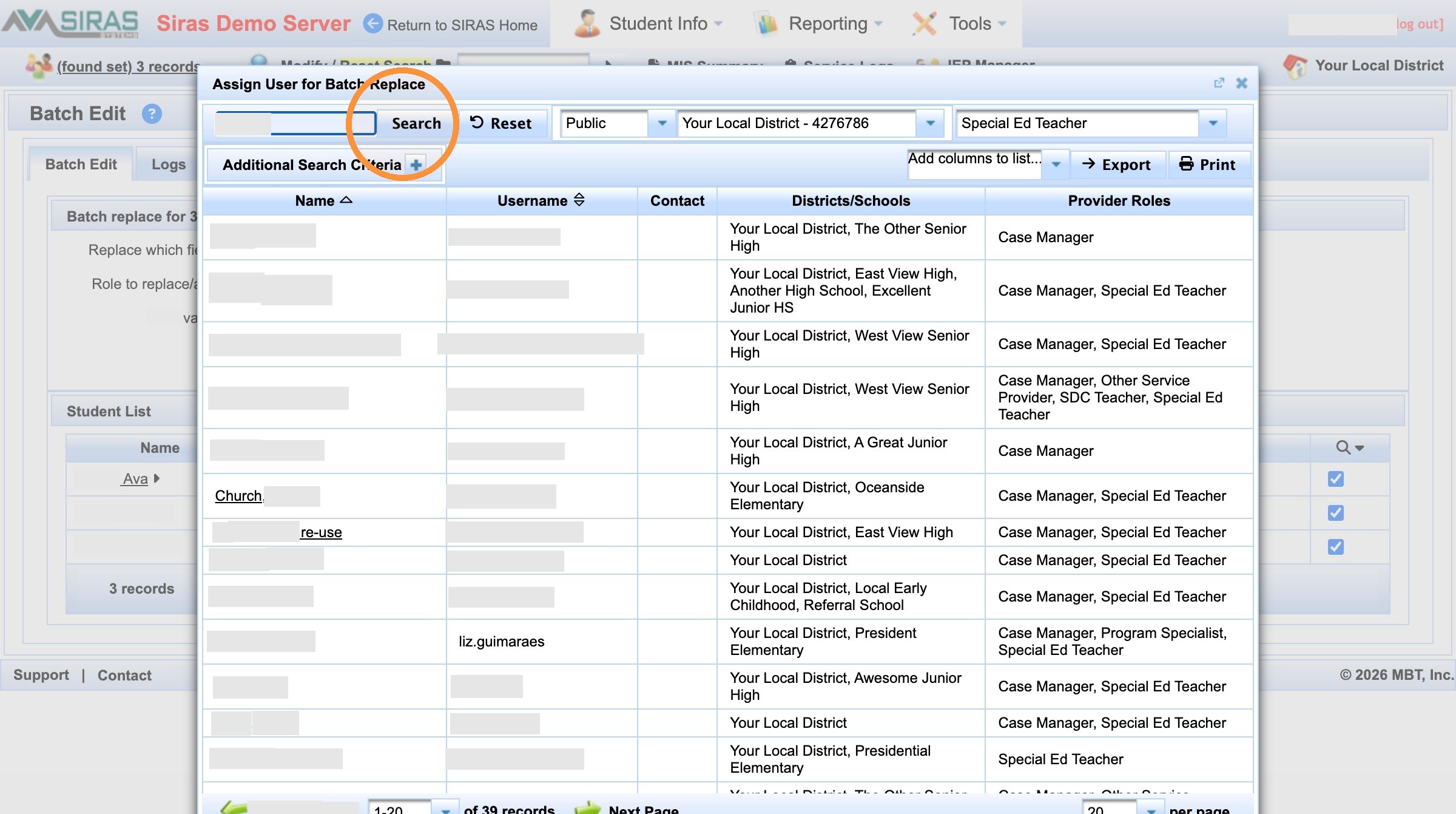
Run the provider search.
If the provider is not found, widen the role filter
If no result appears because the person has not previously been assigned in that provider role, change the role filter to Any Role and search again.
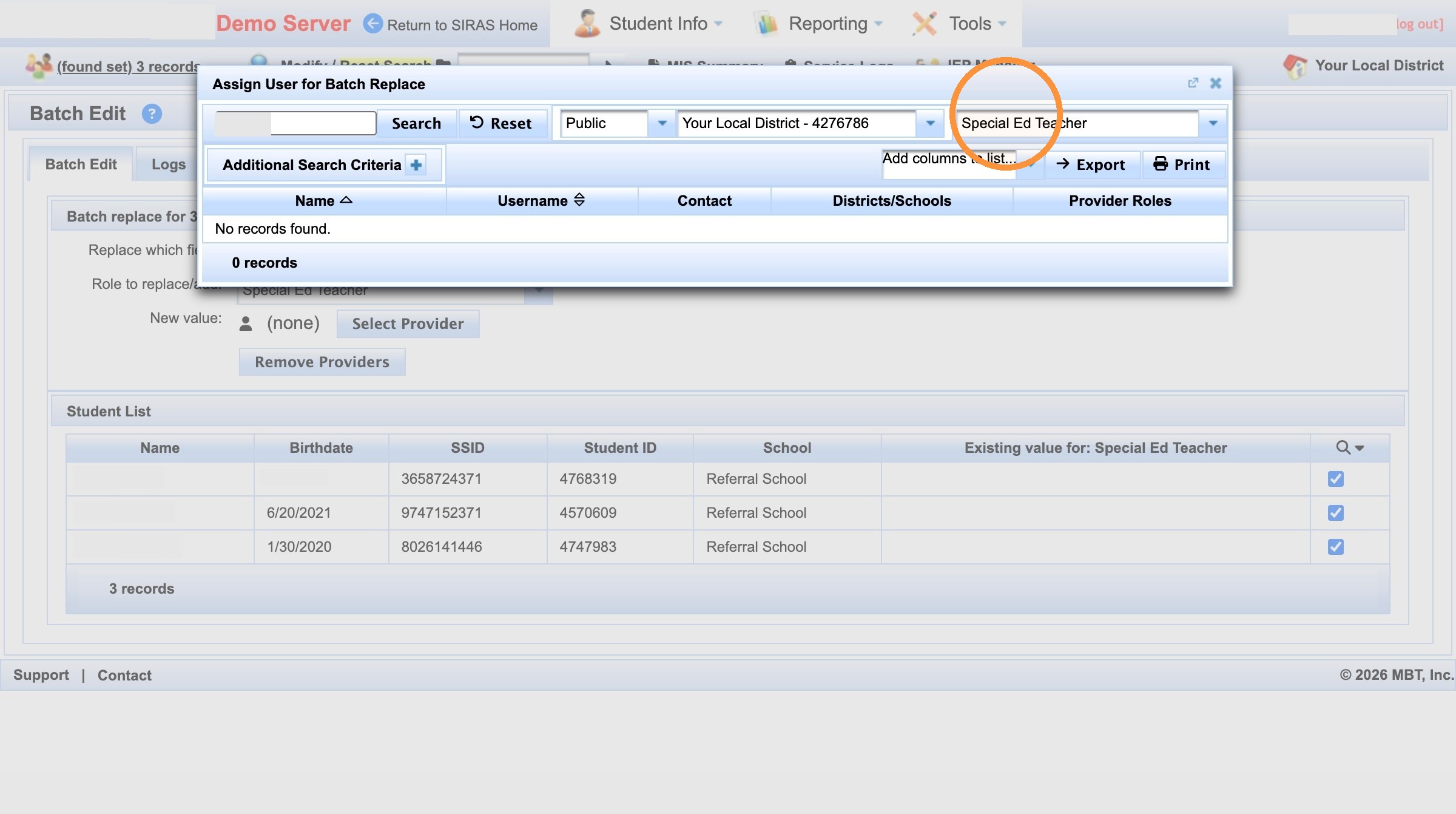
A role filter can hide a user who has not yet been assigned in that role.
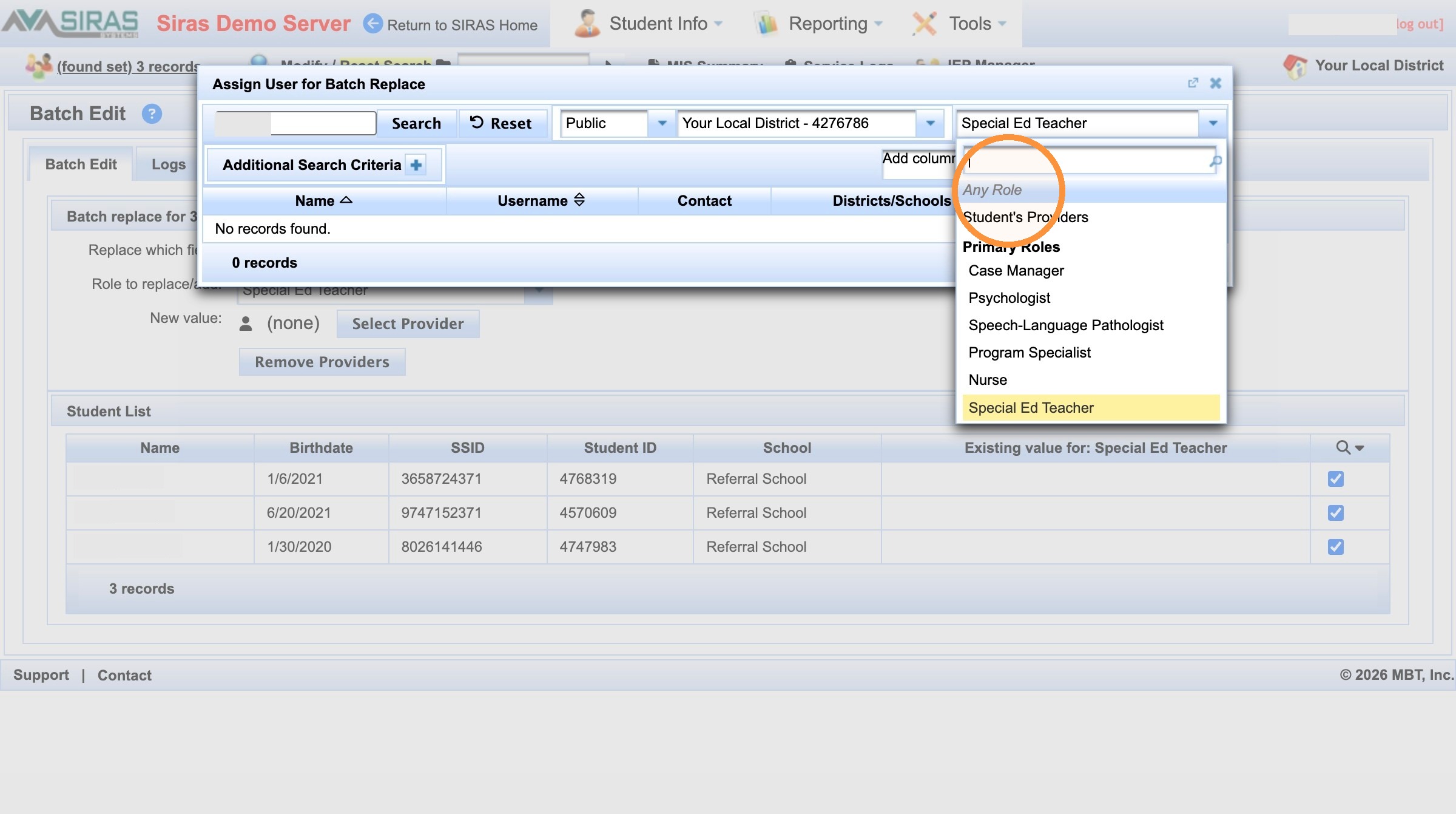
Use Any Role to widen the provider search.
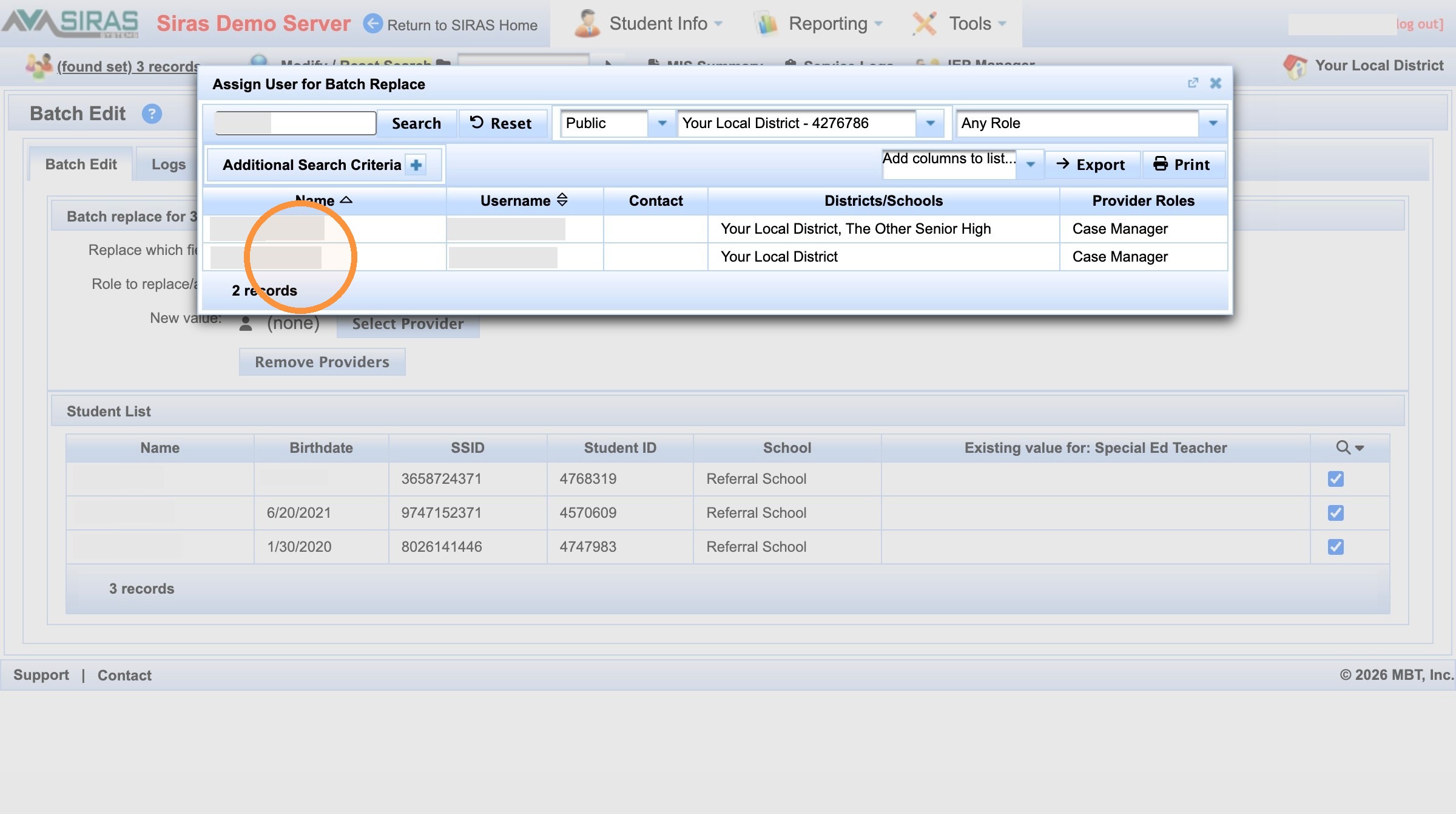
Select the correct user account when it appears.
Add Without Replacing
Choose Add Provider
When the goal is to preserve the provider already assigned in this role, choose Add Provider rather than Replace Provider. If no one is assigned yet, add and replace may produce the same visible result for that first assignment, but choose the action that matches your intent.
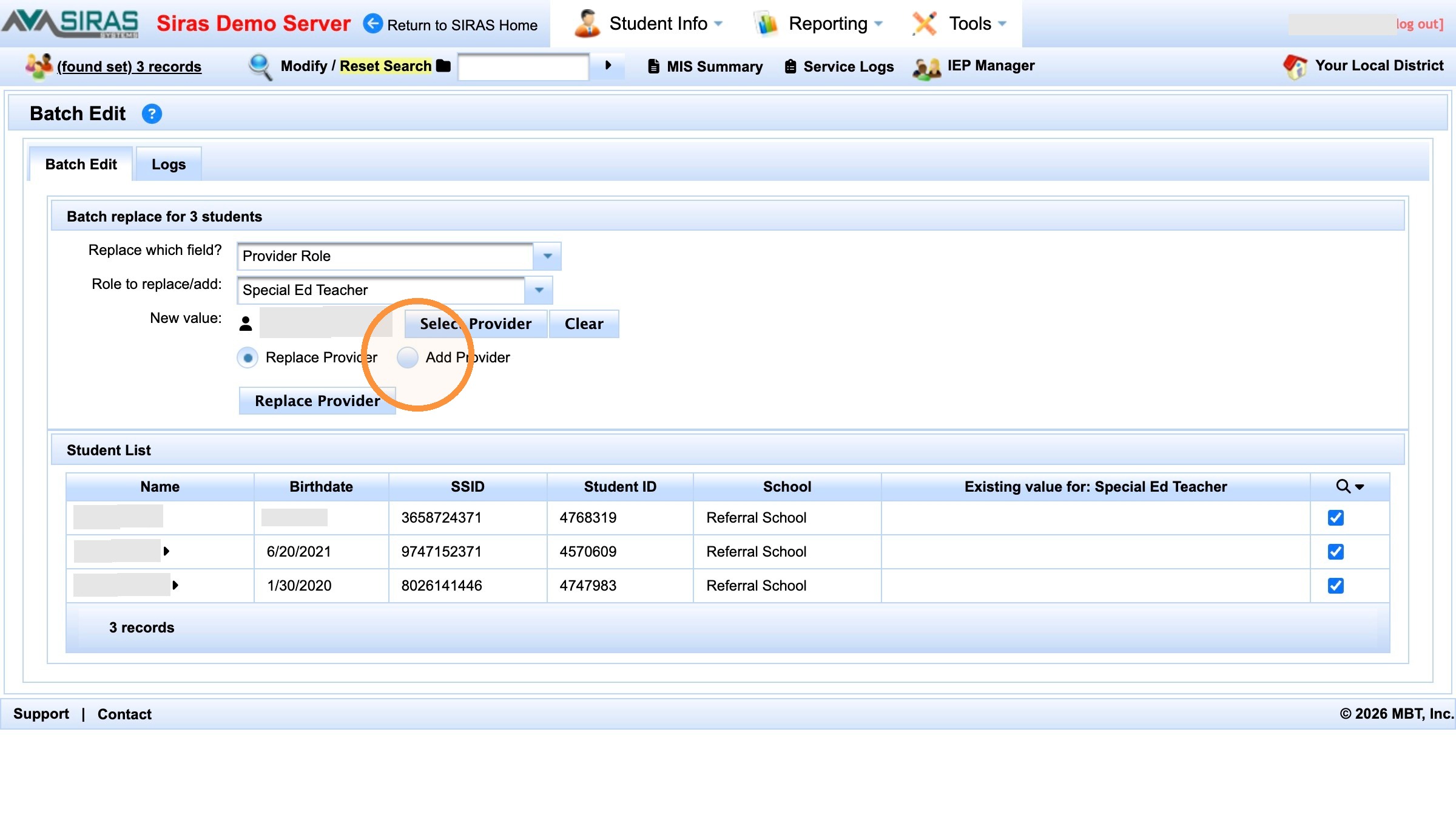
Choose Add Provider when the existing assignment must remain.
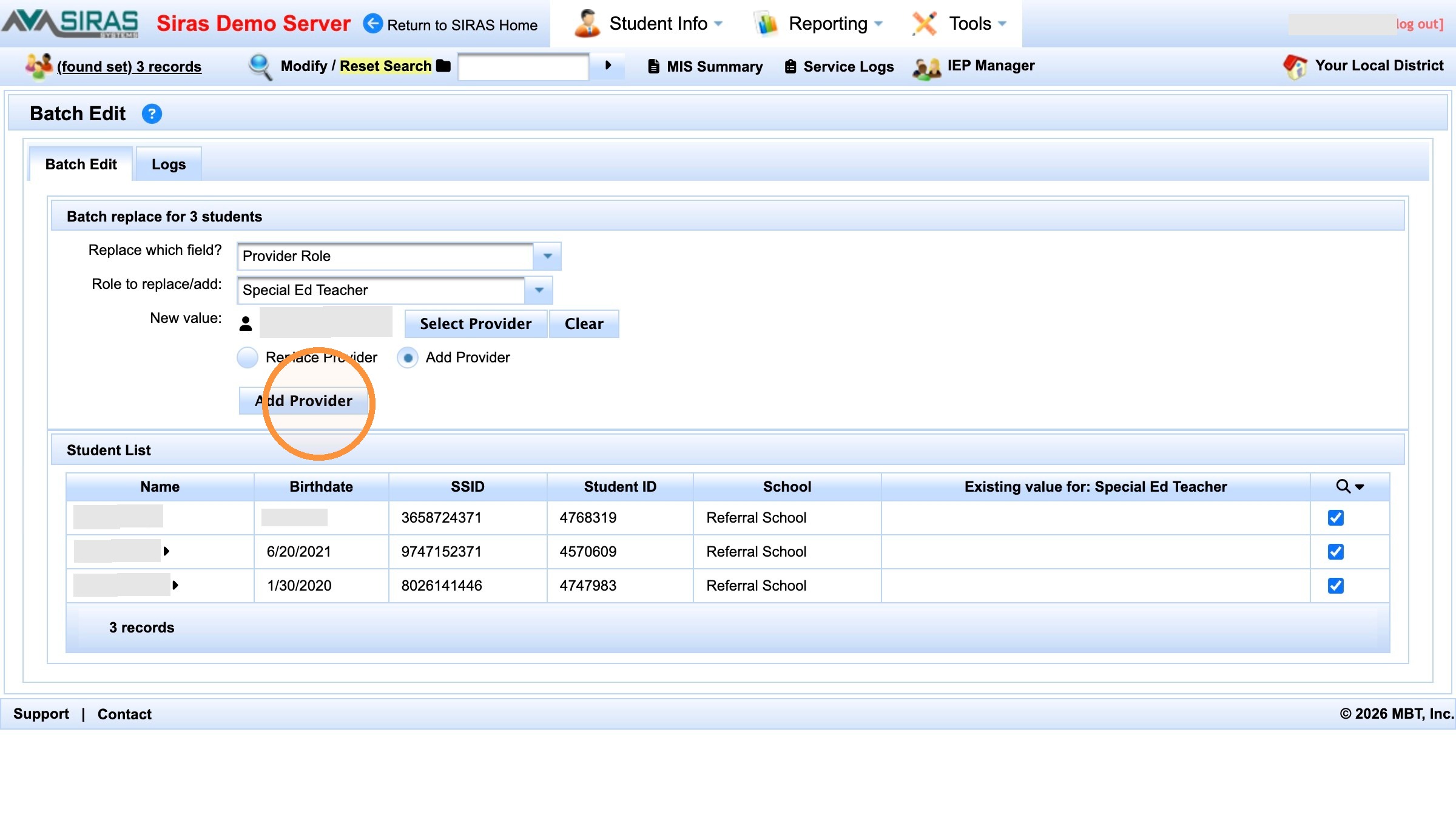
Apply the Add Provider batch action.
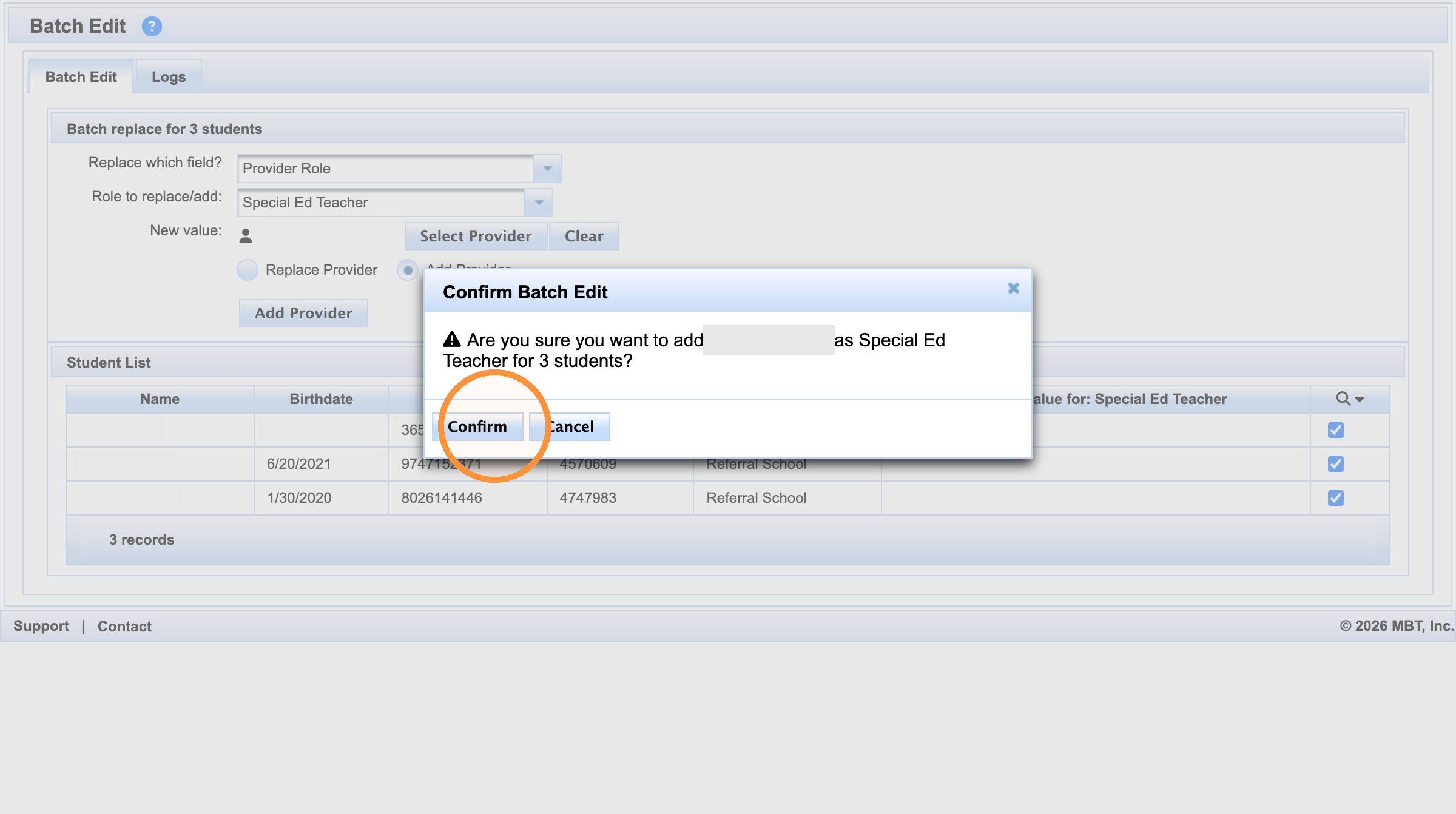
Confirm the add action after verifying the group and provider.
Check a student after the first add
Open a student from the group and confirm the provider was added.
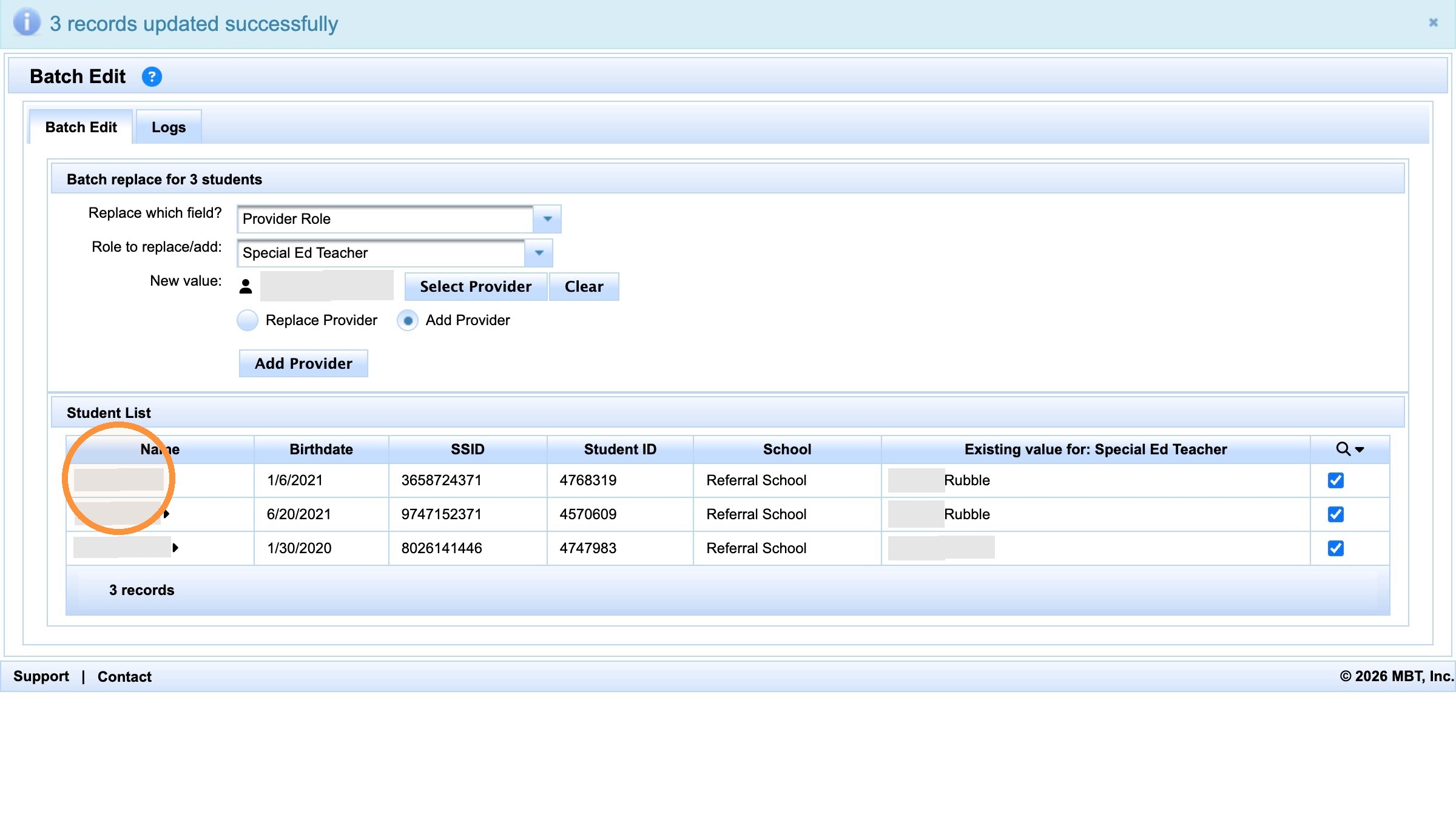
Open a student from the updated group.
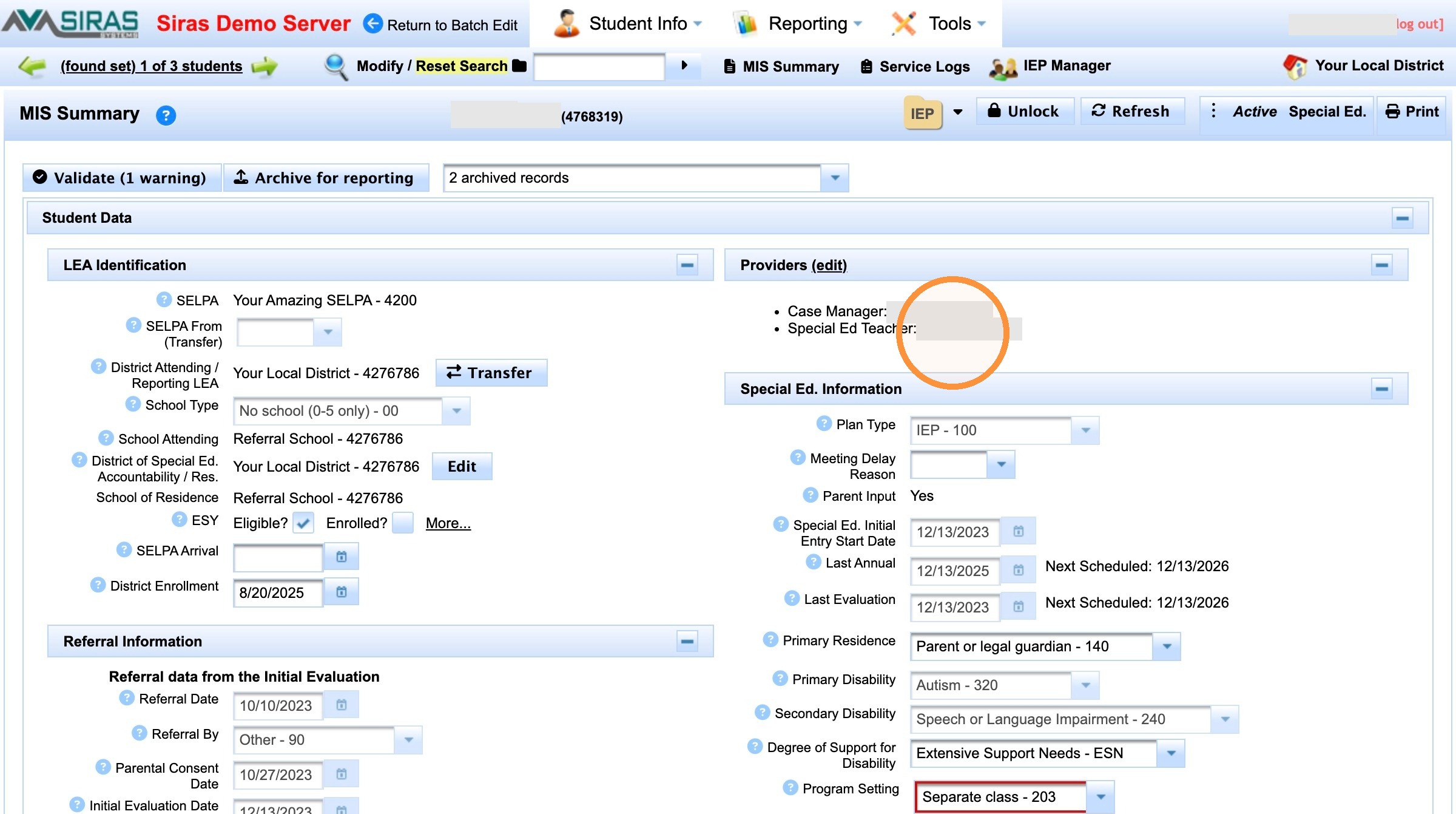
Verify the provider now appears on the student record.
Add Another Provider / Broaden Search
Repeat Batch Edit for another provider when needed
Return to Tools → Batch Edit, choose Select Provider, and search for the next provider.
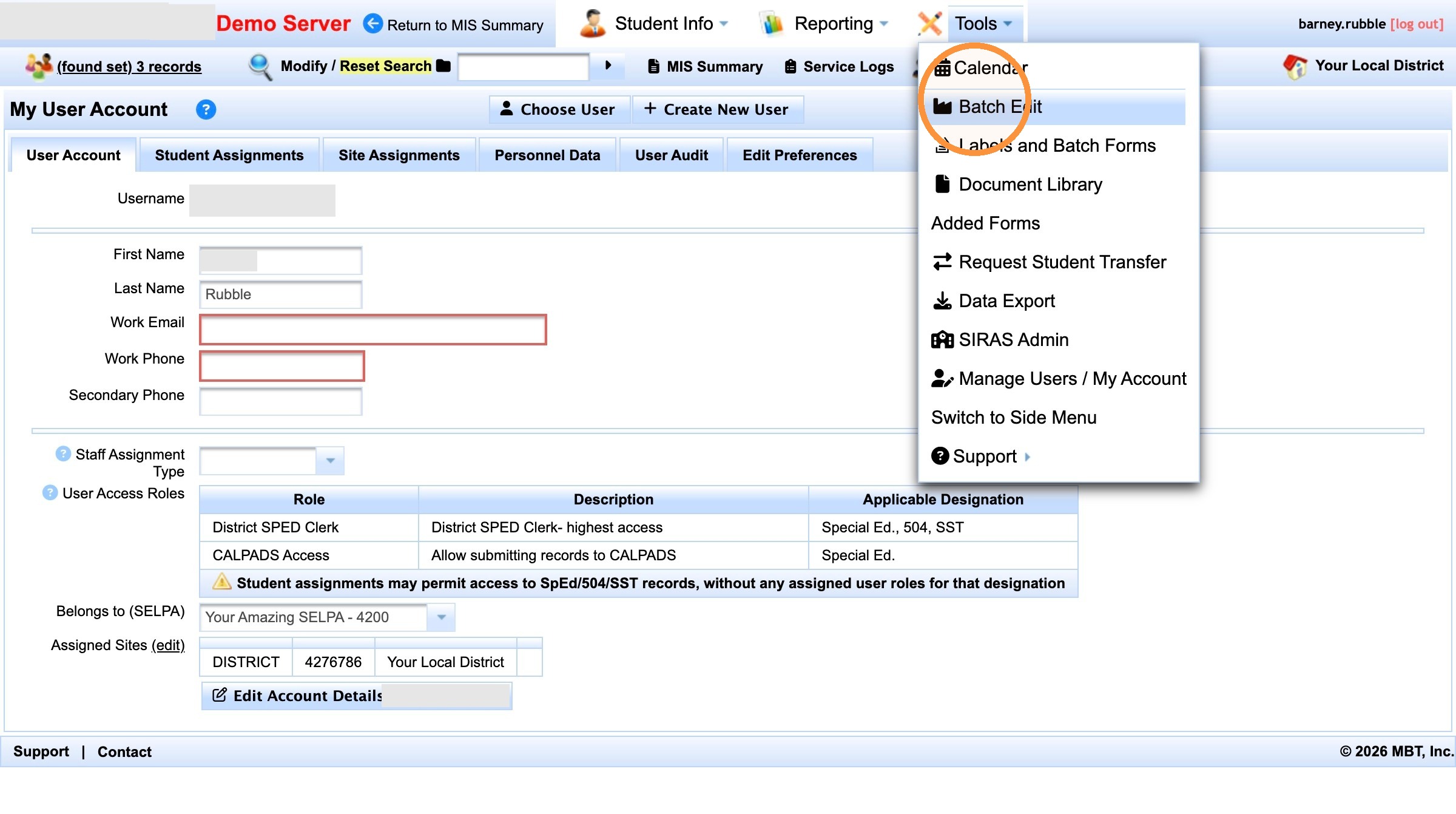
Return to Batch Edit for the next provider.
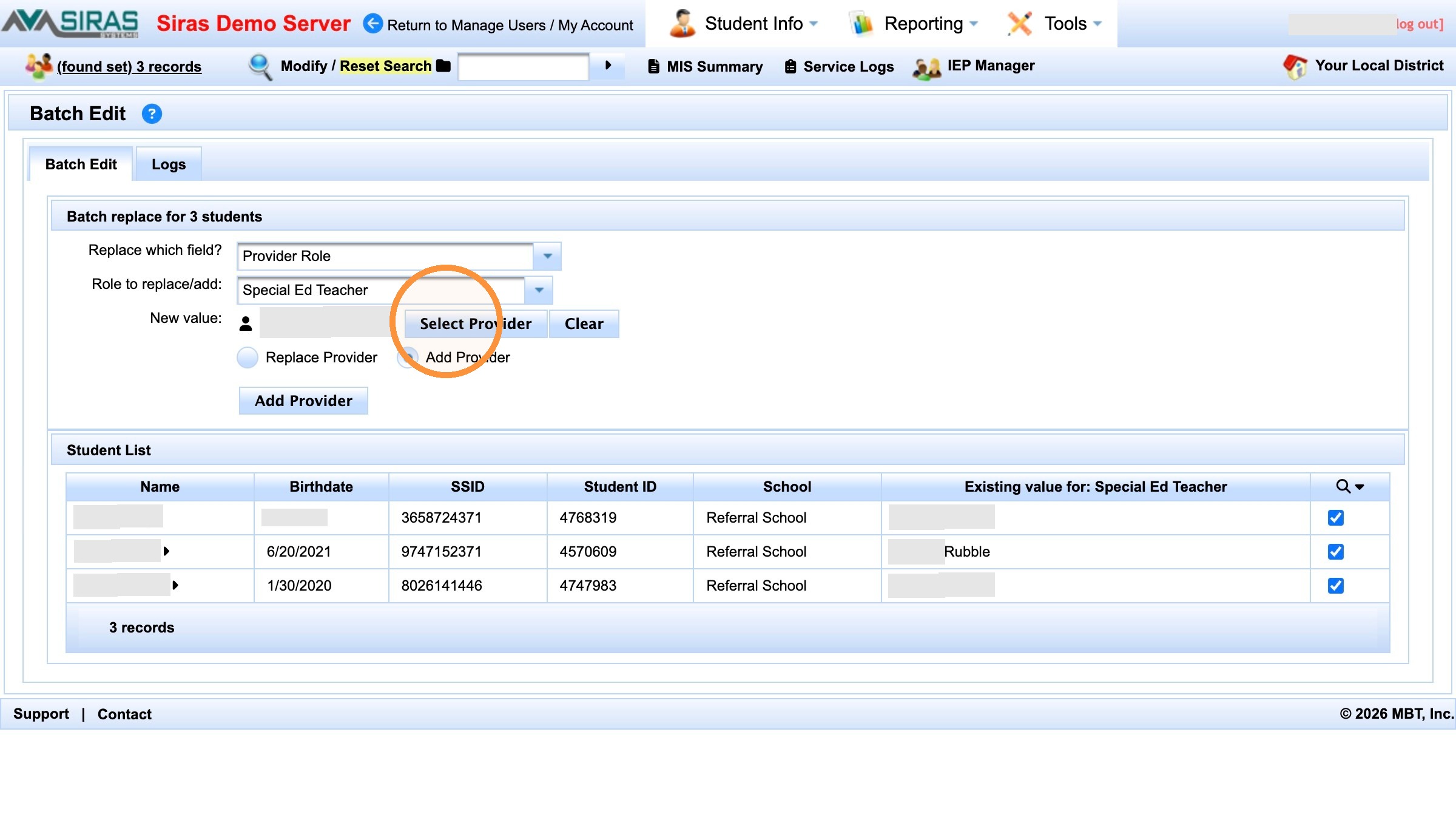
Open the provider selector again.
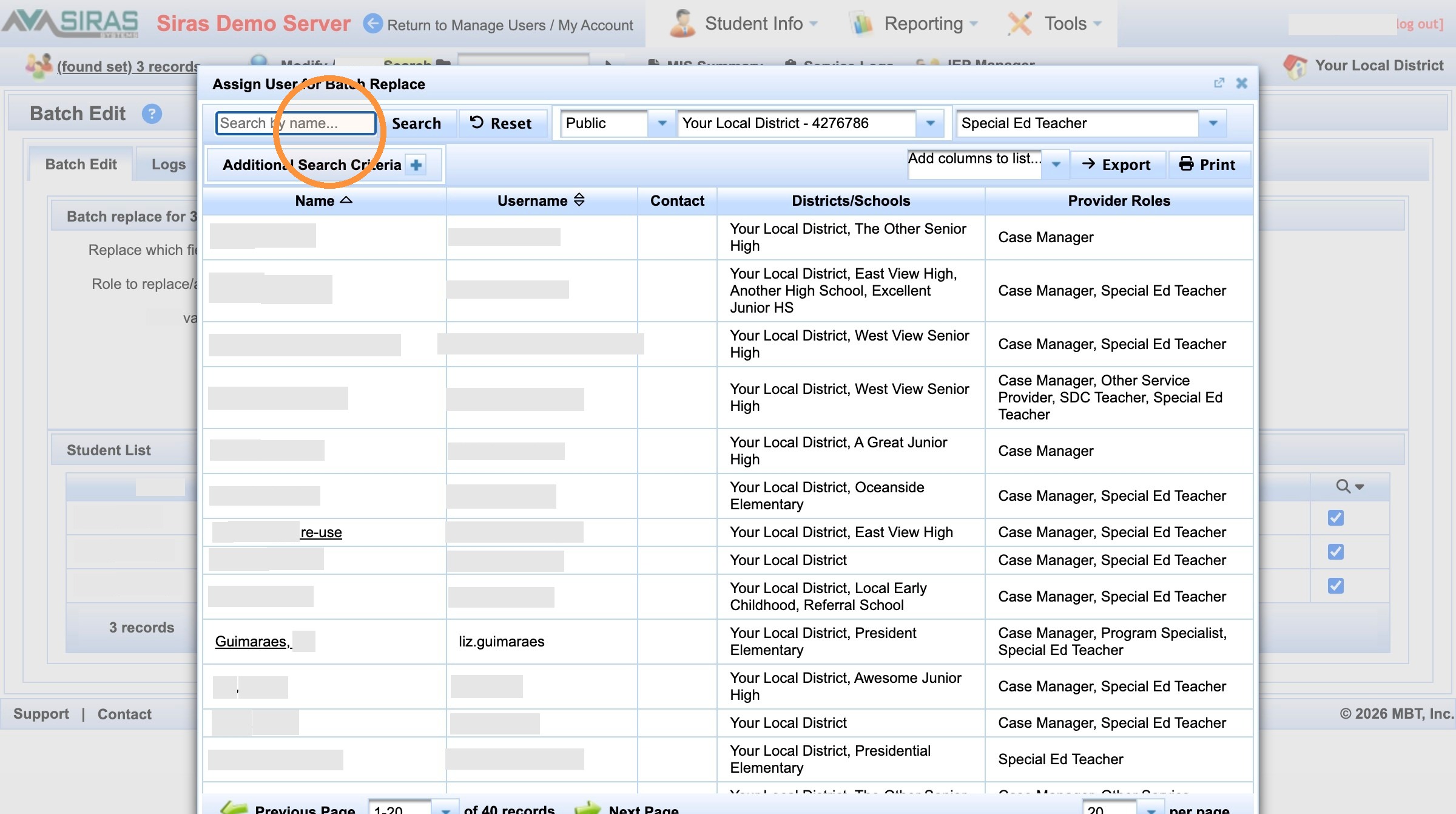
Search for the next provider.
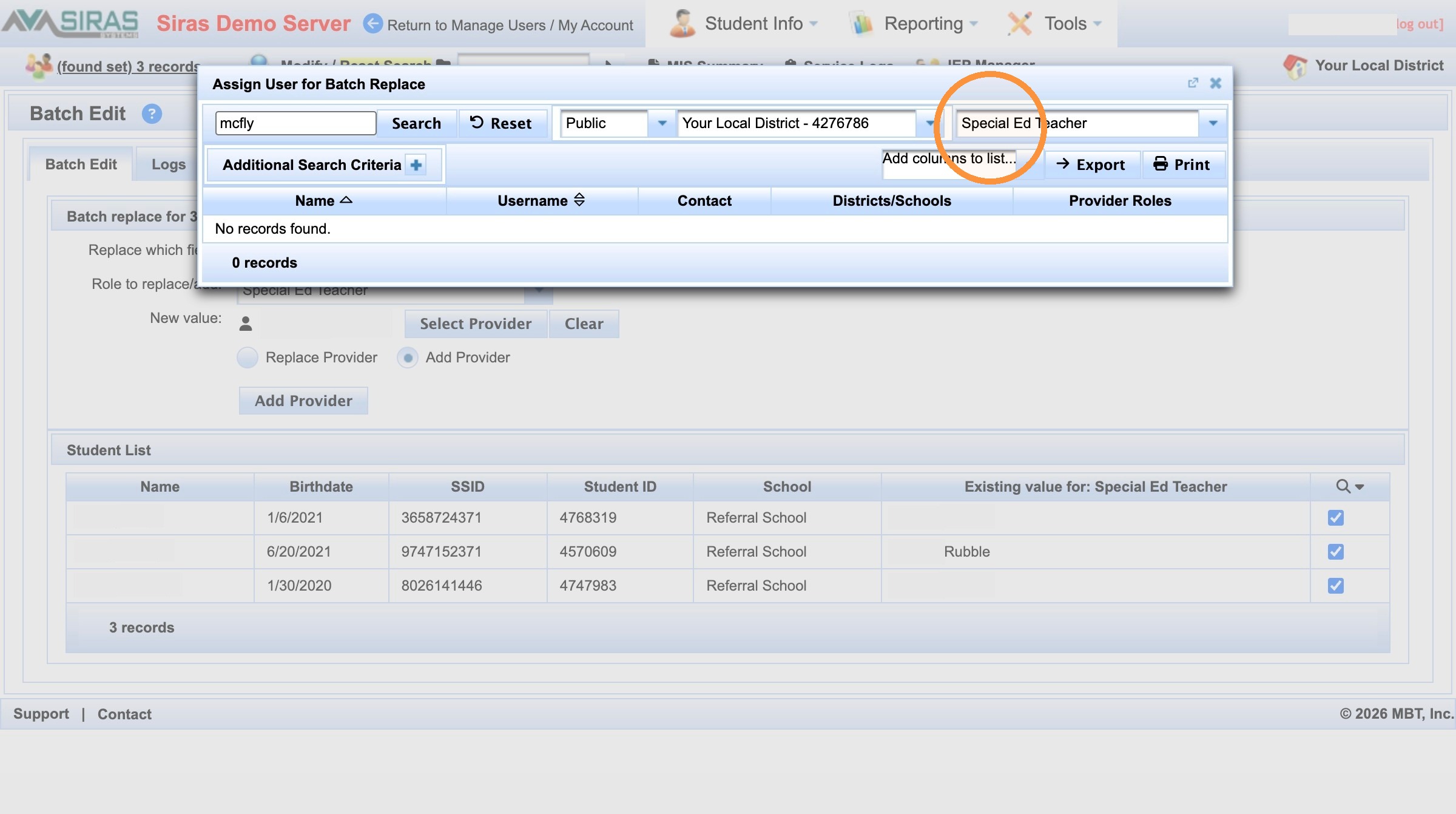
The current role filter may still limit results.
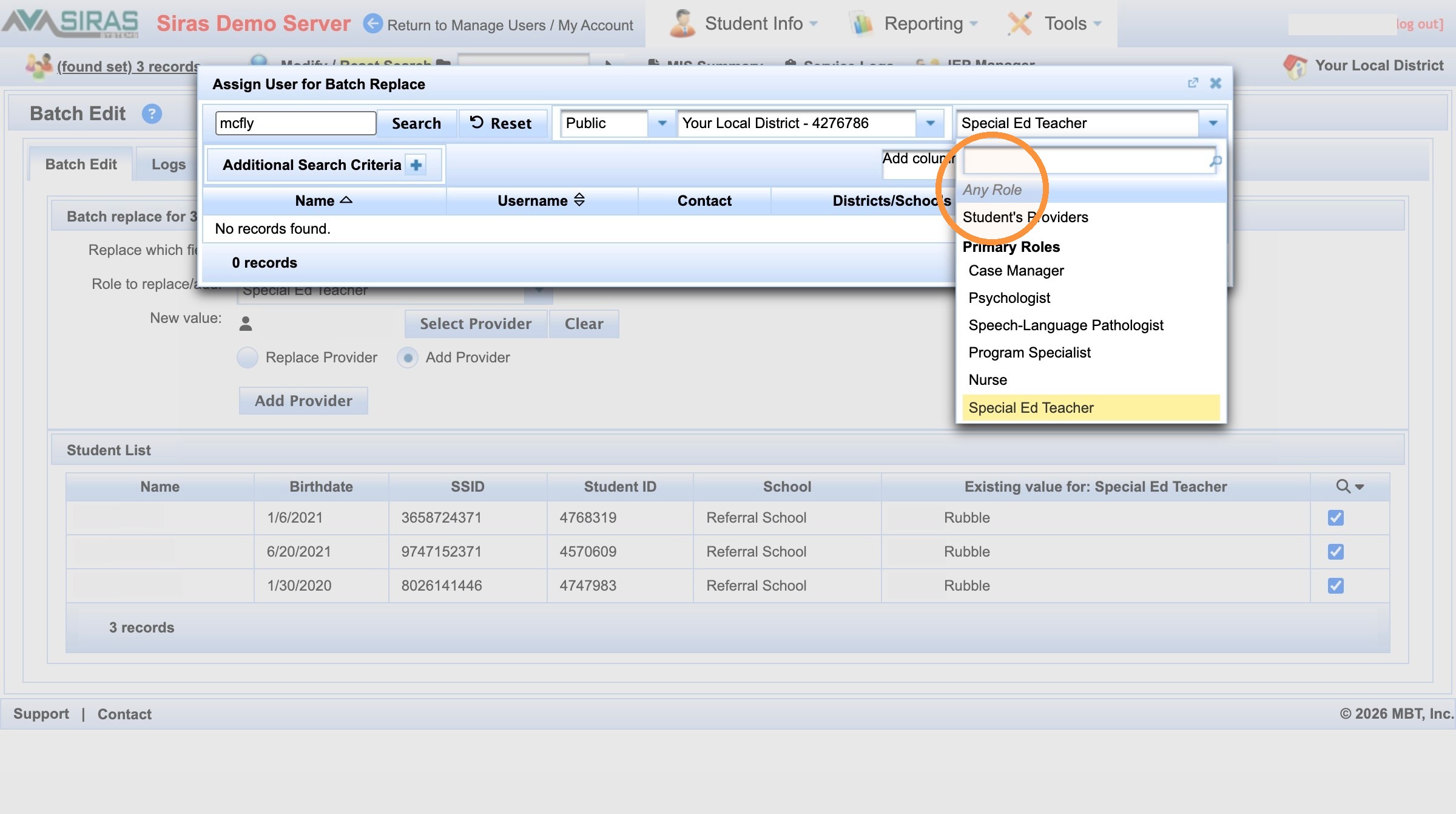
Use Any Role when the provider is not found under the selected role.
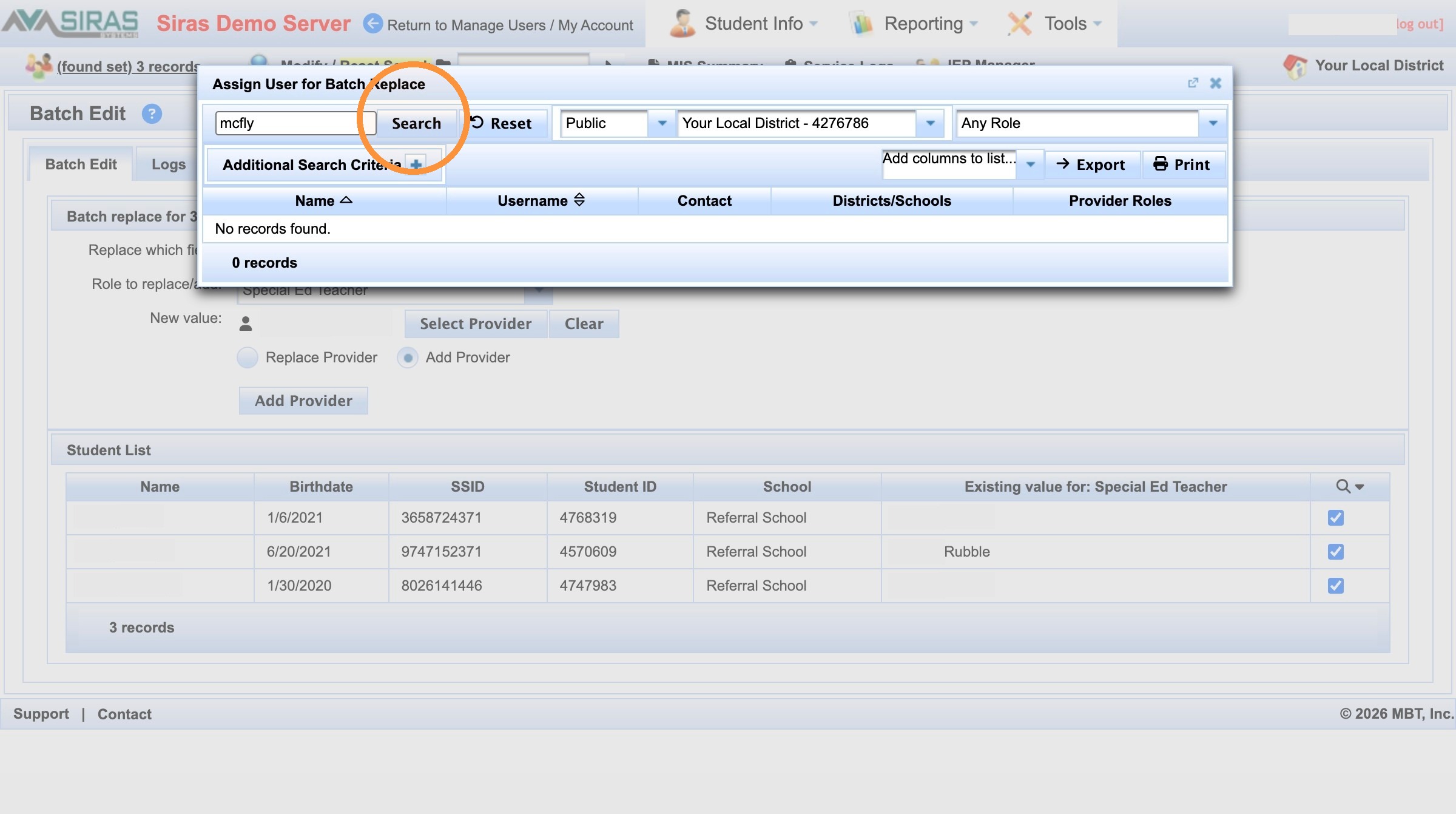
If no results appear, consider whether the account is outside the local district filter.
If needed, widen the organization filter
If the provider may belong to another district within the SELPA, widen the organization filter from the local district to the applicable SELPA-level option, then search again.
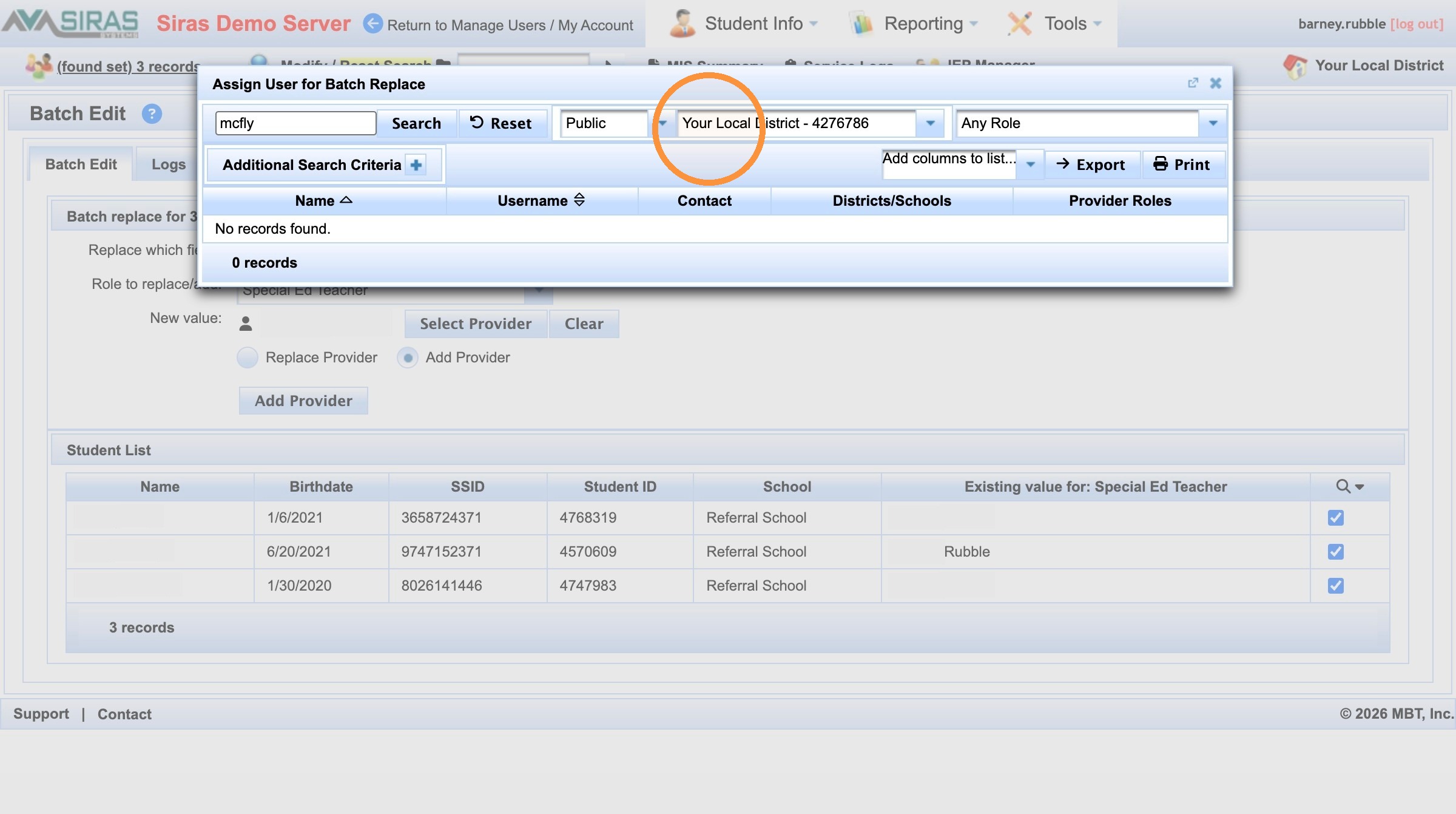
The local district filter can limit which user accounts appear.
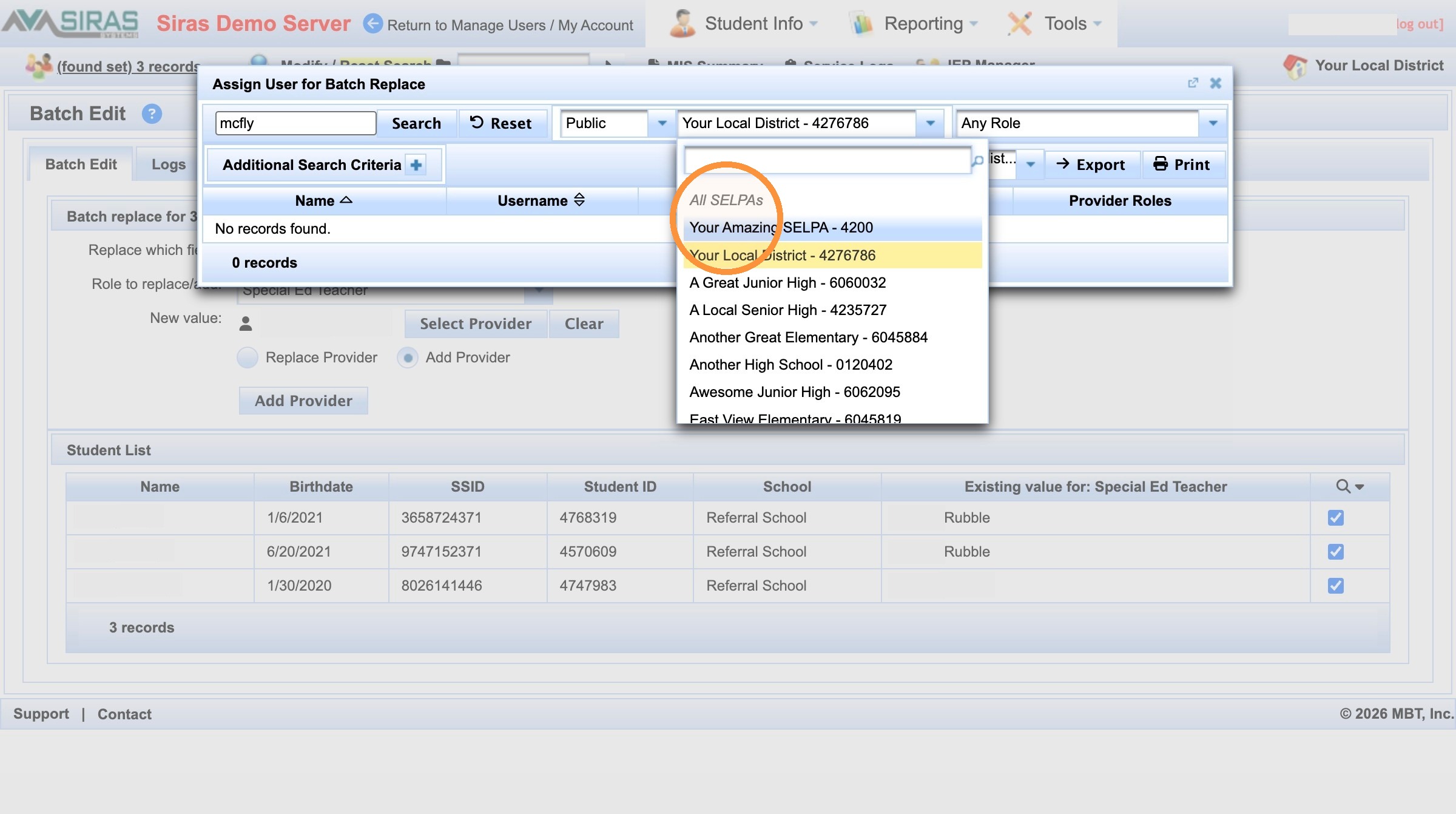
Widen to the applicable SELPA filter when appropriate.
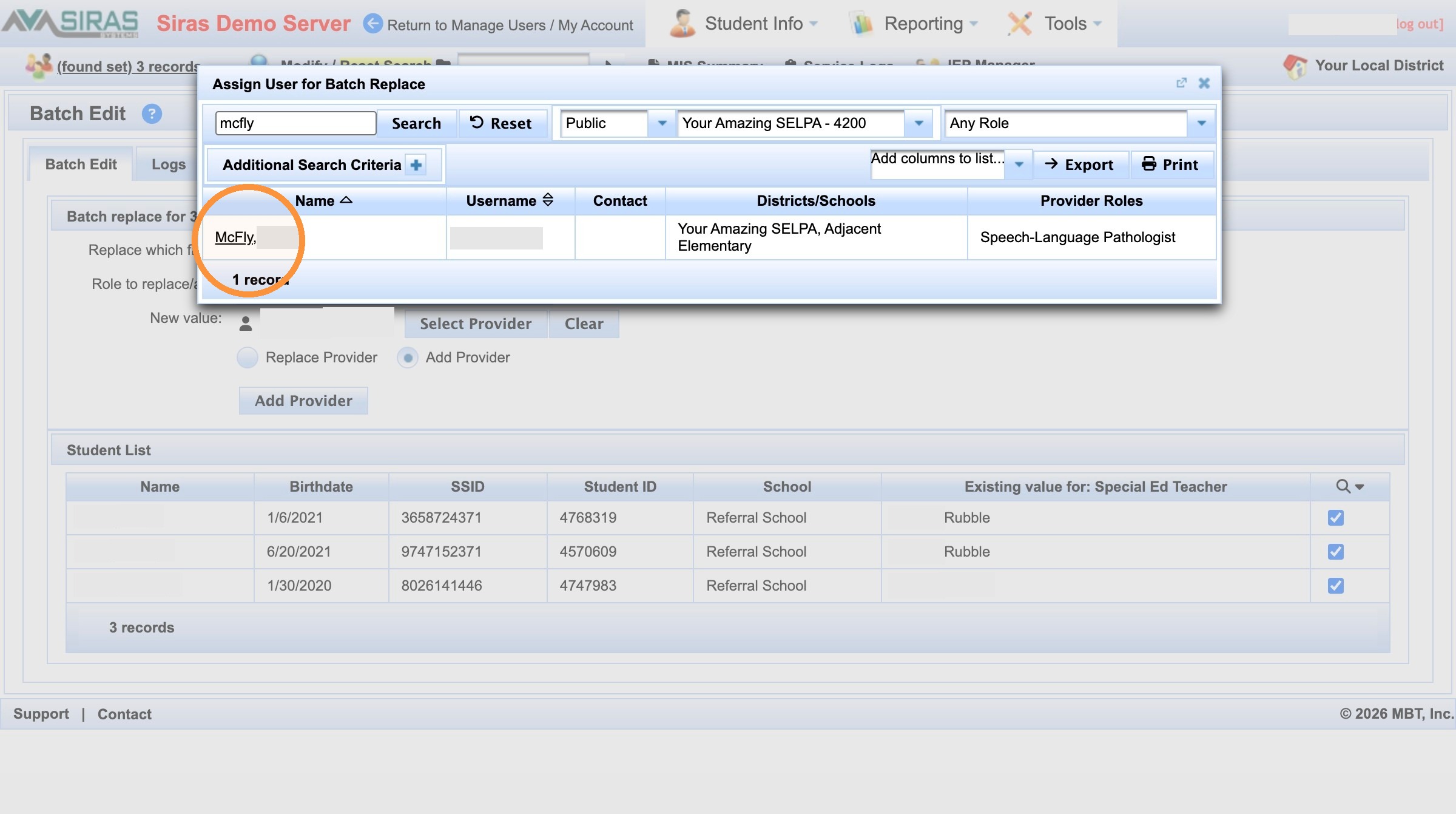
Select the correct provider account.
Confirm Add Provider, not replacement
Change the action to Add Provider. Before applying it, notice that the students already have a Special Ed Teacher assigned. The purpose of this action is to add another provider in the same role without removing the first.
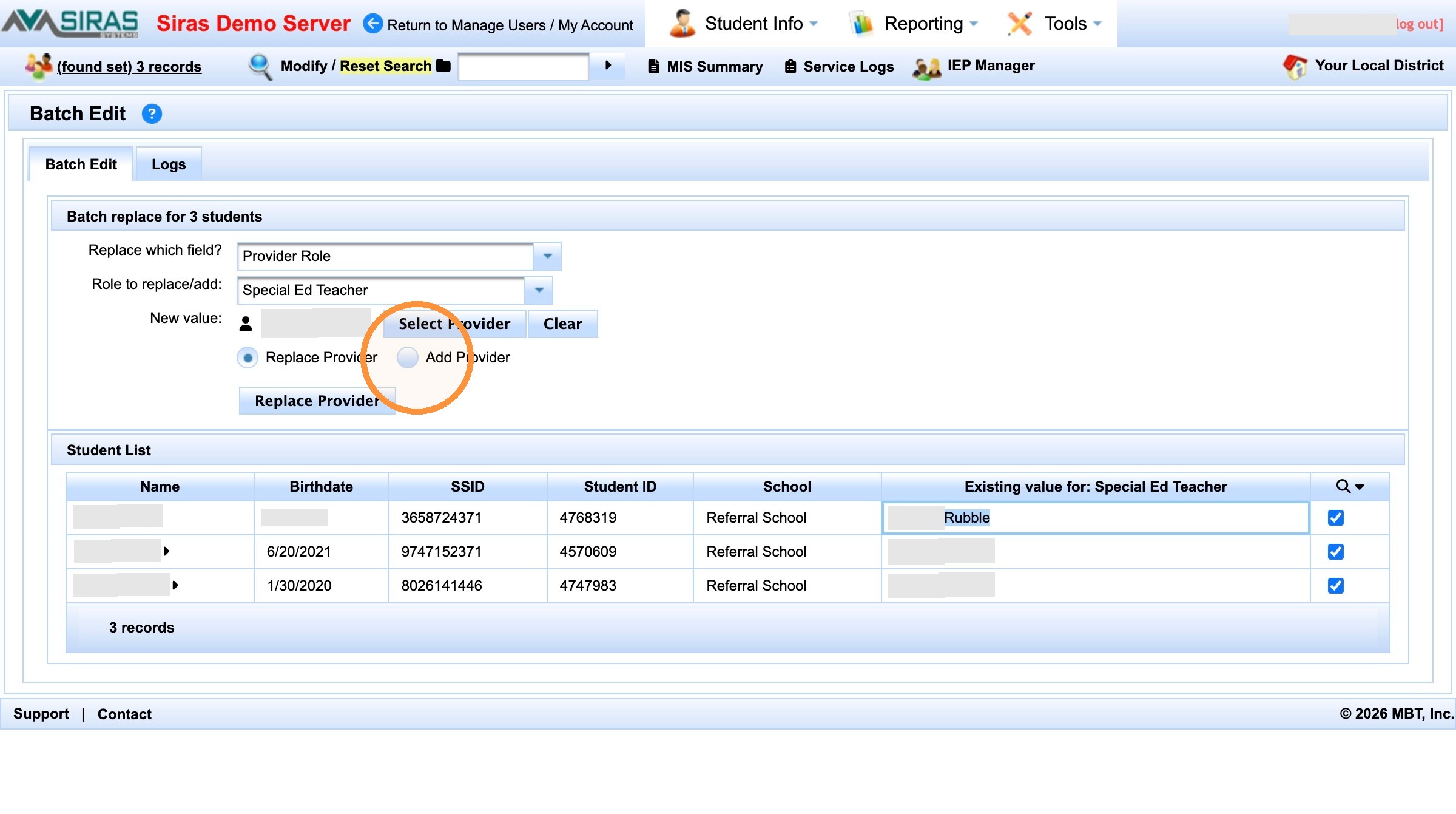
Choose Add Provider for the second provider.
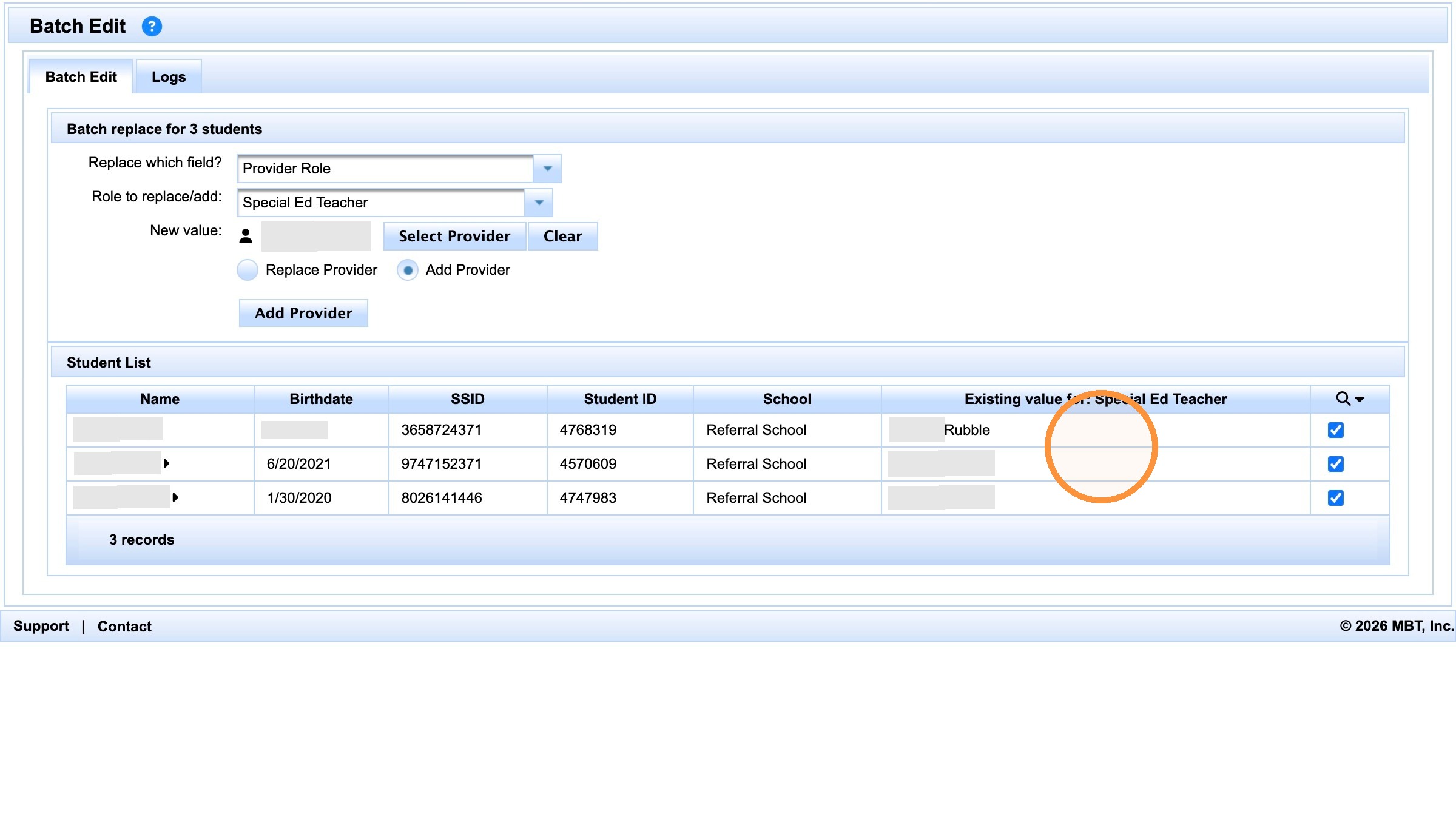
Verify an existing provider is already assigned.
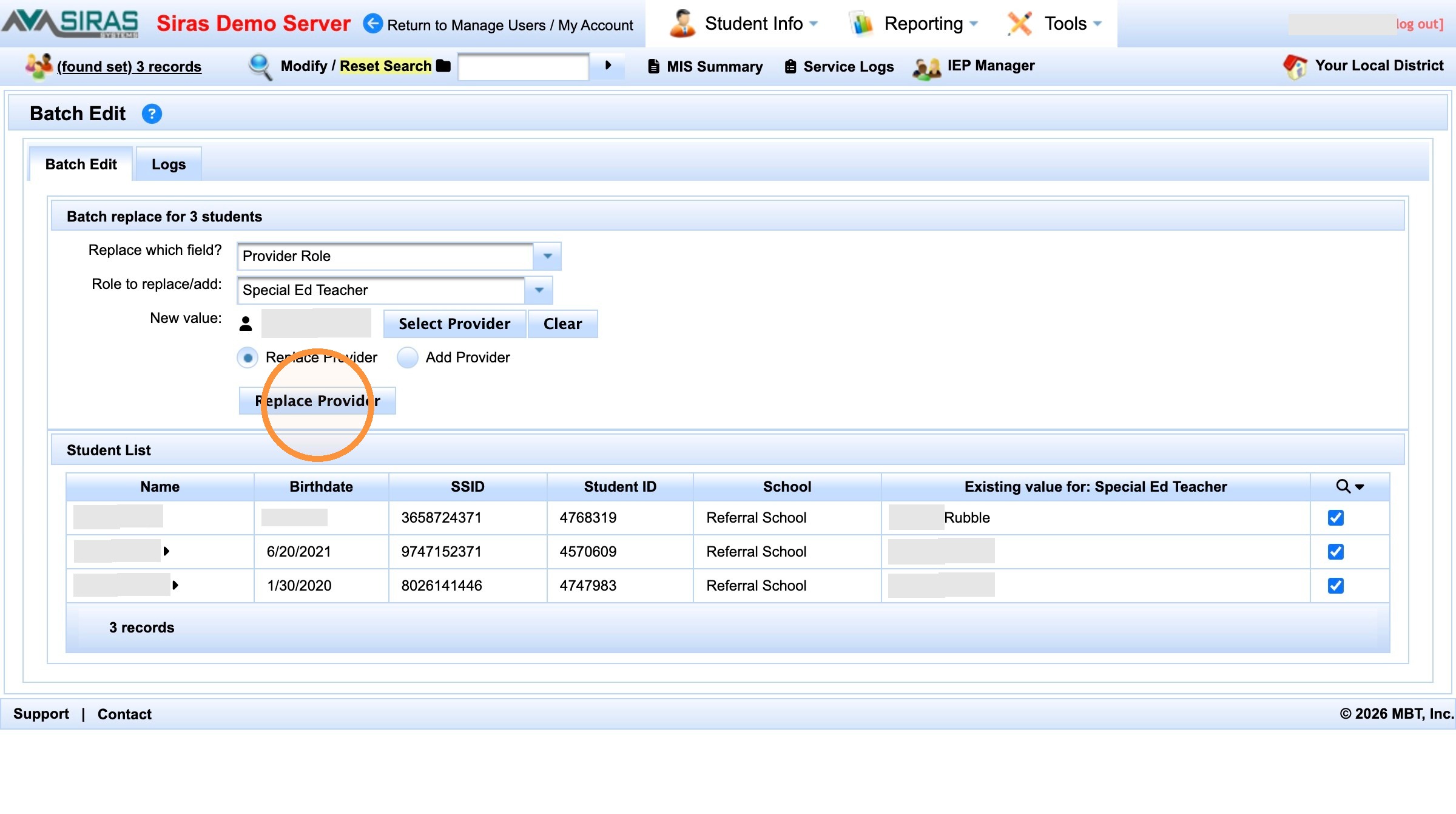
Even if the action button uses replacement wording, verify that Add Provider is the selected action before proceeding.
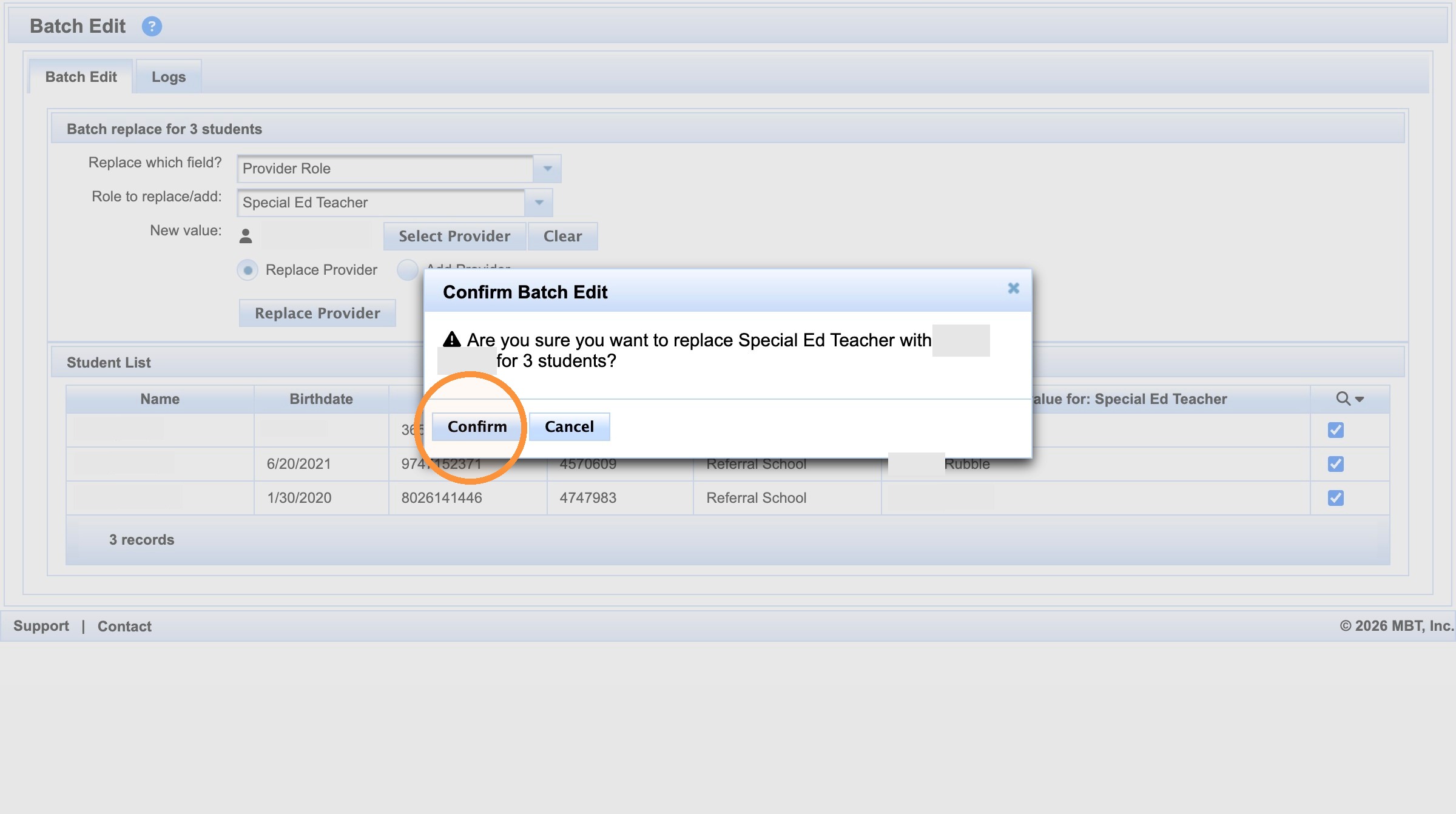
Confirm after verifying the selected action and provider.
Verify the Result
Verify both provider assignments
Open a student record, review the MIS Summary/provider area, and move through the updated records to confirm both providers are assigned as intended.
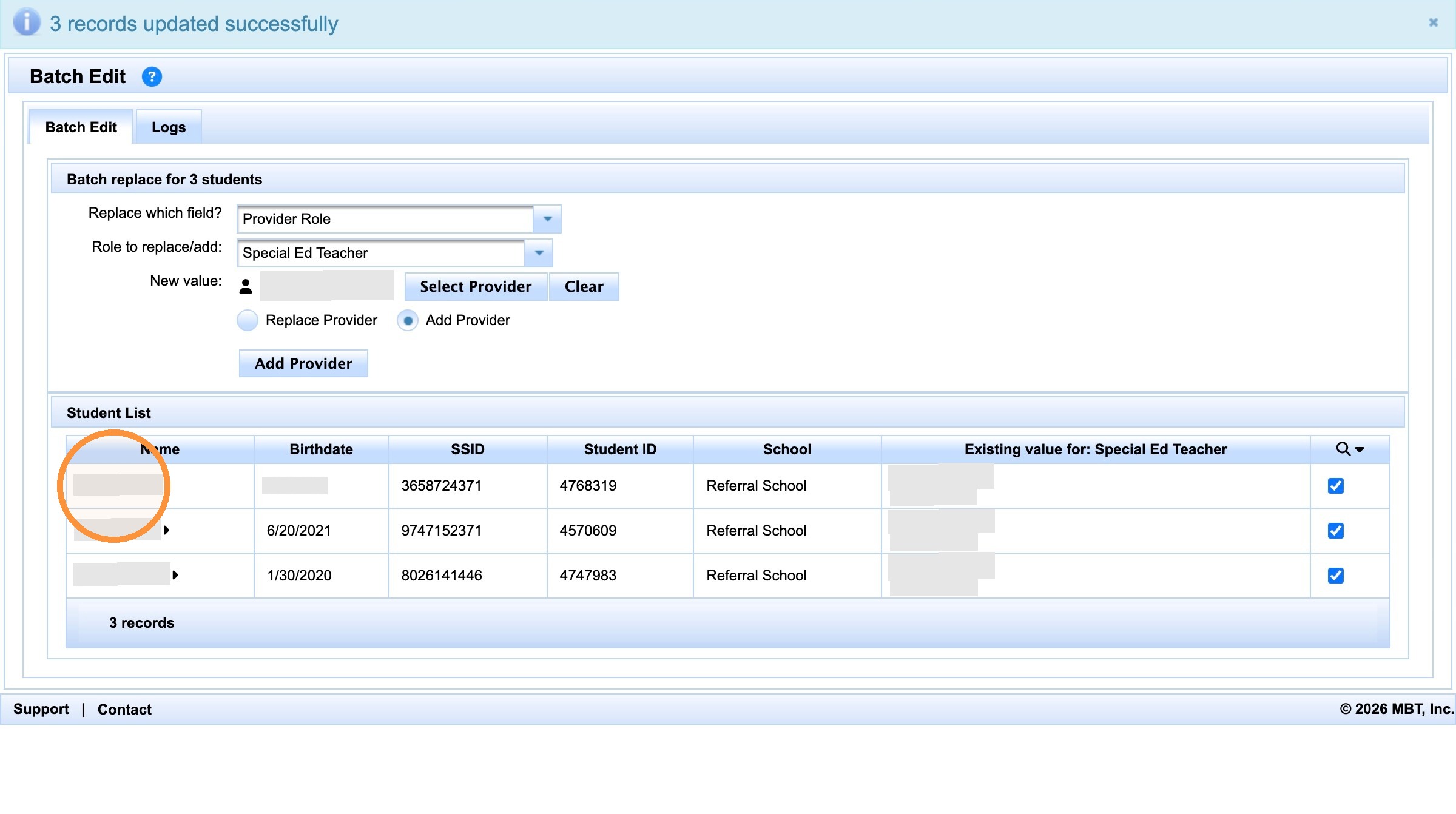
Open a student from the updated group.
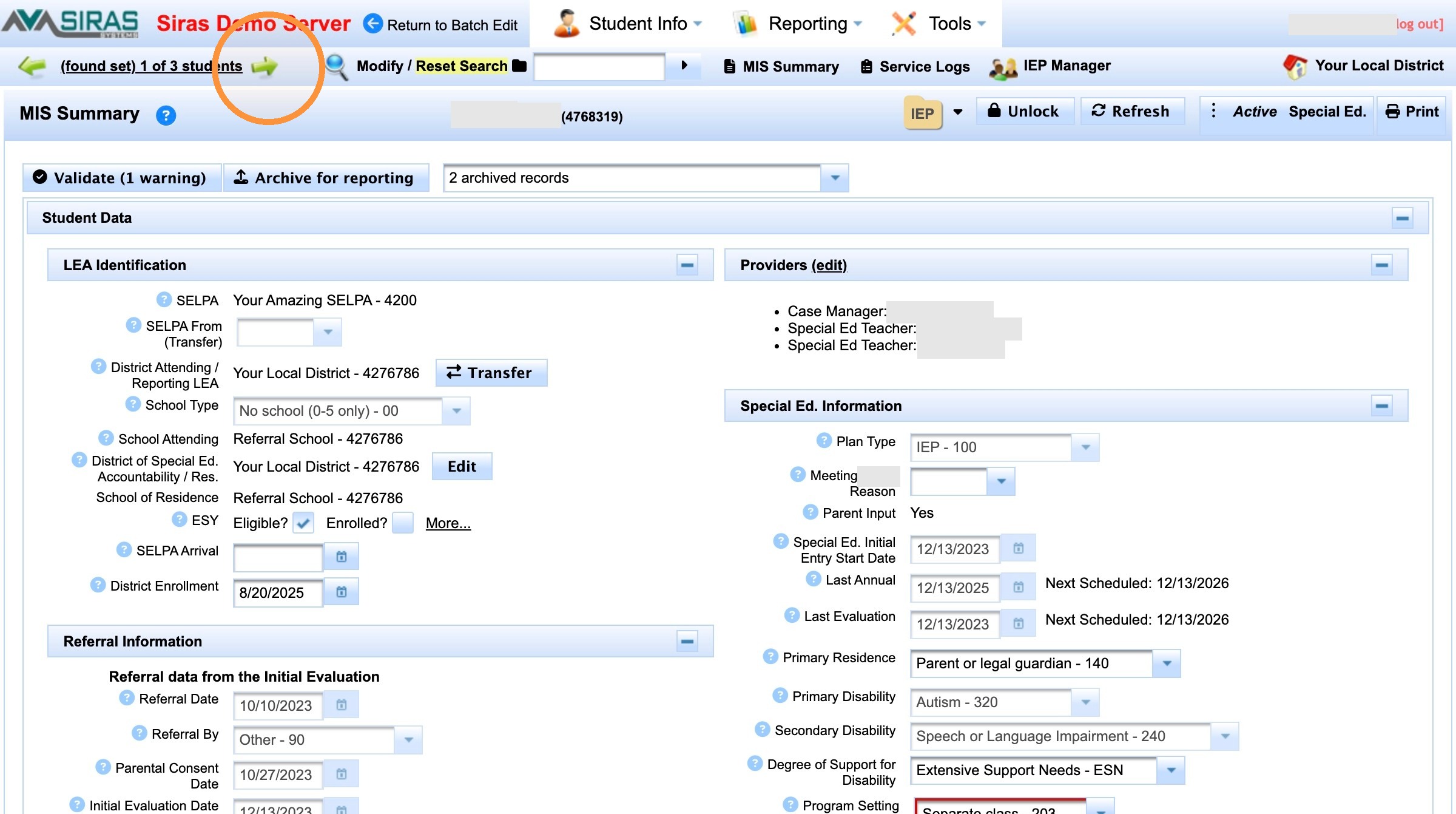
Verify both provider assignments on the student record.
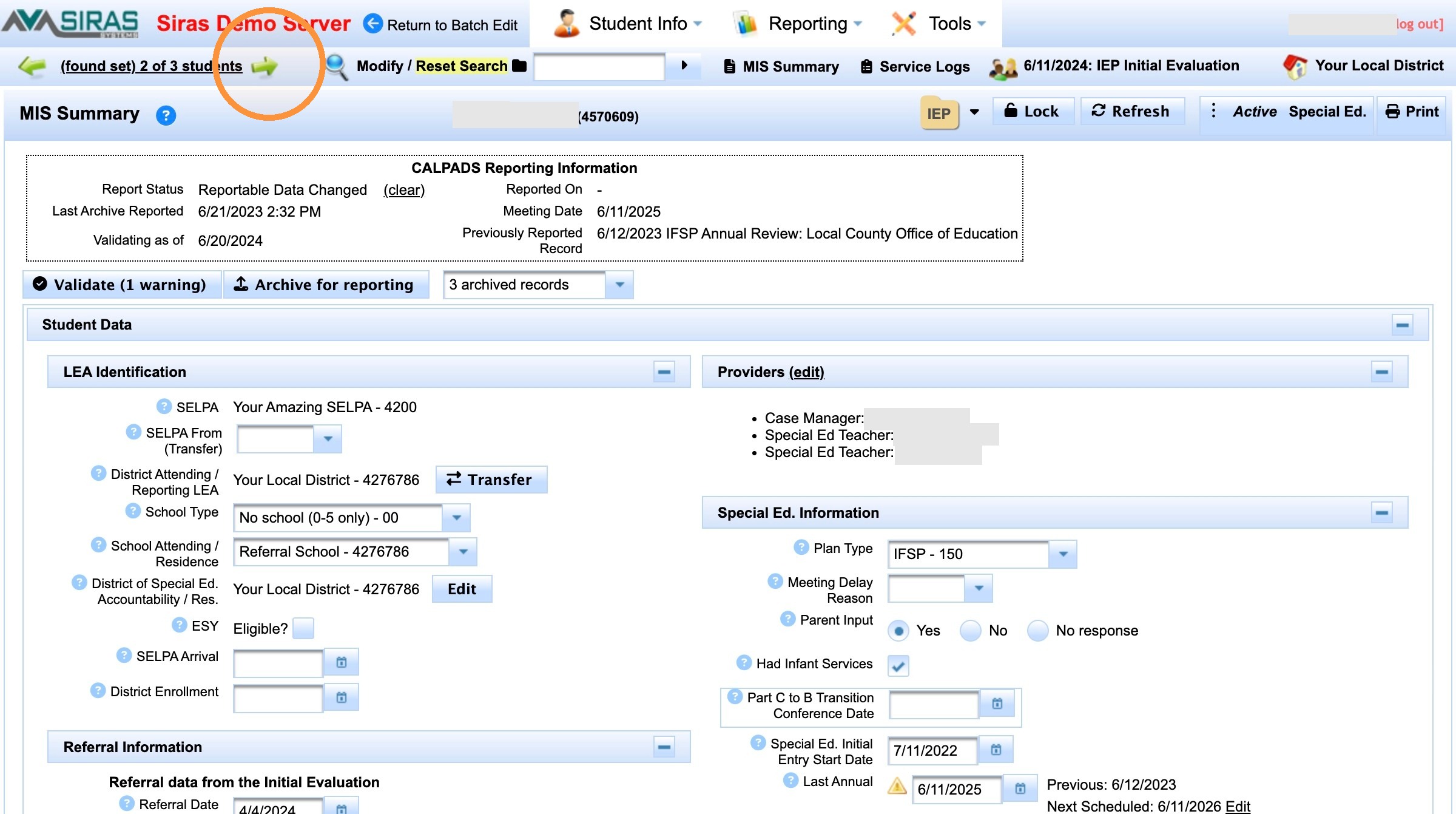
Check another record to confirm the batch result is consistent.
The original provider assignment remains, and the added provider appears in the same role on each intended student record.
For the general Batch Edit feature, see Batch Edit Help. For marking and stabilizing the student group, see Finding Students by Marked Records.

