


You have a verified group of students and need to replace the same field value across those records. The example changes School Type, but the selection/verification pattern applies to other supported Batch Edit fields.
Before confirming, verify the marked students, Found Set count, field being changed, and replacement value.
Set Up the Batch Edit
Open Tools → Batch Edit
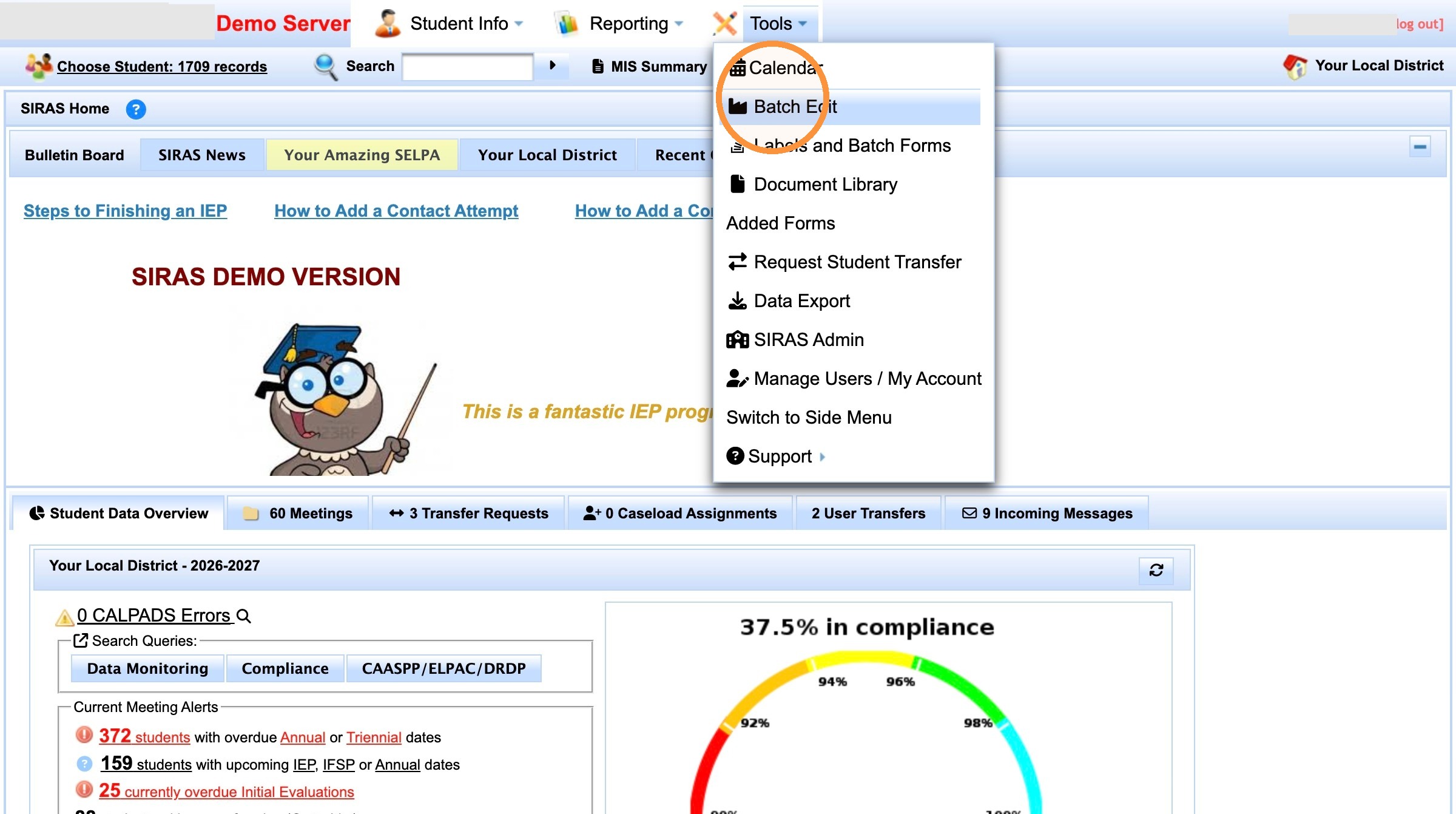
Open Tools → Batch Edit.
Choose the field to replace
In Replace which field?, select the field you intend to update. This walkthrough uses School Type.
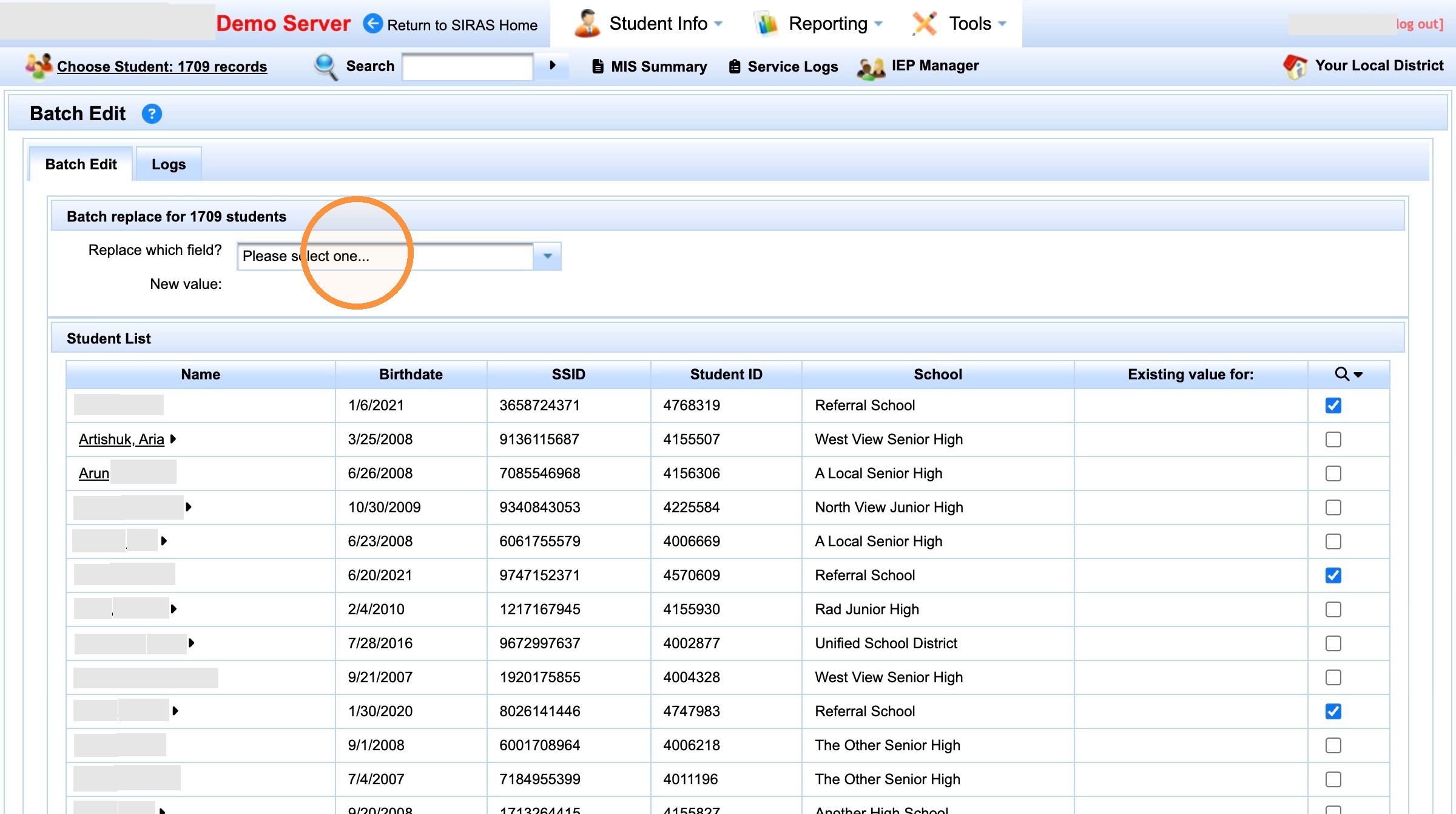
Choose the field that will be updated.
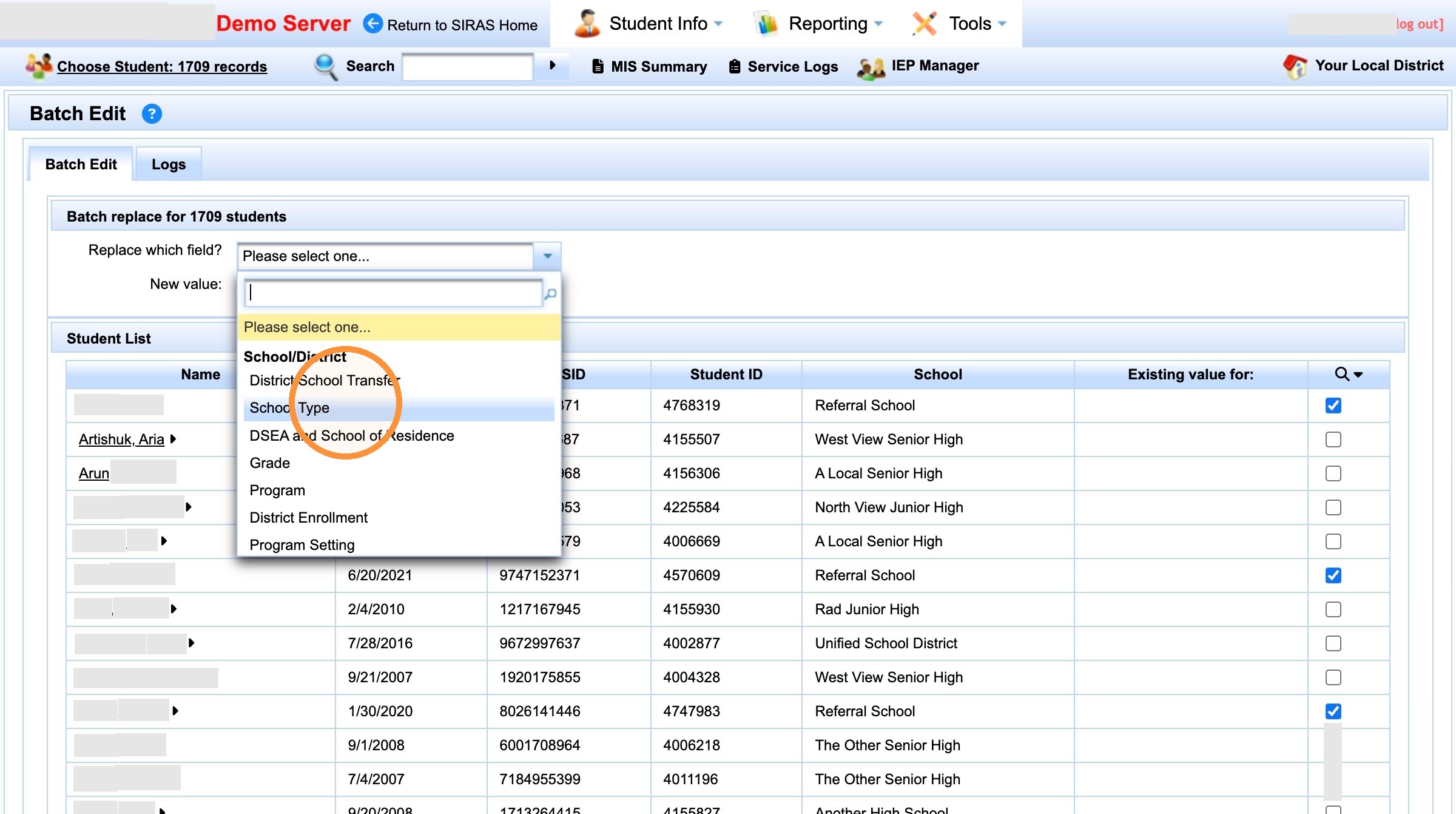
The example selects School Type as the field to replace.
Choose the new value
Select the value that should replace the existing value for the verified student group.
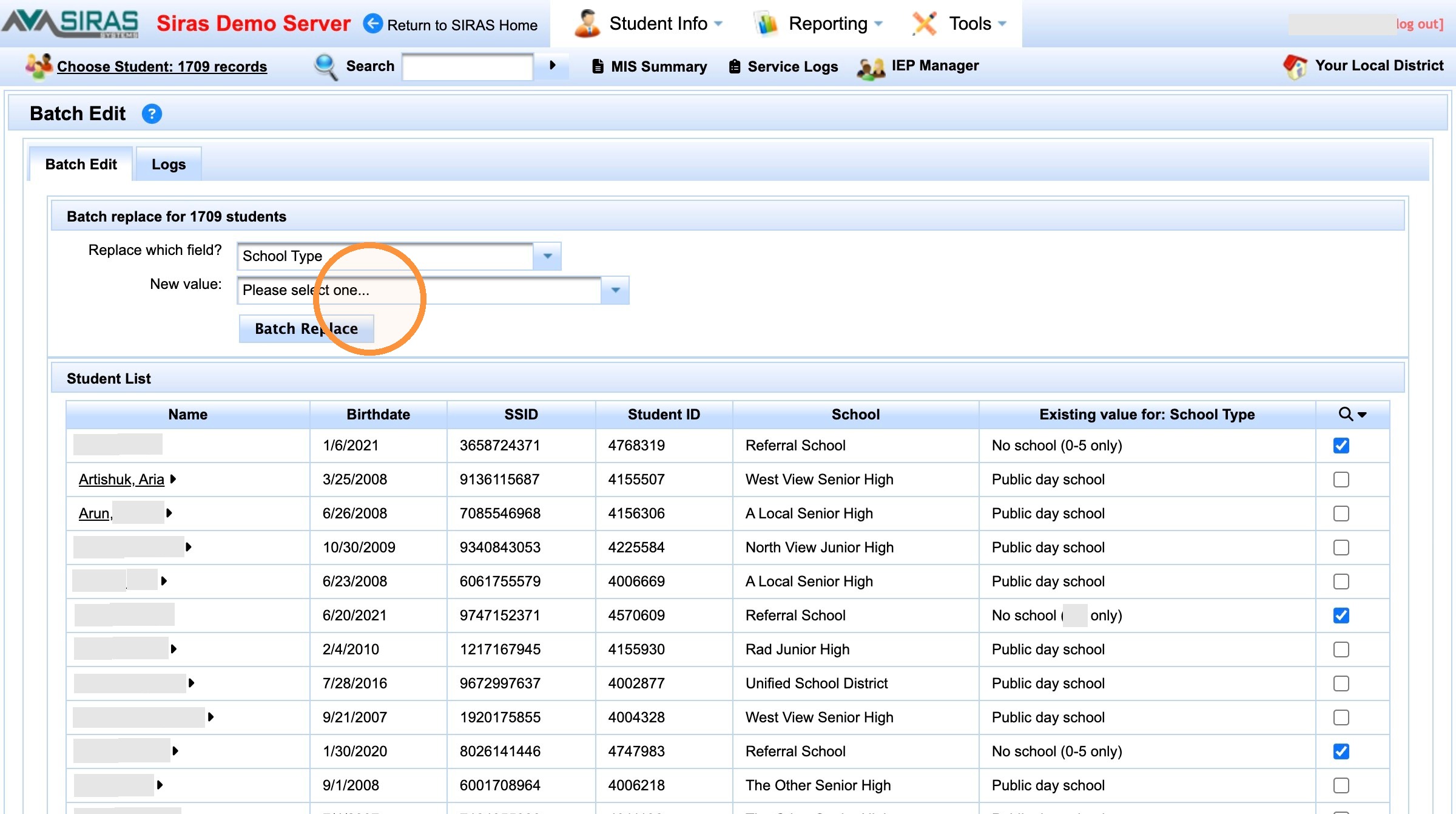
Choose the replacement value.
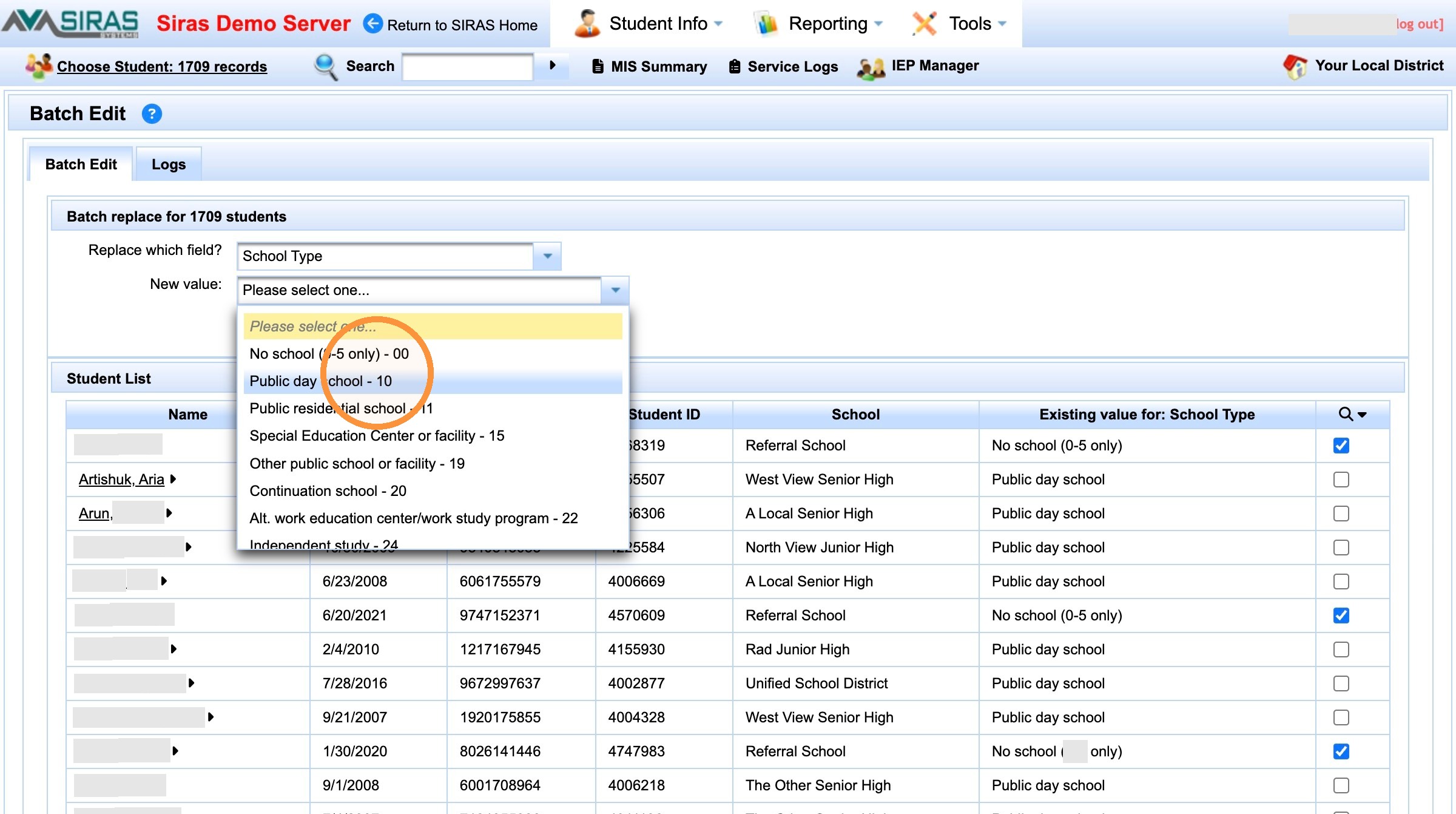
Verify the selected replacement value before continuing.
Use Marked Records for the Student Group
If the original search used the same field you are changing, the search can change as records are updated. A marked-record Found Set gives you a stable selected group. For the full marked-record procedure, see Finding Students by Marked Records.
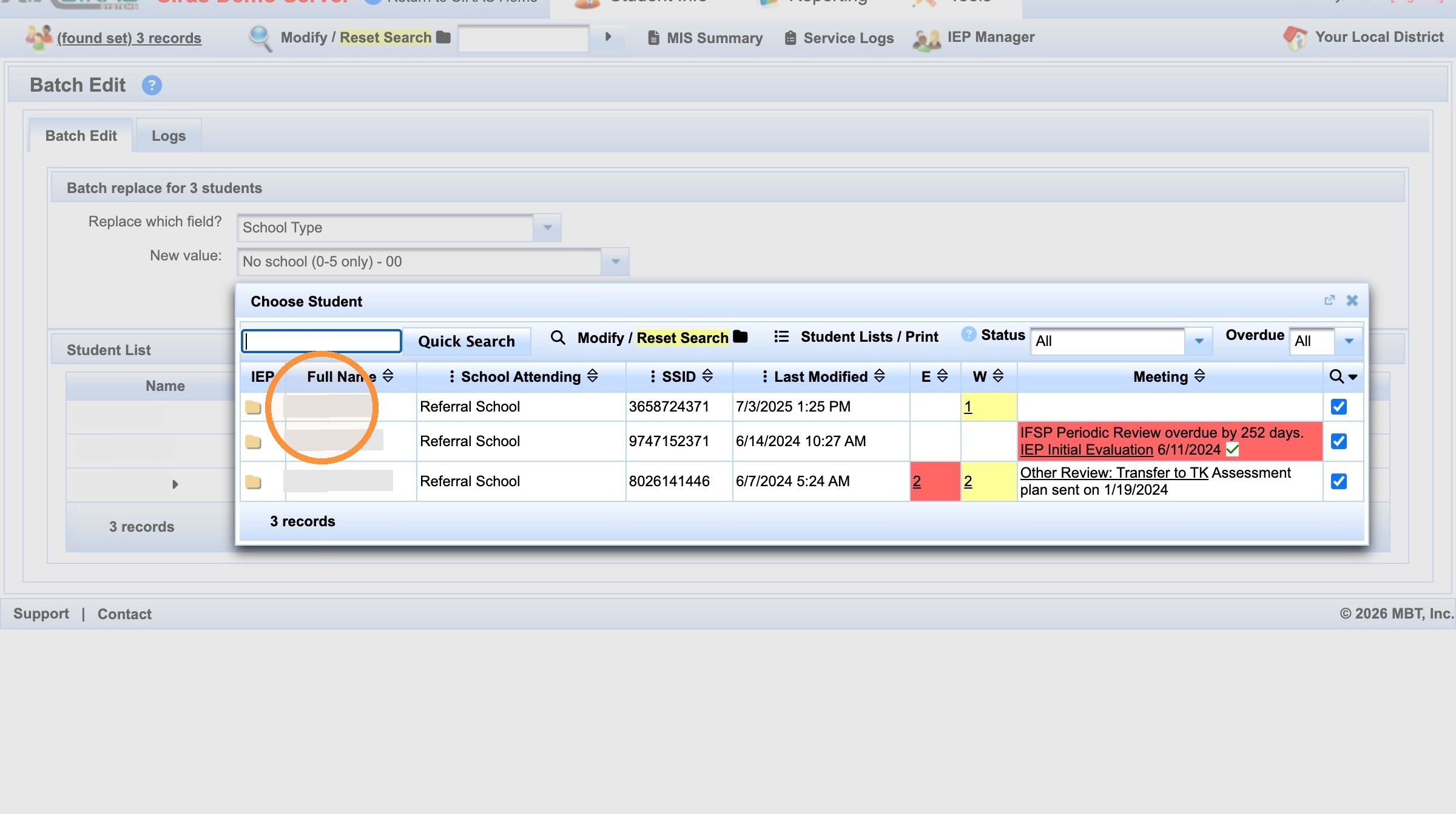
Double-check the current student population
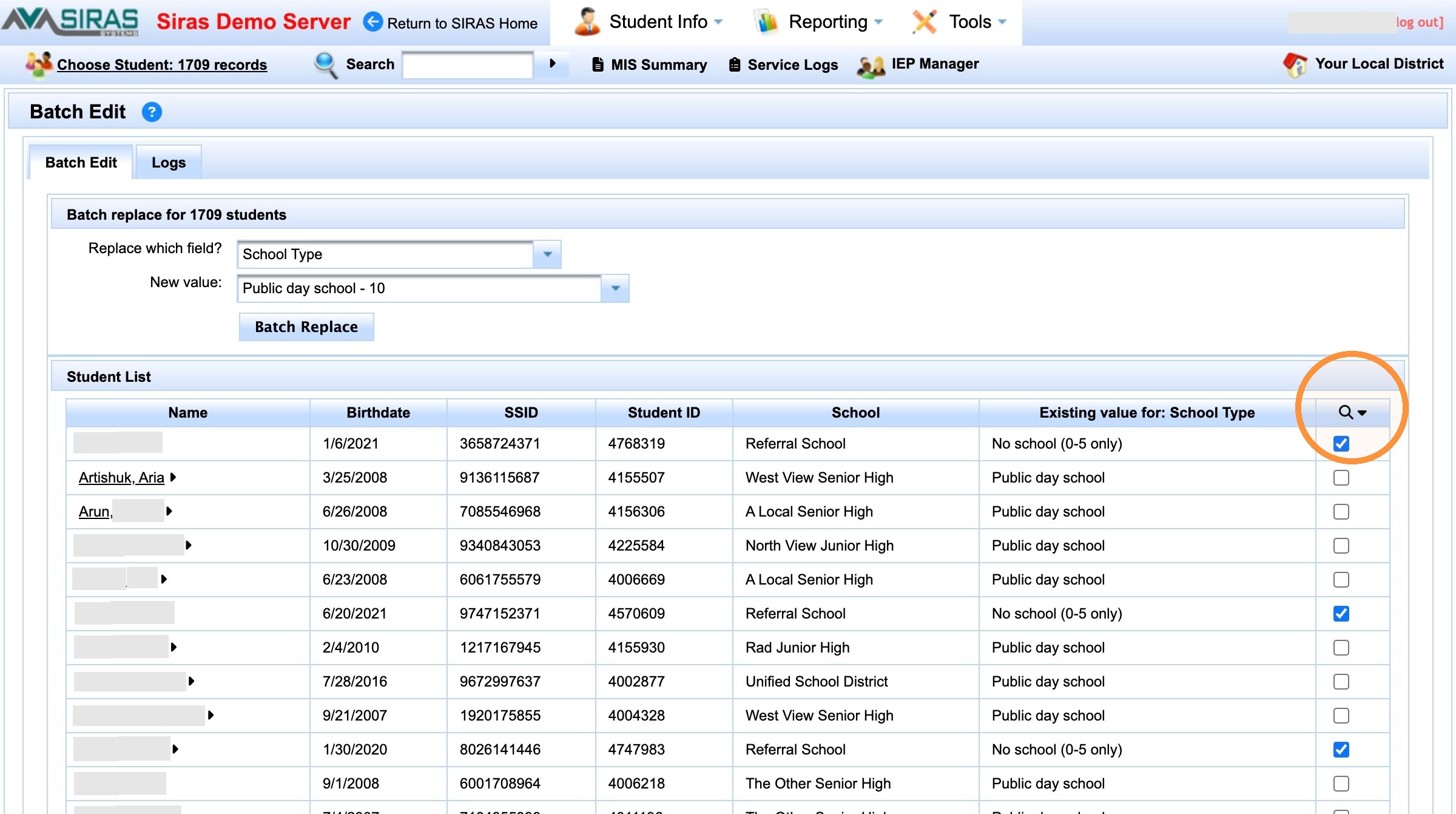
Check the Found Set before the batch action.
Find only the marked students
Use the marked-record control and choose Find only marked students.
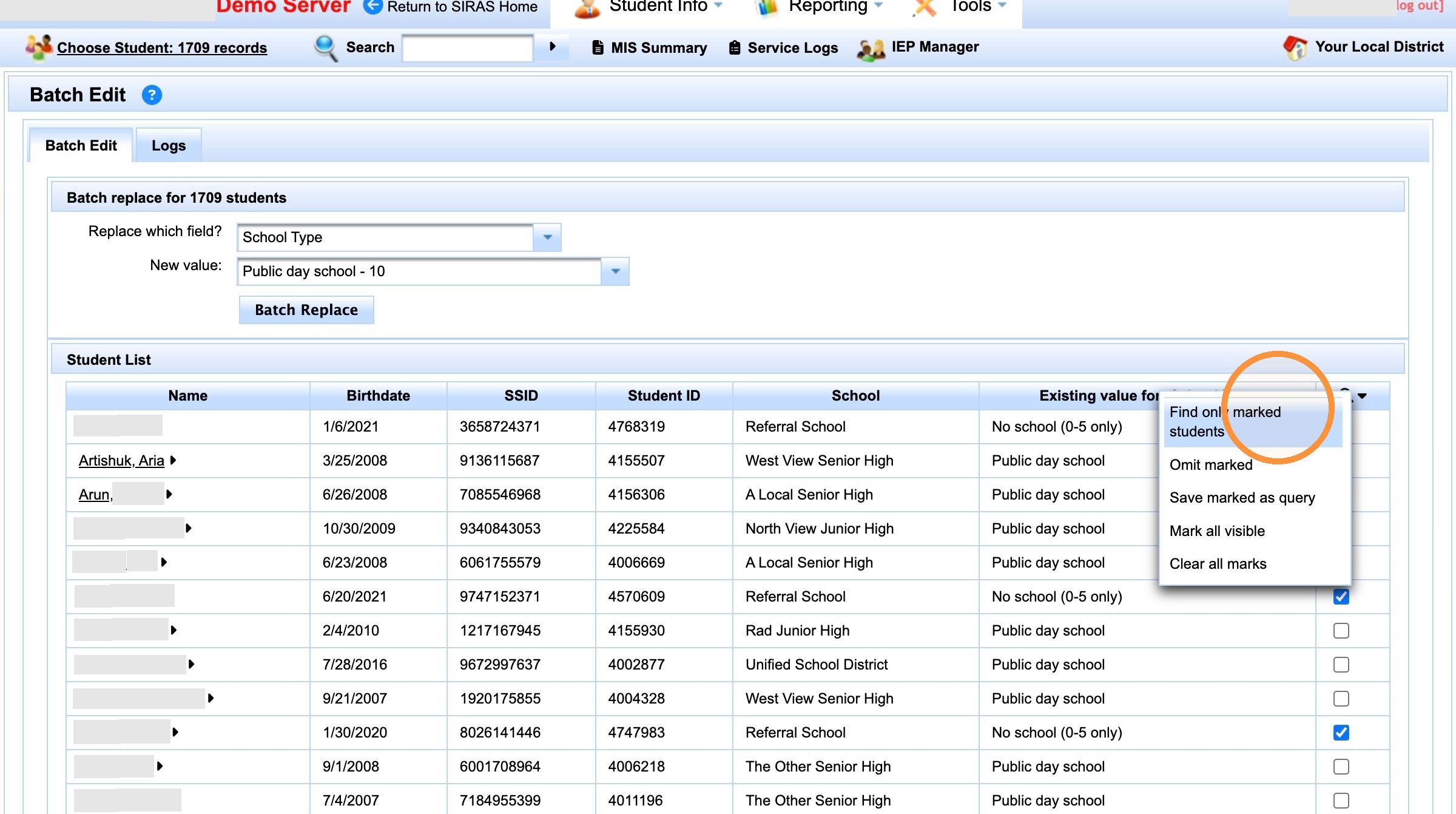
Use Find only marked students to make the marked group the active Found Set.
Verify the Found Set and replacement value again
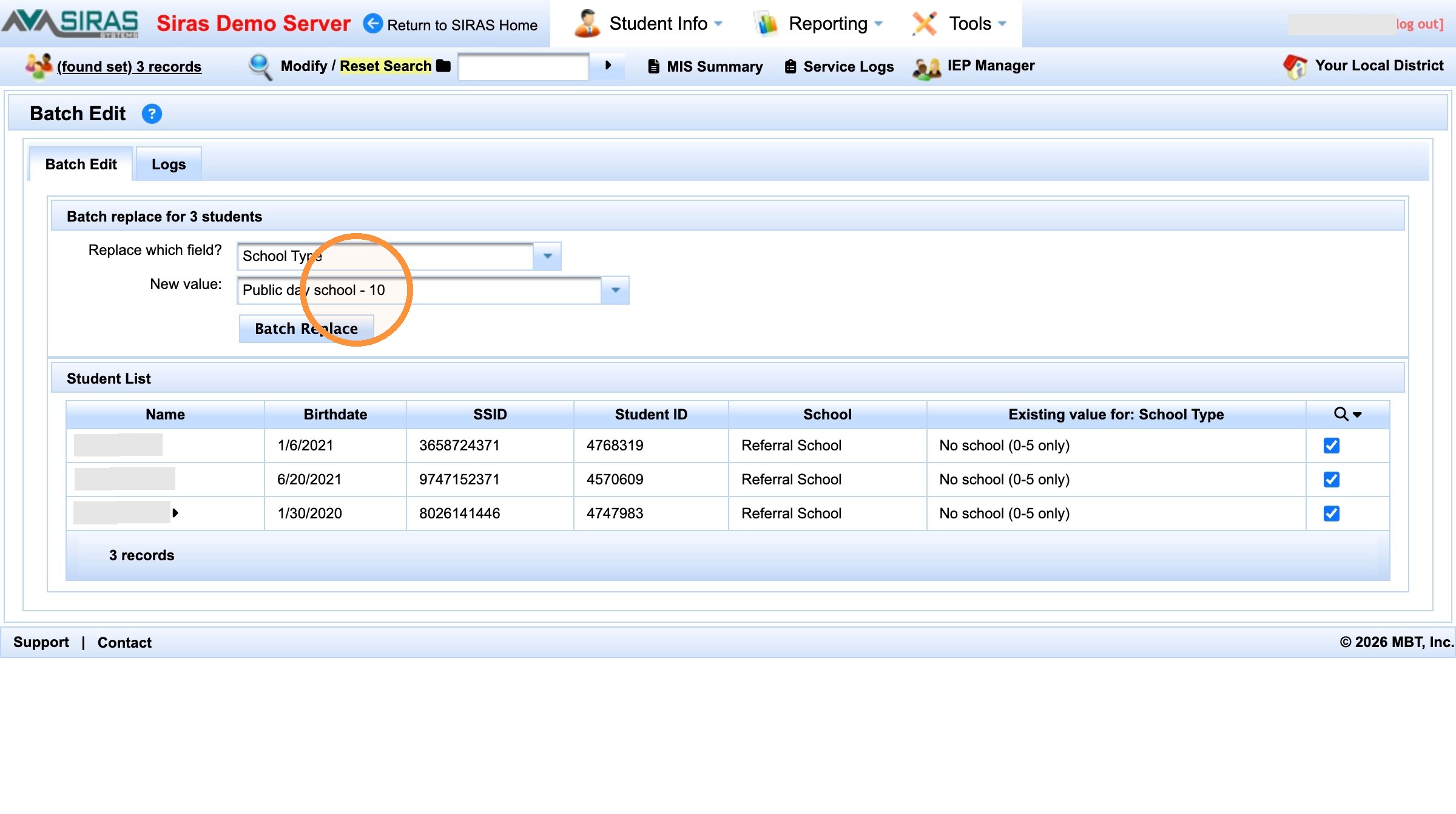
Recheck the Found Set and field/value after selecting only marked students.
If needed, select the correct replacement value before applying the change.
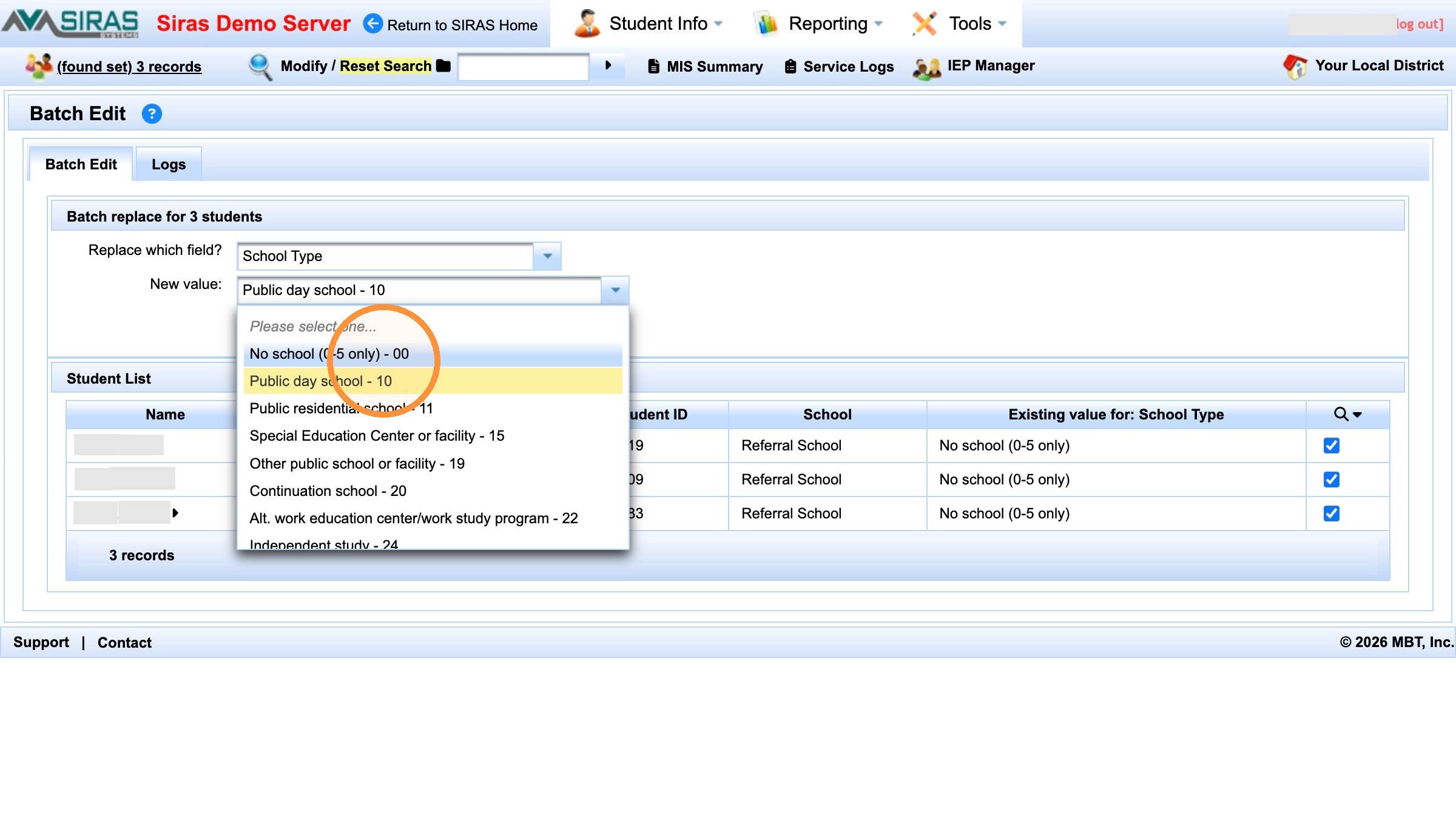
Confirm the correct replacement value for this marked group.
Apply the Change
Select Batch Replace
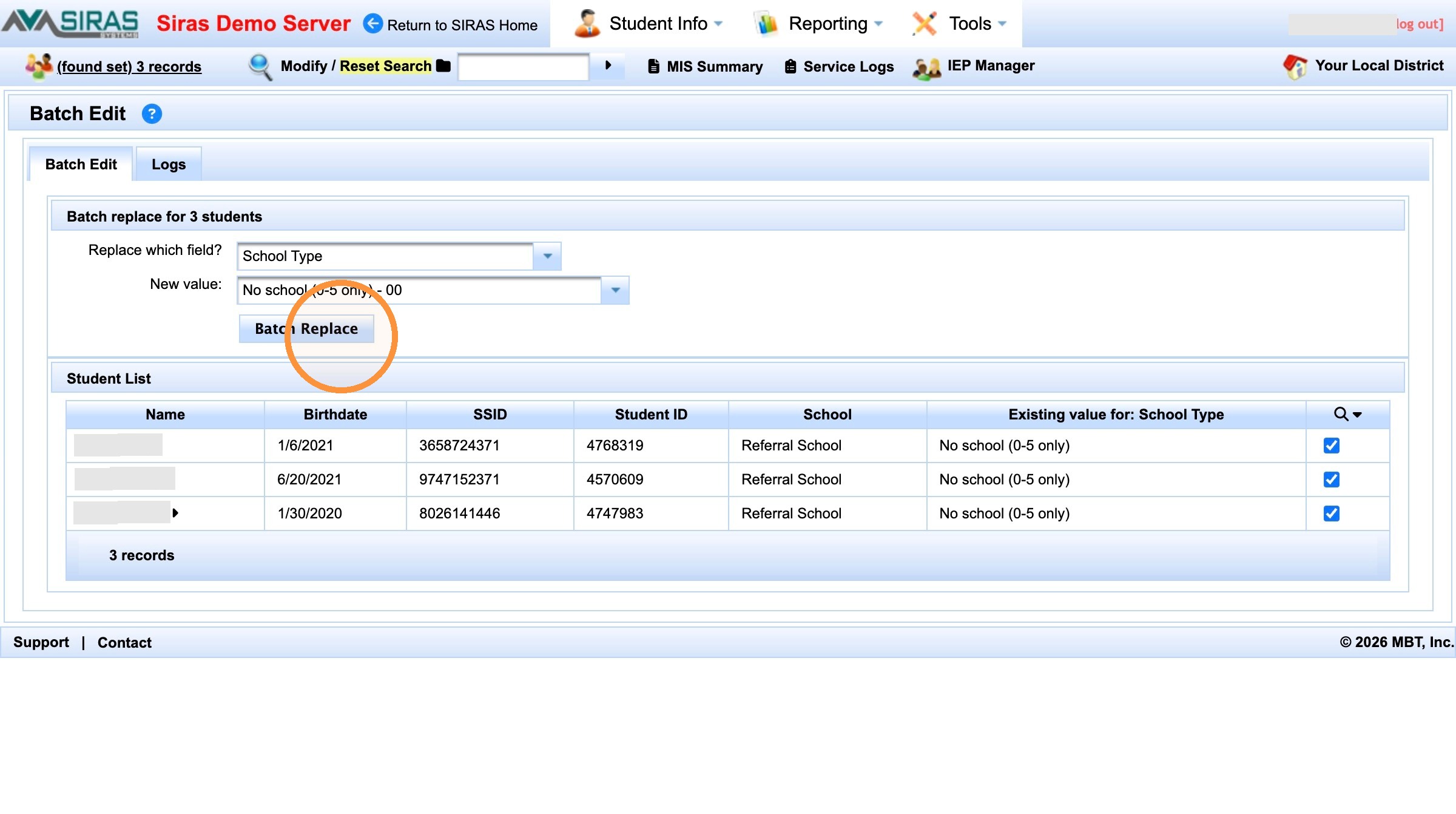
Select Batch Replace only after the group, field, and value are correct.
Confirm the batch action
Read the confirmation, verify the student count, and select Confirm when it matches the intended group.
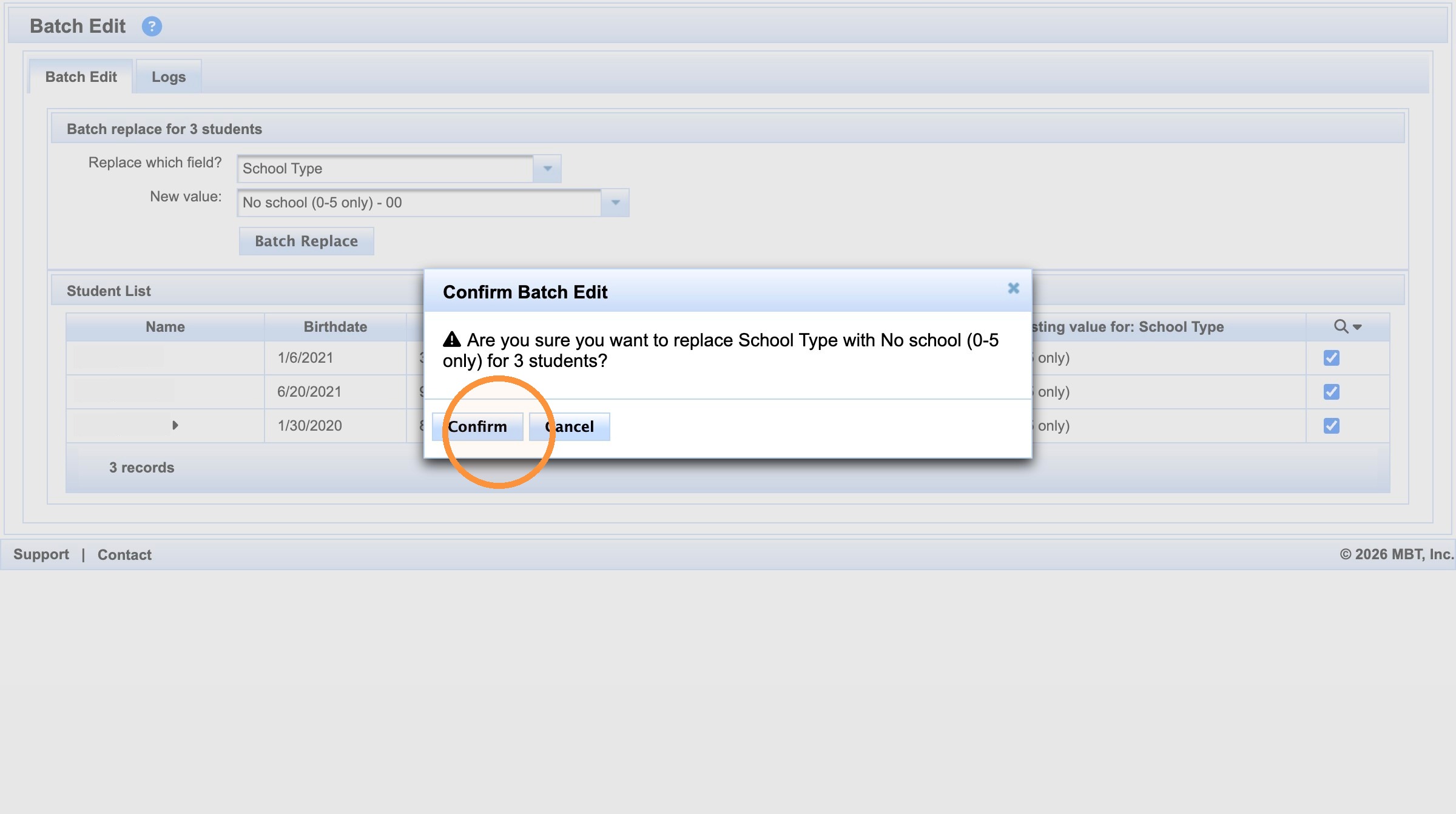
Confirm only after verifying the batch action and student count.
Verify the Updated Records
Return to the updated Found Set
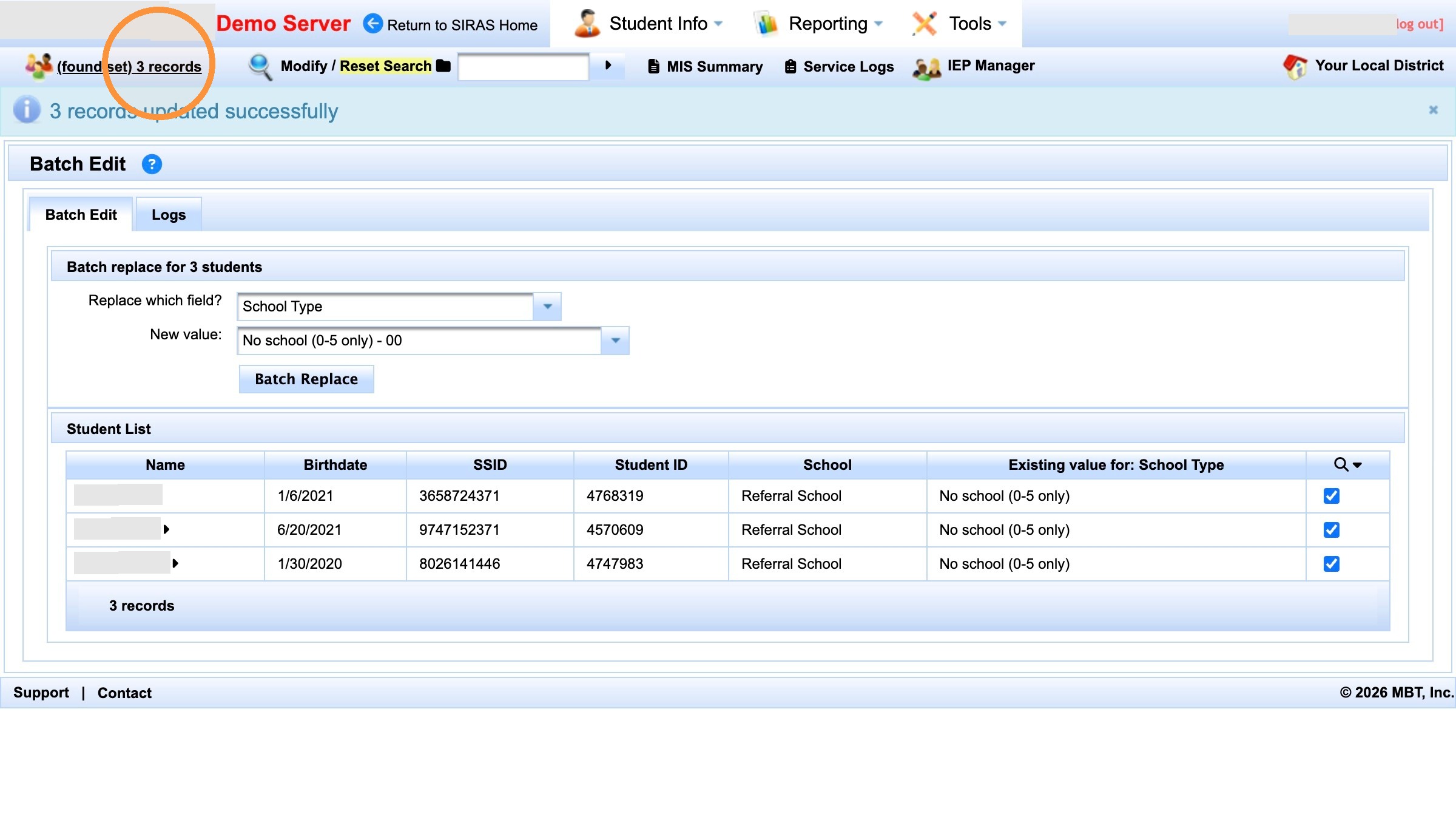
Return to the Found Set after the update.
Open a student and verify the result
Open a student record and verify the changed field on the applicable page.
The success message confirms that SIRAS processed the batch action; the student record confirms that the intended data now appears correctly.
For general Batch Edit controls and safety guidance, see Batch Edit Help.

