


Exporting TOMS CAASPP/ELPAC Data from SIRAS
A complete procedure for reviewing SIRAS assessment data, generating the batch file, uploading it to TOMS, and verifying the results.
It combines the former pre-export review instructions and TOMS Export FAQ with the export procedure.
Purpose and Timing
Use the SIRAS TOMS export to create the CAASPP/ELPAC Student Test Settings batch file for a district, school, or eligible found set. Coordinate the upload before individual student fine-tuning begins.
- Plan the broad batch upload before the testing window.
- Do not rely on the batch process to open a student early for testing.
- After the batch is complete, use the student-level API for individual review or follow-up.
Up to 48 hours may be needed before all results are available.
Coordinate Roles and Scope
| Role | Responsibility |
|---|---|
| Special education / 504 data staff | Review and correct SIRAS assessment information thru the Meeting process. Approve new accommodations to send thru API (if connected) |
| District or site testing coordinator | Enter SIS TOMS API credentials into SIRAS. Find errors in uploads and get resolution on updates from providers. Batch Upload CAASPP/ELPAC ISAAP Batch files to TOMS, review results, and verify final settings. |
| IEP / 504 teams |
Make and document assessment participation and accessibility decisions in the Forms Manager. Fill out Test Assignment lists for alternate assessment and domain exemptions not reported thru the ISAAP Tool File. |
District-wide users can create a district export to be used for CAASPP and ELPAC uploads into TOMS.
Confirm CALPADS Readiness
TOMS depends on current enrollment and special education information from CALPADS. Sending only enrollment data is not enough to establish every student as eligible for special education testing settings.
- Confirm current enrollment.
- Confirm current special education eligibility/disability information.
- Ensure student is listed as SWDS = 1 in CALPADS.
- Allow processing time between CALPADS corrections and TOMS availability.
- It may take up to 48 hours for TOMS to recognize student is eligible for IEP.
For CALPADS submission help, use Reporting SIRAS Data to CALPADS.
Review Assessment Data Before Export
Go to Reporting → Student Lists → Predefined Lists → Statewide Assessments and review the applicable lists.

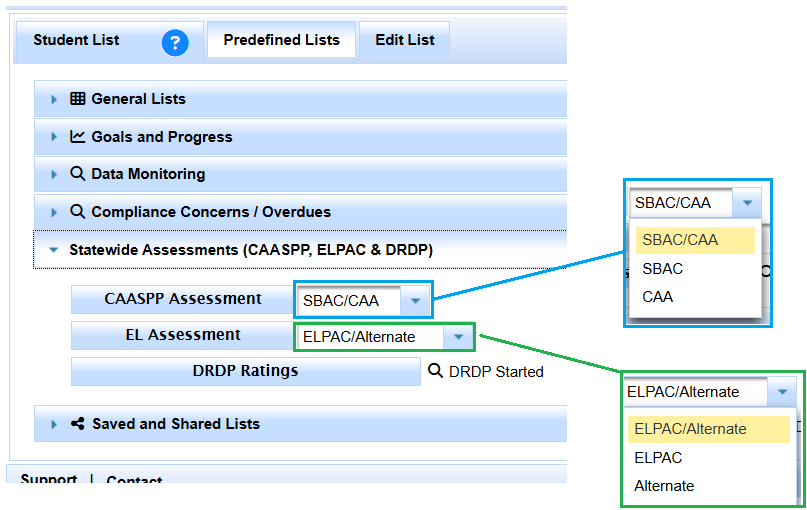
Look for:
- blank assessment participation or setting values;
- students labeled as having supports but with no specific supports selected;
- out-of-grade or unexpected assessment assignments;
- dependency or placeholder values such as
X_DEPthat require review; - grade-exempt or other exception conditions;
- CAA or Alternate ELPAC selections that do not match the current team decision; and
- students missing from the expected list.


Correct the Data
Assessment information may come from the student’s participation forms or the Assessment Info page.
- Determine the authoritative team decision.
- Correct the applicable meeting form or Current Assessment Info value.
- When a documented plan must change, complete the appropriate IEP/504 team process before the student’s first testing day.
- Repeat the predefined-list review until the eligible population is clean.
- Notify the testing coordinator that the export is ready.


Generate the TOMS Export
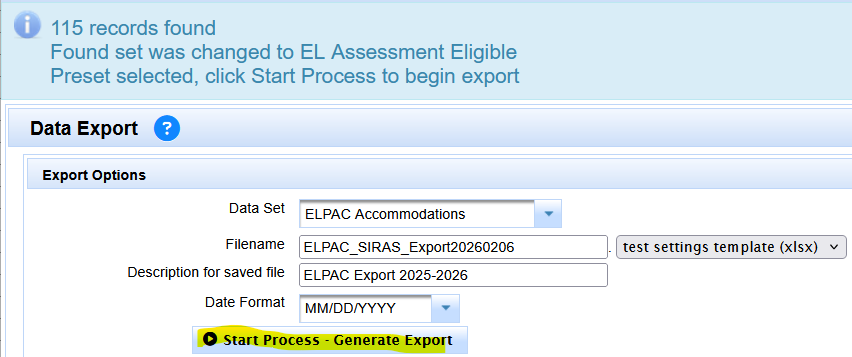
- Go to Tools → Data Export.
- Select the applicable TOMS CAASPP/ELPAC Student Test Settings preset.
- Confirm the scope:
- Full district: use district scope without limiting the export to a found set.
- School/site: use the authorized site scope.
- Specific students: establish the eligible found set first.
- Select Generate Export.
- Download the generated file.
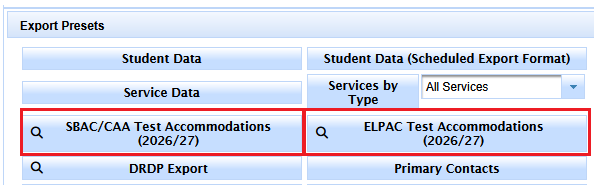
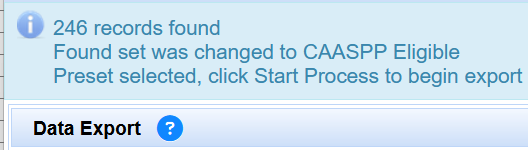
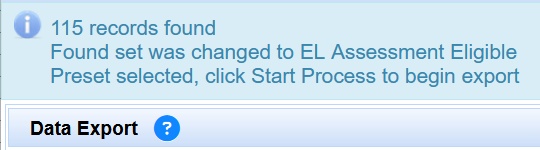
Spreadsheet software can alter identifiers, leading zeros, delimiters, or the template structure.
Upload the File to TOMS
Provide the generated file to the authorized district or site testing coordinator. Only staff with the appropriate TOMS role can complete the upload.
- Open the applicable TOMS batch upload area.
- Select the CAASPP/ELPAC Student Test Settings template.
- Upload the unmodified file.
- Retain the upload result or error report.
A single invalid record may cause the file or a portion of the file to be rejected. Review all results rather than assuming that an accepted upload updated every student.
Verify Results
- Review the TOMS upload summary and error file.
- Confirm that the expected number of records was accepted.
- Spot-check students from multiple schools and grade levels.
- Review high-priority students with complex accommodations or alternate-assessment decisions.
- Use the student-level API or direct TOMS review for individual corrections.
Troubleshooting
| Problem | Review |
|---|---|
| Student is not in the export. | Found set/scope, active status, grade, eligibility, enrollment, and the applicable predefined list. |
| Student is in the export but not in TOMS. | CALPADS enrollment and SWD status, TOMS ownership, and the upload result. See Why Is a Student Missing from TOMS?. |
| Whole file is rejected. | Template type, file integrity, whether the file was opened/resaved, and the first returned error. |
| Settings were accepted but are unexpected. | Current SIRAS assessment data, the selected test program, parent response, and whether a later batch replaced an individual adjustment. |
| Print-on-demand is needed. | Coordinate the required CalTAC/CDE approval; the standard export does not independently authorize it. |
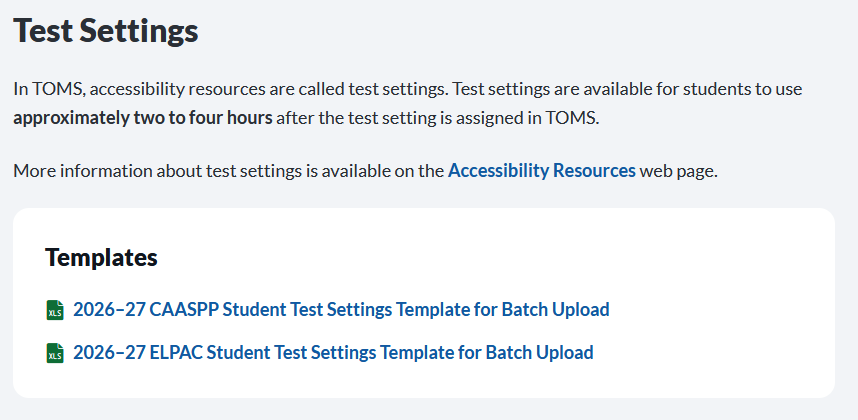
Batch Export Frequently Asked Questions
Does the export include a whole district?
It can. Use district scope without limiting the export to a found set. A site user is limited by site scope.
Can I export only a specific group?
Yes. First establish the eligible found set, then generate the export for that set.
Does the export assign CAA participation?
The export transmits the SIRAS assessment information represented in the batch template, but it does not independently make the team’s alternate-assessment decision. Review the student’s documented participation and TOMS result.
What happens to universal tools or permissive settings?
Some universal tools are not controlled by the batch file, while applicable linked settings and permissive-mode behavior follow the supported template logic. Always verify the TOMS result.
Can I edit the CSV before uploading?
No. Correct the source data in SIRAS and regenerate the file.
Do domain exemptions go in this file?
No. Domain exemptions are not part of the standard TOMS Student Test Settings batch template.

