


SIRAS Admin: TOMS API for SIRAS
Use the TOMS API to review and replace statewide assessment settings for one student at a time. This revision incorporates the former TOMS API FAQ.
Use the batch process to establish or refresh broad groups of students, then use the API for individual review and follow-up.
Purpose and Limits of the API
The SIRAS TOMS API allows authorized district staff to query and replace assessment settings for one student at a time. It may also be used by SIRAS after an eligible meeting is completed and the resulting assessment information becomes Current.
- Query reads the settings currently stored in TOMS.
- Replace All sends a complete replacement of the applicable student test settings based on SIRAS Current assessment data.
- The API does not establish every student for the testing year and should not be treated as a substitute for the batch export.
- Domain exemptions are not transmitted through the API or the standard batch template.
- Nightly district uploads to TOMS API are possible but must be requested specifically by emailing [email protected]
Access and Credentials
API access is intended for authorized district administrators, such as a District SPED Clerk or District Admin 1. The user also needs the appropriate access to the student and program being reviewed.
See User Access Roles and Permissions for the canonical role definitions.
- Use the same TOMS credentials coordinated with the district testing/SIS process.
- When TOMS credentials change, update the credentials in every system that uses them.
- In SIRAS, go to Tools → SIRAS Admin → TOMS API Credentials.
- Do not email passwords or other credentials.

A successful authorization message and green check confirm that TOMS accepted the credentials. They do not confirm that a particular student is present or eligible for an update.


Before Sending an Update
- Confirm that the student has an active/current CALPADS enrollment and current special education eligibility information.
- Confirm that the expected assessment decisions are represented in SIRAS Current assessment data.
- Review the parent response and meeting status. A proposed, unaccepted, or partially accepted plan may not update Current data.
- Coordinate with the testing coordinator so a later batch upload does not unintentionally overwrite a carefully reviewed individual update.
For the annual district review and batch sequence, use Exporting TOMS CAASPP/ELPAC Data from SIRAS.
Open the Student-Level API
- Select the student.
- Go to Student Info → Assessment Info.
- Open the TOMS API tab.
- Select Connect.


When available, Open TOMS provides a direct route for authorized staff to review the student in TOMS.

Query Current TOMS Settings
Select Query to retrieve the student’s current settings from TOMS. Query is read-only and does not modify TOMS.
- Review the values returned from TOMS.
- Compare them with the Current assessment information in SIRAS.
- Identify whether the difference comes from SIRAS data, TOMS data, enrollment/ownership, or the selected testing program.


Replace the Student’s Settings
Select Replace All only after confirming the Current SIRAS values. This sends a full replacement of the applicable TOMS Student Test Settings rather than a partial field-by-field update.
A full replacement can remove a value that exists in TOMS but is not represented in the SIRAS data being sent.


Verify the Result
- Read the API response in SIRAS.
- Query TOMS again when appropriate.
- Open TOMS and confirm the expected testing program, supports, and accommodations.
- Document and resolve any unexpected result before testing begins.


Automatic Updates After Meetings
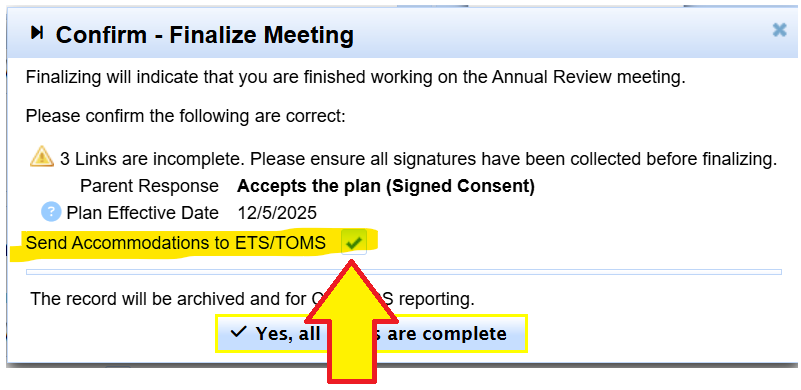
When the feature is enabled, SIRAS may send eligible student test settings after a meeting is completed and the newly accepted assessment information becomes Current.
- The automatic process uses the most recently agreed-to Current assessment settings.
- A meeting that is not accepted, only partially accepted, or not fully completed may not produce the expected automatic update.
- Returned errors may display on the Current page or MIS Summary and may also be queued for follow-up processing.
- Staff should still verify the result in TOMS.
Errors and Troubleshooting
| Message or symptom | Likely area to review |
|---|---|
| 401 / authorization failure | Credentials, permissions, or a changed TOMS account. |
| 404 / student not found | SSID, active/current enrollment, LEA ownership, CALPADS eligibility, or whether the student is available in TOMS. |
| Validation error | A value or combination of values is not accepted by TOMS. |
| Student is present but settings are unexpected | Current SIRAS assessment data, parent response, testing program, or a later batch upload. |
| Student is absent from TOMS | Use Why Is a Student Missing from TOMS?. |


When an unresolved message appears, retain the exact text, student SSID, date/time, and action attempted before contacting support.
TOMS API Frequently Asked Questions
Does the API replace the batch export?
No. Use the batch export for the broad annual population and the API for student-level review and follow-up.
Does the API send one field or the whole settings record?
Replace All sends a full replacement of the applicable Student Test Settings based on SIRAS Current assessment data.
Does the API send domain exemptions?
No. Domain exemptions are not included in the API or standard batch template.
Why did an accepted-looking meeting not update TOMS?
Review whether the meeting was completed, whether the plan or applicable assessment section was accepted, and whether the values became Current in SIRAS.
Can a district administrator test the connection?
Yes. Test authorization from the TOMS API credentials area and look for the successful authorization indicator.
Can an API error be cleared?
After the underlying issue is resolved and the result is verified, authorized staff may clear the displayed error according to the available SIRAS controls. Do not clear an unresolved message merely to remove the alert.

