


In Forms Manager, open Print/Preview/Options. For the standard preview of forms that have already been opened and saved, keep the default submitted-form selection and choose View/Print Document.

Choose What Goes Into the PDF
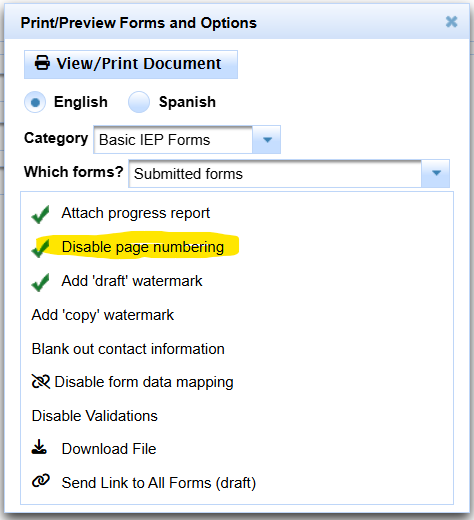
The Print/Preview dialog lets you control the language, form category, which forms are included, and optional output settings.
- Select the language when a translated version is required and available.
- Choose a Category such as Pre-Meeting, Basic IEP Forms, or another available Forms Manager category.
- Choose which forms to include:
- Submitted forms — the default; includes forms that have been opened and saved.
- All submitted/required — also includes applicable required forms that have not yet been opened and saved. These forms may contain only the basic information available at that point. Consider a draft watermark when using this option.
- Select specific forms — displays form-selection checkboxes so you can choose individual forms.
- Select any additional options needed for the packet.
- Choose View/Print Document to generate and open the PDF in SIRAS, or Download File to save the generated file to the computer.
Use Show Me: Force Finalize or Abandon a Meeting Using Disable Validations. This is a District Admin 1-or-higher procedure; the option should not be used as a substitute for correcting a normal data problem.
See Problems With Reactivated Meetings before changing goal/progress data. A known reactivation scenario can display a misleading “Current Goal(s) need to be updated with final progress” message.
Additional Options
The available choices can vary with the meeting/forms context. The Print/Preview options represented in the current article include:
| Option | Use |
|---|---|
| Attach Progress Report | Include the student's Progress Report with the generated forms. See Progress Report Help for entering the progress itself. |
| Translation / Spanish | Generate the available translated version of the selected forms. |
| No Services Draft | Use the specialized draft behavior when applicable. See Draft — No Services. |
| Disable page numbering | Generate the selected forms without the normal page numbering. |
| Add draft watermark | Clearly identify a generated packet as a draft. |
| Add copy watermark | Identify a generated packet as a copy. |
| Blank out contact information | Remove applicable contact information from the generated packet. |
| Disable form data mapping | An available advanced option shown in the current Print/Preview dialog; use only when the workflow calls for it. |
| Disable validations for meeting held/finalize | Administrator-only option used when a meeting must be closed despite a validation that has been reviewed and can appropriately be bypassed. Use Show Me: Force Finalize or Abandon a Meeting Using Disable Validations for the step-by-step procedure. |
| Download File | Save the generated PDF rather than opening it only in the in-program viewer. |
No Forms Were Generated
If the selected option/category has no forms available, SIRAS displays a message explaining that nothing was generated. Return to the Print/Preview selections and verify the category and form-selection option.

Attach the Progress Report
To include Progress Reports with the meeting-form packet, select Attach Progress Report before generating the PDF. This print option does not create or complete the Progress Report; use Progress Report Help for the progress-entry workflow.

Translation / Spanish Output
When translated forms are available, use the translation/language option to print or download the applicable Spanish version. Review the translated content before distributing the packet, especially when free-text fields require staff-entered translation.

Draft and Page Options
Use draft/copy watermarks when the generated forms should be clearly identified as a draft or copy. For a specialized draft that excludes services, use Draft — No Services.
Select Disable page numbering when the workflow calls for a PDF without normal page numbering.
Select Specific Forms
Choose Select specific forms when you need only particular forms rather than the full submitted or required set. SIRAS displays selection controls next to the available forms; mark the forms that should be included, then generate the document.


