


- Create a Service Log for one student
- Create Service Logs for a group
- Edit or delete an existing Service Log
- Review, search, or report on Service Logs
Medi-Cal Billing with SIRAS Service Logs explains the SIRAS/MBT connection, getting started, and billing-related questions.
Create an Individual Service Log
- Select the student whose service you are documenting.
- Open Student Info → Data Collection and Progress → Service Log.
- Select Create Service Log.

Select Create Service Log to begin a new entry for the current student.
The Create New Service Log screen opens. Review the provider information, then document the applicable service information for the session.

The Create New Service Log screen contains the fields used to document the service session.
Complete the Service Log
Service Provider and Provider Role
Service Provider identifies the provider entering the log. Provider Role identifies the user's assigned role. Review this information before continuing.
Service Log Type
Service Log Type determines how the entry is documented and whether additional progress fields are displayed. Select the type appropriate for the service and your district's documentation procedures.
Select the Service
Select the applicable service from the Service menu. SIRAS displays available service information for reference.
When Specialized Academic Instruction is selected, SIRAS can provide an option to document scheduled monthly SAI minutes in bulk.

The monthly SAI option can calculate scheduled minutes using the number of scheduled days and the duration of each session.
For the dedicated procedure, see How to Log Monthly Minutes in Bulk.
Select the Service Date(s)
Select the applicable service date(s). Multiple past dates can be selected when the same Service Log information appropriately applies to more than one date.

Use the calendar to select the applicable service date or dates.
Enter Duration or Start and End Times
Document the amount of service by entering a Duration or by specifying the Start Time and End Time.

Enter duration as the total number of minutes. SIRAS can calculate hours and minutes for you.

When start and end times are entered, SIRAS calculates the duration.
Start and end times are required for Medi-Cal billing purposes. For information about the SIRAS/MBT connection, enrollment, and billing-related questions, see Medi-Cal Billing with SIRAS Service Logs.
Session Delivery and Attendance
For Session Delivery, indicate the applicable delivery method: Individual, Group, or Consult. Select Telehealth when applicable.
For Attendance, select the option that accurately describes what occurred during the scheduled service: Attended, Make-up, Absent, School Event or Unexcused/refused.

Document the actual delivery method and attendance status for the session.
Session Notes
For Notes, type into the Notes box.
If no additional goal or progress documentation is needed, select Validate and Save. Select Cancel if you do not want to save the entry. Otherwise, continue below.
Service Information and Associated Goals
When a service is selected, SIRAS can display the applicable service information and goals associated with that service.

Associated Goals appear with the selected service when the goal has been connected with that service.
The service association is established in Goal Developer when the goal is created or maintained.

In Goal Developer, under Edit Goal: Associated Service connects the goal with the applicable service.
Document Progress When Applicable
When a Service Log Type that includes progress reporting is selected, SIRAS displays the applicable progress fields.

A progress-reporting Service Log Type makes the applicable progress fields available.
Complete the progress information required by the selected type. Depending on the entry, this can include Progress Percent, Accuracy, Consistency, Progress Comment, and Notes.

Progress fields can be used to document student performance during the service session.
Validate and Save
Review the completed entry and select Validate and Save. SIRAS checks the required information before saving the Service Log.
After the Service Log saves, confirm that the new entry appears in the Service Log list with the expected service date, service, duration, delivery, and attendance information.
Other Ways to Access Service Logs
In addition to the student Service Log page, Service Logs can be accessed from other locations:
- Student shortcut: select a student and use the Service Log shortcut below the SIRAS menu bar.
- Reporting menu: go to Reporting → Service Log for caseload or broader Service Log work. Administrative users can work from the applicable student population or Found Set.

The Service Log shortcut provides quick access after a student has been selected.
Create and Use a Service Log Group
Group Service Logs allow a provider to maintain a reusable group of students and create individual Service Log entries for those students from one workflow.
Select Create New Group to begin setting up a Service Log group.

Create New Group begins the Service Log group setup.
Select the students to include and use Add All to Service Log Group.

Select the students to include in the Service Log group.
Name the group as needed. Students can also be added later using Add Student. When the group is ready, select Create Service Logs For Group.

A saved group can be maintained and reused for future Service Log entries.
Students currently included in the group are displayed with the group information.
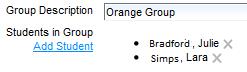
Use the X beside a student when the student needs to be removed from the group. Removing the student from the group does not delete previously created Service Logs.
See Group Service Logs for the dedicated group workflow.
Edit or Delete an Existing Service Log
Find the existing entry and select View Detail / Edit. Review the saved Service Log and use the available Edit or Delete control as appropriate.

View Detail / Edit opens the saved Service Log and provides the available maintenance options.
Review, Search, and Report on Service Logs
The Service Log list provides access to saved entries, progress information, Minutes Reports, exports, and individual Service Log details.

Use the controls above the Service Log list to review saved entries and access available reports.
Progress Graph
When progress percentages have been recorded in Service Logs, Generate Progress Graph can display those entries over time.
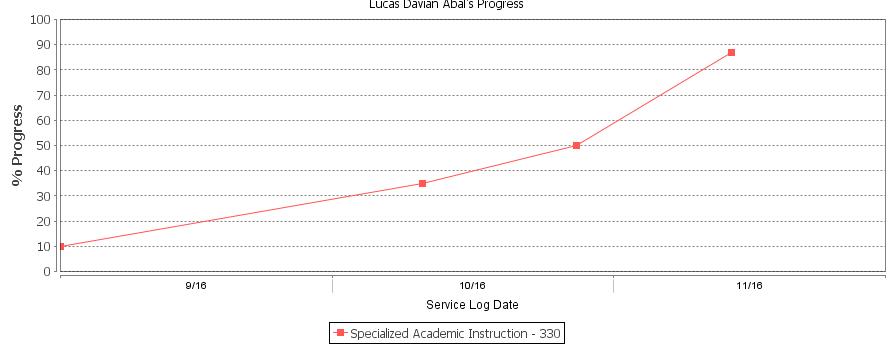
Additional Service Log progress entries add data points to the student's progress graph.
Service Minutes Report
Display Minutes Report provides a summary of delivered service minutes for the selected period and can compare delivered service information with expected service information.

Set the report period and applicable report options before reviewing the Minutes Report results.
Export the Minutes Report
Export Minutes Report opens Data Export with the Service Log Minutes Report data set configured. Review the export options and select Start Process - Generate Export.

The Service Log Minutes Report export opens with the applicable Data Export options available for review.
For the dedicated export procedure, see Service Log — Export Minutes Report.
Export Individual Service Log Entries
Use Export Log Data when you need the underlying individual Service Log entries rather than calculated Minutes Report results.

Use Service Log Data when the underlying individual Service Log entries are needed.
For the dedicated procedure and field information, see Service Log — Export Log Data.
Search Service Logs
Service Log Search can limit the entries displayed. By default, the search can be limited to logs occurring after each student's Last Annual. Clear that option when you need to search farther back.

The Last Annual option limits the entries included in the Service Log search.
Select Additional Criteria when you need to search by more specific information such as date, provider, service, Service Log Type, Session Delivery, or Attendance.

Additional Criteria provides more specific Service Log search options.
View More Entries Per Page
Use the page-size menu at the bottom of the results when you want to display more Service Logs on one page.

Select a larger page size to display more Service Log entries at one time.
School Holidays and Expected Minutes
District calendar information can affect school-day calculations used by the Service Minutes Report.
For information about maintaining district calendar events and school holidays, see SIRAS Admin — Calendar Events.

