


What do you need to do in SST Manager?
| Start an SST meeting or follow-upFind the student, avoid duplicates, and choose the meeting purpose. | Complete SST forms and collect informationUse the SST Manager tabs, General Ed Report, saved forms, and preview tools. |
| The SST meeting is completeUse Meeting Complete so important completed SST data returns to the SST Summary Page. | Record the SST DecisionContinue, follow up, complete SST, or refer the student to 504/SPED. |
| Sign / finalize the SST formsManage links/signatures, notes, contact attempts, and finalize. | The word Pending appeared after an SST referral decisionThe destination 504 or SPED record may be Pending; SST itself uses its own status cycle. |
The SST process does not use the Special Education SEDS archive model. The central question is what the SST team decides to do next: continue general education supports, schedule follow-up, complete SST, or refer to another designation.
1–4. Find the Student, Verify Current Information, and Set Up the Meeting
- Open Choose Student and select the student in SST Tracker.
- If the student already exists in another SIRAS module, do not create a duplicate. Use the applicable module-transfer process after the existing record is in the required state.
- Review Student Profile information that should populate SST forms.
- Select the appropriate SST Meeting or SST Follow-up purpose and enter meeting date, time, and location when known.

Open the student in SST Manager and verify the student belongs in your working list.
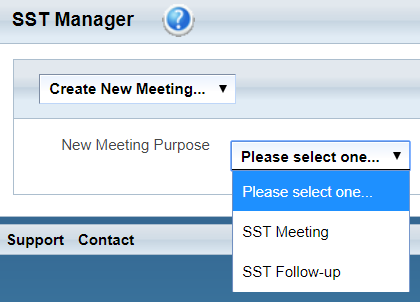
Choose the SST meeting purpose.
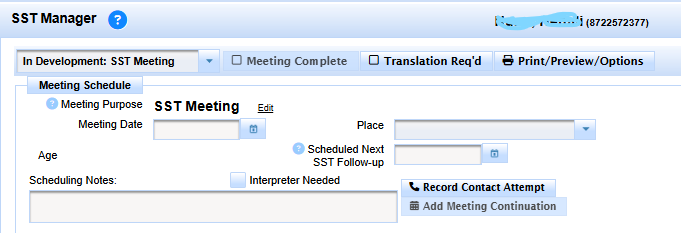
Enter meeting date, time, and location when known.
Students in an active SST meeting/follow-up process are Active. Students who have completed the SST process are Inactive. Starting a new SST meeting can make the SST record Active again.
5–7. Complete SST Forms, Collect Information, and Preview
Use the configured SST Manager tabs for the current meeting.

Use the SST Manager tabs for pre-meeting, basic forms, other forms, documents, and general education information.
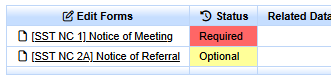
Pre-Meeting forms support notices and referral preparation.
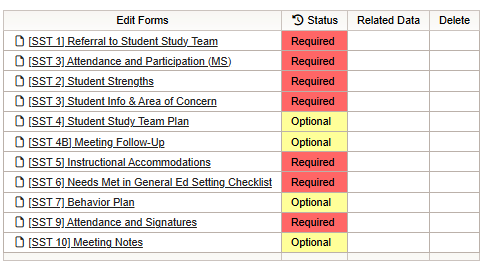
Basic SST forms contain the core meeting plan and intervention information.
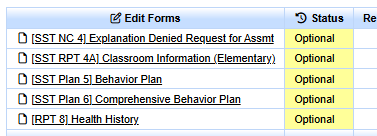
Other Forms contains additional forms configured for the local SST process.
The General Ed Report can collect information from general education staff or other participants through a SIRAS-generated link.

The General Ed Report tab can request and compile information from other participants.
Save each form as you work. Use Save to remain on the current form or Save and return to move to SST Manager or another selected destination.

Save keeps the user on the current SST form.

Save and return can move directly to SST Manager or another selected destination.
It means the form was opened and saved. Review the actual form content and required items.

A green check shows the form was opened and saved, not necessarily completed.
Use Print/Preview/Options to assemble and review the SST before the meeting is closed.

Use Print/Preview/Options to assemble the SST forms.
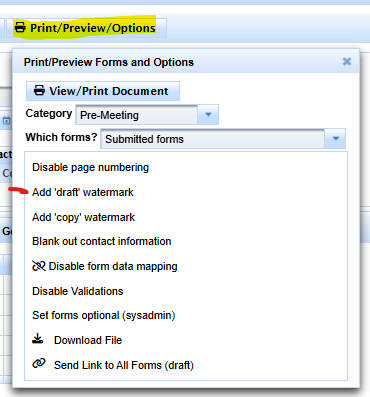
Choose the applicable preview/print options for the assembled SST.
8. Use Meeting Complete
After the SST meeting information is complete, select Meeting Complete. This pushes the important completed SST data to the SST MIS Summary.

Meeting Complete pushes important completed SST data to the SST MIS Summary.
Record the requested Parent Response and Meeting Participation information in the completion dialog according to the SST workflow.
It is not the Special Education IEP Manager Pending Changes feature. SST and SPED may share screen concepts, but the data lifecycle is different.
9. Record the SST Decision
The SST Decision determines the next owner and status of the work.
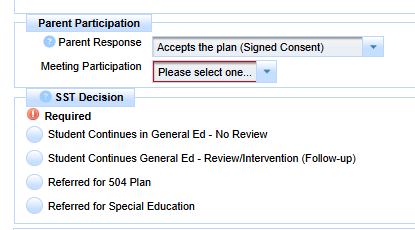
Record Parent Response, participation, and the SST Decision that determines the next workflow.

Use the SST decision/follow-up controls to document the team's next step.
| SST Decision | What happens next |
|---|---|
| Student Continues in General Ed — No Review | No further SST follow-up is needed; SST status changes to Inactive. |
| Student Continues General Ed — Review/Intervention (Follow-up) | Enter a follow-up date. The SST record remains Active while interventions/supports are reviewed. |
| Referred for 504 Plan | The record transfers temporarily to the 504 module and the destination 504 record is set Pending for the 504 referral. If the student becomes eligible, the record remains in 504; if not, it can return to SST Active. |
| Referred for Special Education | The record transfers temporarily to the Special Education module and the destination SPED record is set Pending for the IEP referral. If the student becomes eligible, it remains in SPED; if not, it can return to SST Active. |
When the SST Decision Creates a Pending Record in Another Module
The word Pending belongs to the destination record after the transfer:
- 504 referral → 504 record Pending;
- Special Education referral → SPED record Pending.
Do not interpret that as native SST Pending status, IEP Manager Pending Changes, Pending As Of MEET, or Pending report status.
See Pending in SIRAS: Know Which “Pending” You Mean and IEP - SST - 504 Module Record Transfers.
10. Finish Documentation and Finalize
Use the district's approved signing method. SIRAS can support printed signatures, on-screen/e-signature workflows, and managed form links where configured.
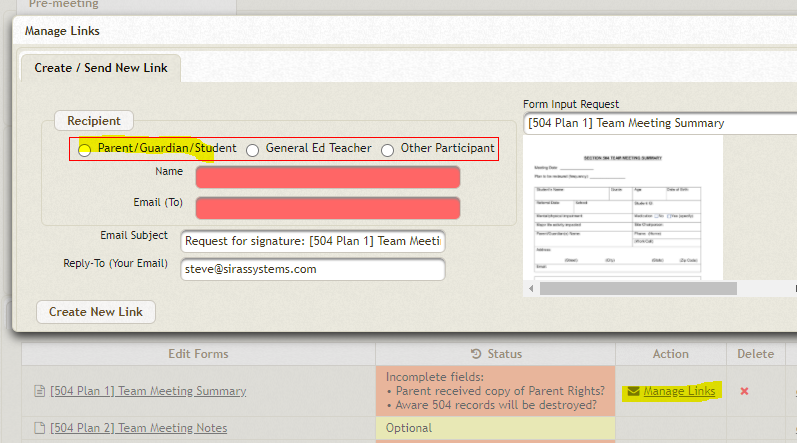
Manage Links can send a form link for remote review or signature.
Before finalizing:
- proofread the SST;
- review Scheduling Notes and remove temporary working notes;
- document necessary contact attempts;
- use a continuation only when the same meeting genuinely needs a short continuation; and
- confirm the SST Decision and follow-up/status are correct.

Review scheduling notes before finalization and remove temporary working notes.

Use Record Contact Attempt to document contact efforts.

Use a continuation only when the same meeting genuinely needs a short continuation.
Select Finalize to lock the forms and close the SST meeting.

Finalize locks the SST forms and closes the meeting workflow.

Use the designation selector to confirm you are working in the SST Tracker module.
The SST Summary Page reflects the completed SST data, the SST Decision matches what the team decided, the record is Active or Inactive as appropriate, and any 504/SPED referral has a clear destination owner.

