


What do you need to do in 504 Manager?
| Start a 504 Eligibility, Review, or Amendment meetingChoose the meeting purpose and schedule the meeting. | Complete and preview the 504 formsFinish required forms, address warnings, and make the electronic draft accurate. |
| The 504 meeting was heldUse Meeting Held so completed 504 data returns to the 504 MIS Summary. | Finalize the 504 PlanRecord participation/response, verify the electronic copy, then lock the plan. |
| A finalized 504 Plan needs correctionReactivation can correct forms, but MIS data must also be corrected separately after finalization. | A 504 determination or exit needs to reach the SISUse the Section 504 SIS handoff process; this is not the Special Education SEDS reporting loop. |
Do not apply the Special Education IEP Manager Pending Changes or SWDS/MEET/PLAN/SERV archive model to a 504 Plan simply because both modules use Forms Manager and a MIS Summary.
1. Review the Student and Start the Right 504 Meeting
- Use Choose Student and open the student in 504 Manager.
- Review Student Profile information that will populate forms, including demographics, contacts, providers, and applicable health information.
- Select the meeting purpose that matches the work being completed.
- Enter meeting date, time, and location when known.
| Meeting purpose | Use |
|---|---|
| 504 Eligibility | Determine whether the student is eligible for a Section 504 plan. |
| 504 Review | Review an existing 504 Plan, commonly as a periodic/annual review. |
| 504 Amendment / Addendum | Change an existing 504 Plan according to district policy and the documented agreement. |
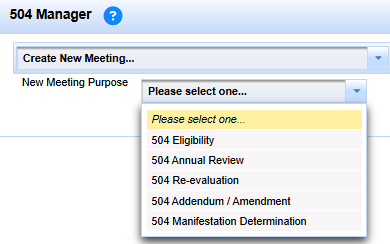
Choose the 504 meeting purpose that matches the work being completed.
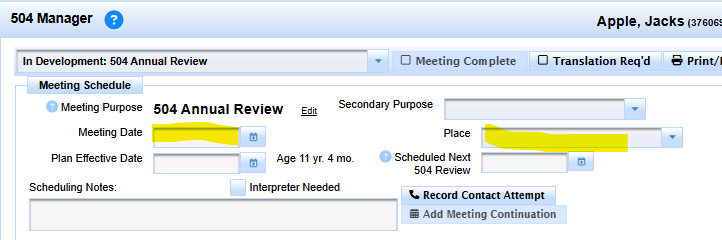
Enter the meeting date, time, and location when known.
2. Complete the 504 Forms and Build an Accurate Draft
Use the 504 Manager tabs for Basic Forms, pre-meeting forms, other forms, uploaded documents, and other locally configured content.

Use the 504 Manager tabs to open the forms and documents needed for the meeting.
Open, complete, and save all required forms. A green check or saved state shows that a form has been opened/saved; it does not by itself prove that the form is complete or accurate.
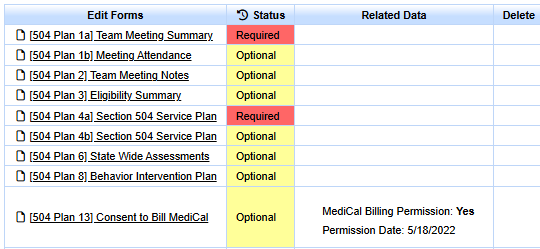
Complete and save the required forms before assembling the 504 Plan.
Use Print/Preview/Options to assemble and proofread the plan. Correct electronic forms before relying on the final document.

Preview the assembled plan and correct the electronic forms before the meeting is finalized.
Do not later alter the electronic 504 Plan in a way that is inconsistent with the signed plan without the appropriate parent/guardian/adult-student permission and district process.
3. After the Meeting: Use Meeting Held
After the meeting, enter any handwritten or in-meeting changes into the electronic forms so the electronic and paper/signed copies match.
Then select Meeting Held. In the 504 workflow, this pushes the important completed 504 Plan data to the 504 MIS Summary for the current record.

Meeting Held pushes the important completed 504 data to the 504 MIS Summary.
This is not the Special Education IEP Manager Pending Changes feature. If you see the word Pending elsewhere in SIRAS, identify the context first. See Pending in SIRAS.
4. Record Parent Participation / Response and Finalize
- Review the final electronic 504 Plan.
- Record Parent Participation.
- Select the Parent Response that represents what occurred.
- Review scheduling/follow-up notes and remove temporary working notes that should not remain.
- Finalize only after the electronic copy accurately represents the meeting and signed/agreed document.
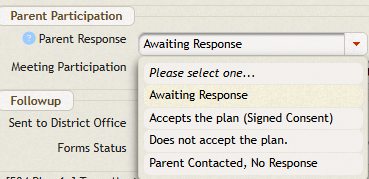
Record Parent Participation and Parent Response before finalizing the 504 meeting.
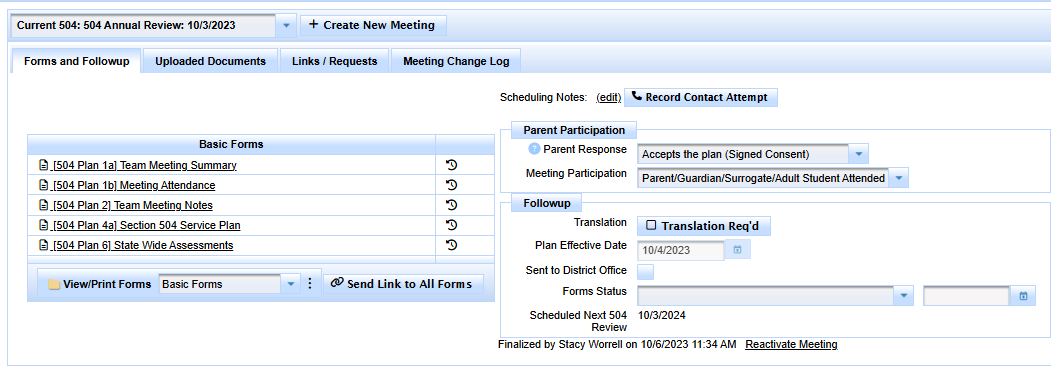
Finalizing locks the 504 Plan after the electronic record matches the signed plan.
The electronic plan matches the signed/agreed plan, the 504 MIS Summary reflects the completed 504 data that should be current, and required follow-up/document handling is complete.
5. If a Finalized 504 Plan Needs Correction
An authorized 504 Coordinator can reactivate a finalized meeting when the documented correction policy allows it.
Important data rule: once a 504 meeting has been finalized, reactivating and correcting the 504 forms does not cause those corrected form values to push to the MIS Summary again.
If the correction affects a data item that also belongs on the 504 MIS Summary:
- correct the reactivated 504 forms so the electronic meeting document is accurate;
- correct the corresponding 504 MIS Summary data separately; and
- finalize again after verification.
A substantive change that was not part of the signed/agreed plan requires the appropriate 504 amendment/addendum or other district process.
6. Complete the Section 504 SIS Handoff
SIRAS is not the district's Special Education SEDS submission model for Section 504. The district SIS is responsible for the district's Section 504 CALPADS reporting workflow, including the applicable Program 101 process.
After new 504 participation or a 504 exit is established in SIRAS, make sure that result reaches the SIS:
- automated
504StudentData.csvimport where supported; or - a documented manual handoff where automation is not available.
See Special Education and Section 504 Data from SIRAS to SIS and File-Based SIS Integration: Implementation Guide.

