


What to do when staff leave your district:
Steps:
• Remind the person leaving to have new district SPED person request their original account.
• Keep look out for any user transfer requests on the home page daily.
• Below are the steps we need to complete so we can to send a user account to a requesting district immediately as it comes in.
1) Find the account.
2) Re-assign or remove all student associations.
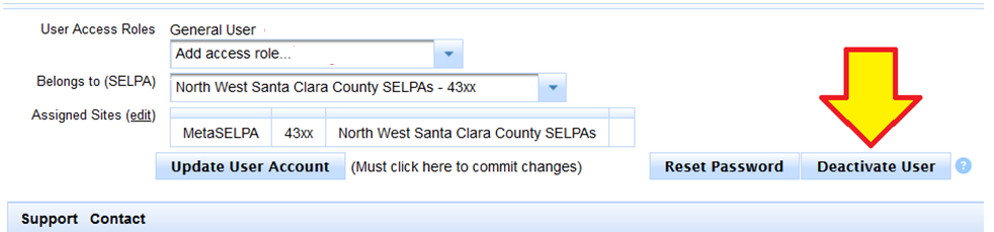
3) Deactivate the account.
Find account by going to /tools/Manage Users
Click Choose User

Type name to search for
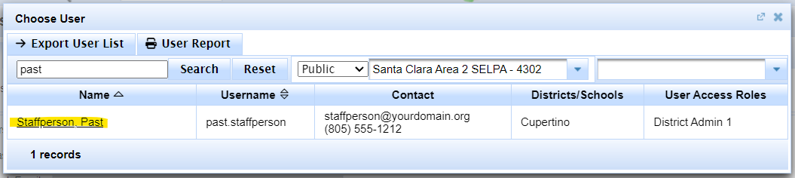
Click on Staff person’s name:
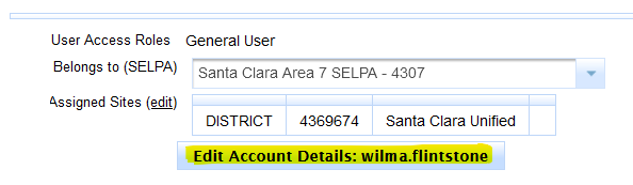
Click Edit Account Details:
Clear out Student Assignments:
• Click on Student Assignments

• Re-assign all students to other staff as appropriate.
• Remove any other assignments as appropriate.
• If needed, copy student assignments from Siras to an Excel document for later reference.
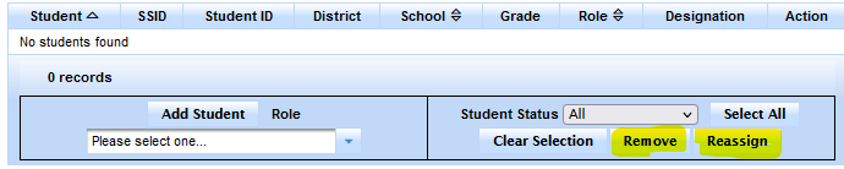
After all the student assignments have been removed.
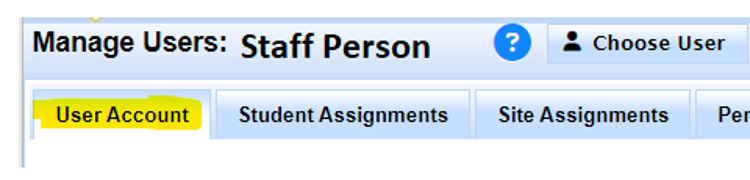
Go to User Account
Deactivate User:
• (If closed, Click Edit Account Details)
• Click Deactivate User
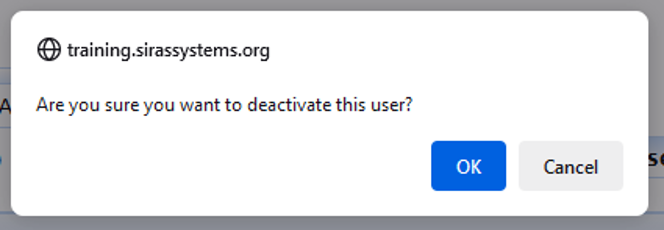
• Verify you want to deactivate the account by clicking OK
That’s it.

