


CALPADS IVR Errors Posted in SIRAS
CALPADS Input Validation Rule (IVR) errors are returned to SIRAS after a CALPADS submission is processed and the user imports the errors and marks the submission session complete.
This article explains where imported IVRs appear, how they temporarily block an archived transaction, and how to correct, clear, resend, and verify the transaction.
The red X removes the displayed error and allows SIRAS to try sending the archived transaction again. It does not correct the underlying data.
Screenshots from the SIRAS Training Server contain fake or demonstration student and user information.
Which Article Do I Need?
| SIRAS Built-in Validation SystemSIRAS displayed the message before submission. | CALPADS IVR Errors Posted in SIRASCALPADS rejected a transaction and the error now appears in SIRAS. |
| CALPADS Error SummaryLook up the meaning and first checks for a CALPADS code or message. | Process for Error ResolutionUse the governing investigation and correction process. |
| CALPADS Submission Log HelpA transaction appears missing or rejected, but no error is posted in SIRAS. | Reporting Data to CALPADSReview the complete generate, send, import-error, and resend cycle. |
Contents
| How IVRs Arrive in SIRAS | Where to Find Imported Errors |
| Why the Archive Is Temporarily Blocked | Correct the Source of the Error |
| Clear, Resend, and Verify | Known CALPADS Issues |
How IVRs Arrive in SIRAS
In the CALPADS Reporting cycle:
- SIRAS generates and sends the SWDS, MEET, PLAN, SERV, and applicable PSTS files.
- CALPADS processes each file.
- If a file is rejected, use Import Errors / Mark Complete.
- SIRAS attaches the returned IVR messages to the affected student and archived reporting transaction.
See Reporting Data to CALPADS for the complete reporting cycle.
Where to Find Imported Errors
Imported CALPADS errors can be reached from the SIRAS Home page, the MIS Summary, and the CALPADS Reporting area.

The error list includes:
- Report Event Date — identifies the archived transaction associated with the error and links into that archive;
- Error Code and Error Description;
- CALPADS Job ID and creation date; and
- the Clear Error X control.

Why the Archive Is Temporarily Blocked
Any posted imported error places a temporary Do Not Report block on the archived transaction to which the error is attached.
- SIRAS will not include that archive when files are generated.
- The archive may still display Pending Report Status.
- There is no need to open the archive and manually change Pending to DNR.
- The temporary block remains until the posted error is cleared.
Certification may still be possible in CALPADS, but the SIRAS error indicates missing or rejected transaction data that must be reviewed.
Correct the Source of the Error
- Open the error and record the complete code and description.
- Use the Report Event Date link to open the associated archive.
- Review Current data, the archived transaction, CALPADS history, and what actually occurred.
- Use CALPADS Error Summary for the error meaning and Process for Error Resolution for the investigation method.
- Correct Current data, the archive, enrollment, or another source as required by the verified event.
The imported error is attached to a dated archived transaction. When that archive contains the rejected value, correct the archive separately.
Clear, Resend, and Verify
- Correct the cause of the IVR.
- Return to the imported-error list.
- Click the Clear Error X.
- Confirm that the archive has the appropriate Pending Report Status.
- Run the next CALPADS reporting cycle.
- Review the submission result and verify that the transaction posted.
If the same error returns, the cause was not fully resolved or another dependency is still blocking the transaction.
Use CALPADS Submission Log Help when the corrected transaction does not appear and no new imported error is posted.
Known CALPADS Issues
SIRAS may display a red notice in the CALPADS Reporting area when a common CALPADS issue has a pending resolution.
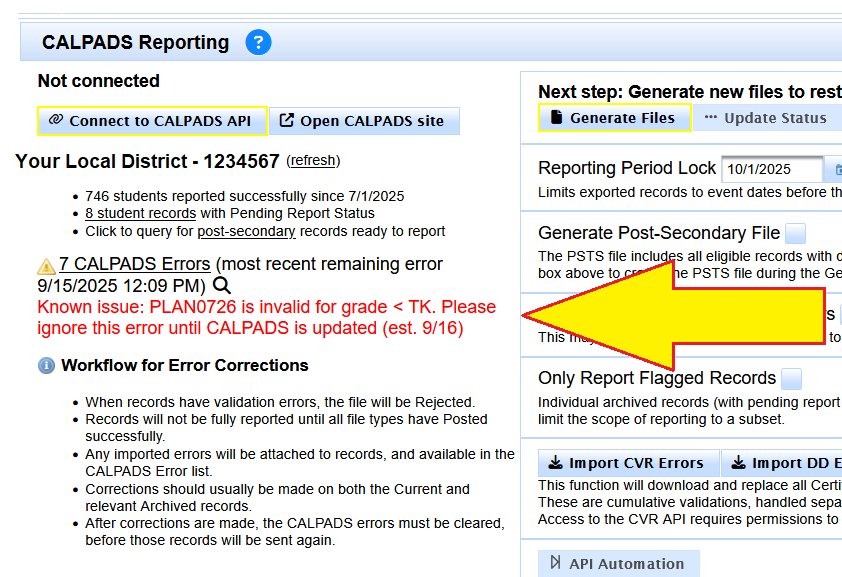
- Read the notice before changing accurate data.
- Check the current CALPADS known-issues information.
- Follow the posted workaround or wait for the announced resolution when instructed.
- Clear or resend the affected transaction only when the issue has been resolved or the workaround has been completed.
Contact [email protected] with the SSID, complete error text, Report Event Date, and the steps already taken when the error returns after one or two informed attempts.

