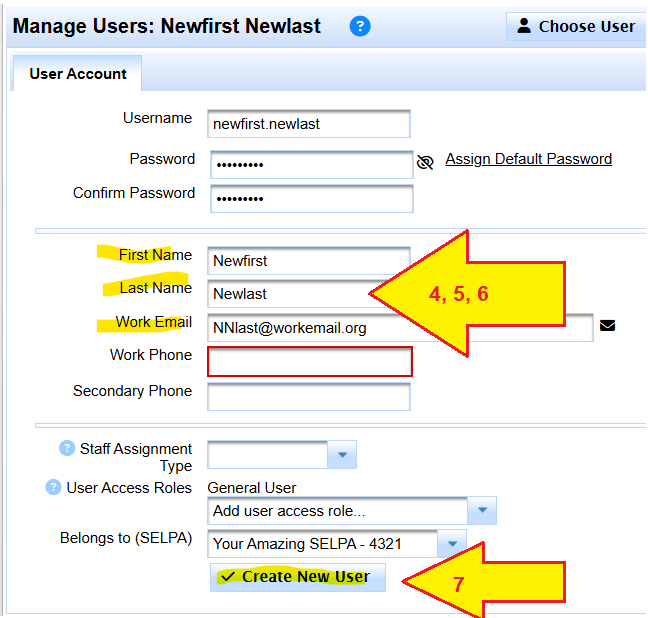
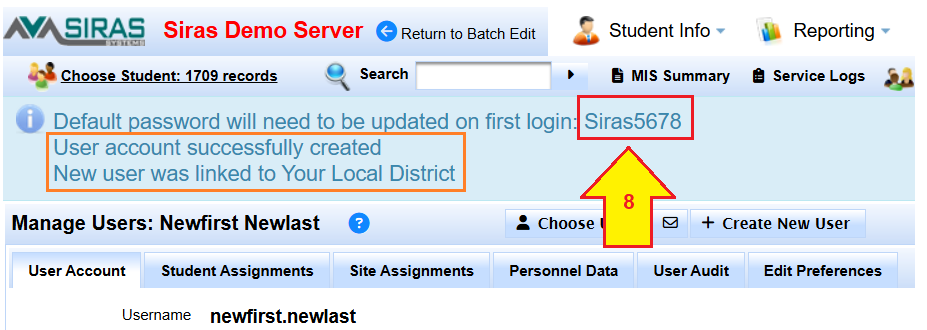
Tools/Manage Users/Create New User
!Ask new staff if they already have a SIRAS account
Use Choose User to search for existing SIRAS account
We don't want to create duplicate account.
IF SELPA user creating account for District User
Switch Scope to District that user account needs to be from
Create New User
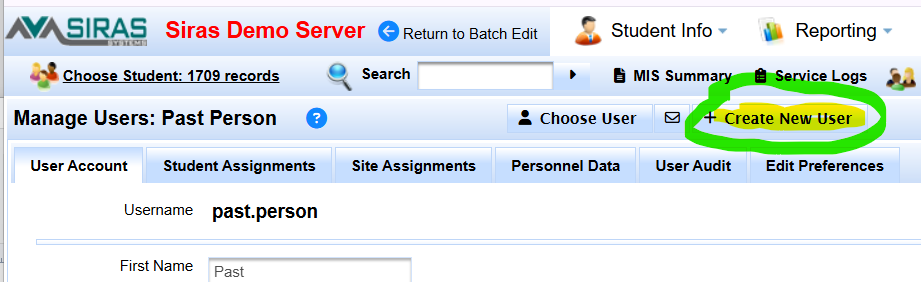
Create new user mode
Check Availability, Reset
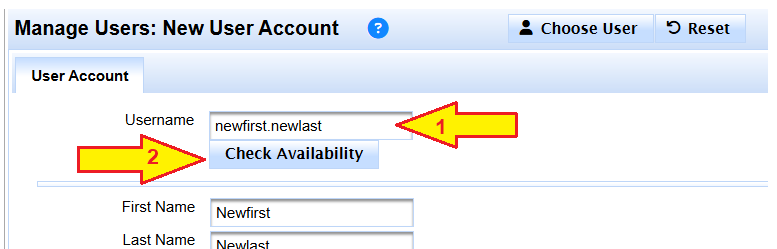
Type staff persons firstname.lastname into the check availability box
Click Check Availability
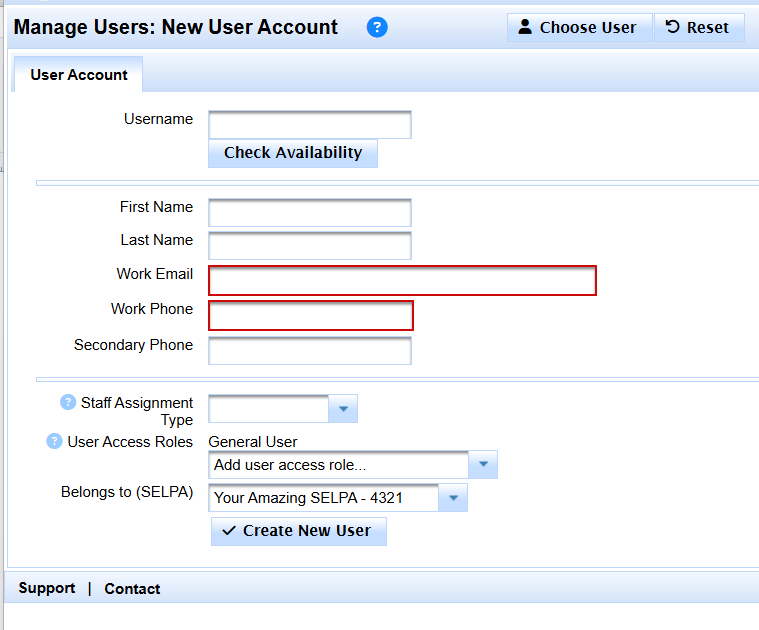
see if the username is already taken
Click on 'check availability'
If it is, consider putting the number 2 in the username at the end of first or end of last.
newfirst.newlast2
If the username is not taken, we next set the temporary password.
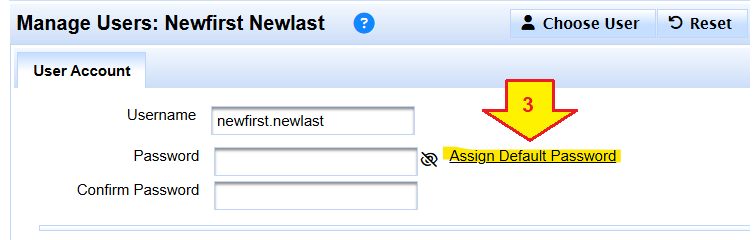
Click to 'assign default password'
SIRAS will tell you the password when we finish creating the new user.
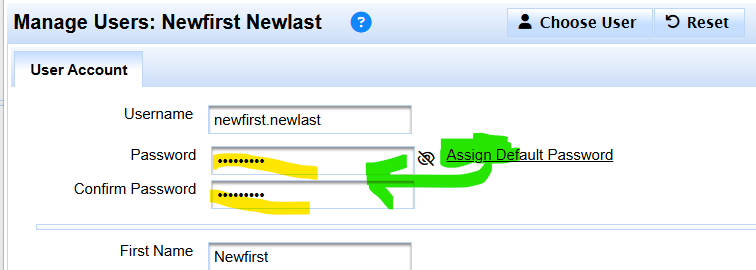
After clicking we can see the password assigned
We can leave them a general user if all their students will be assigned individually.