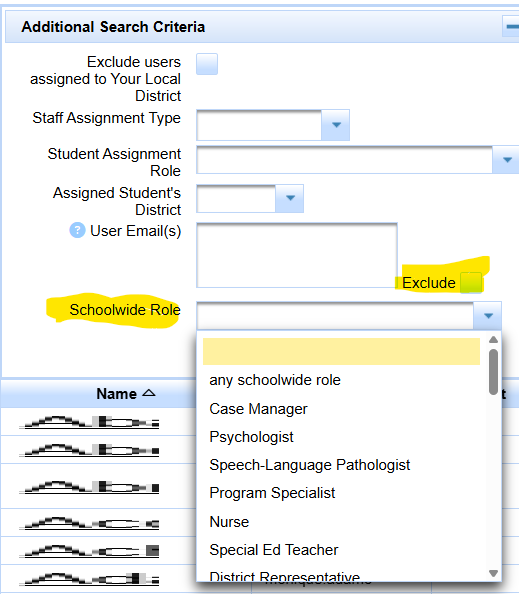
/tools/Manage Users/Choose User
Need to find user accounts that are not based in your district but are still assigned to students in your district? Use Show Me: Find Out-of-District Users Assigned to Students in Your District.
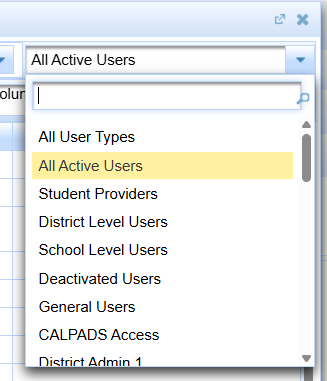
First row has query options:
'search by name...' box
search button
reset button
user classification
scope
user type menu
Second row has query options and other actions:
Additional Search Criteria + button to show more query logic.
'Go to User Statistical Reports' Report area for doing caseload type tracking
Add columns to list for the header list in the Third row
Export Users
Print visible Page
Third Row has default headers
Name, Username, Contact, District/Schools, User Access Roles
Choose User Header (additional search criteria closed)

Click + button next to additional Search Criteria
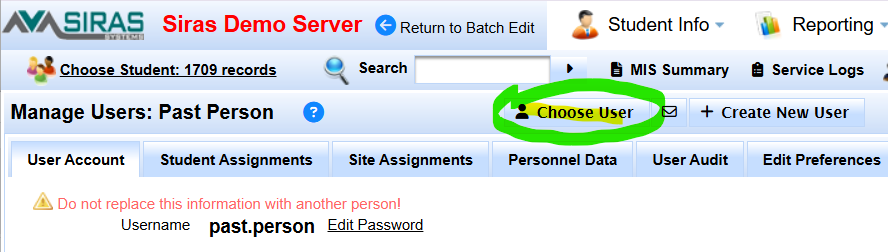
User Type Menu
All Active Users
All User Types
etc.
Additional Search Criteria
Exclude users assigned to your local district [Filter out known local accounts to see incoming accounts from other districts.]
Staff assignment type [RSP, SDC]
Staff assignment role [SIRAS assignments]
Assigned student's district [looking to see if any of your user accounts are assigned to a student outside of your district, at the specified district.]
User Email(s)
Exclude
Schoolwide Role
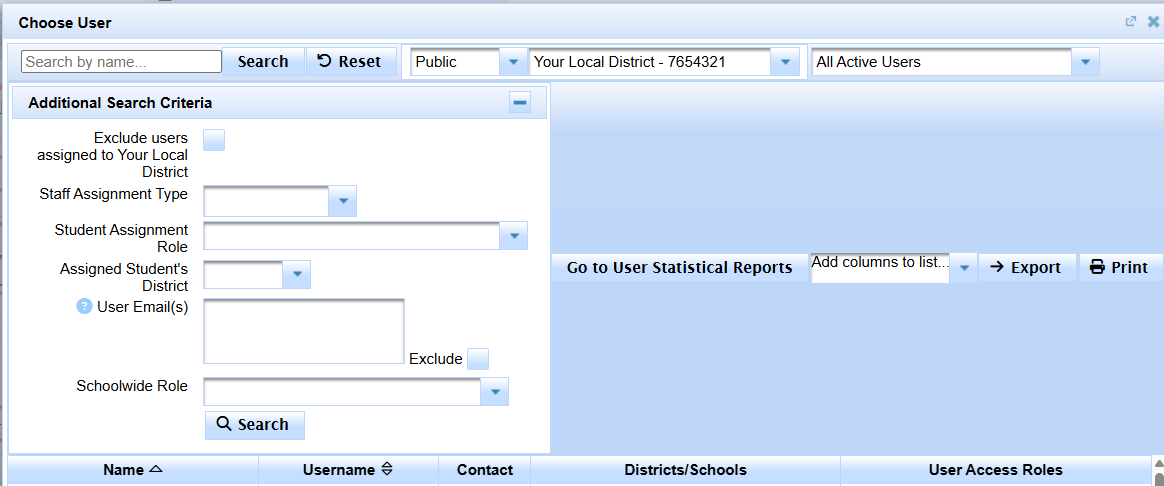
Exclude works with Schoowide Role
You can remove any user accounts with a particular user access role by checking exclude and a schoolwide role then click search