


Find out of district users under
Last updated: Oct 17, 2026
Use this when: you are reviewing beginning-of-year user access and want to find SIRAS user accounts that are not based in your district but are still assigned to one or more students in your district.
SIRAS click path:
Tools → Manage Users / My Account → Choose User
Tools → Manage Users / My Account → Choose User
Administrator / District SPED Clerk task.
You need access to Manage Users and Choose User to perform this review.
You need access to Manage Users and Choose User to perform this review.
Find the Out-of-District Users
- Open Tools → Manage Users / My Account → Choose User.
- Open the Additional Search Criteria area if it is not already visible.
- Enable Exclude users assigned to your district.
- For Assigned Student's District, verify that your district is selected.
- Select Search.
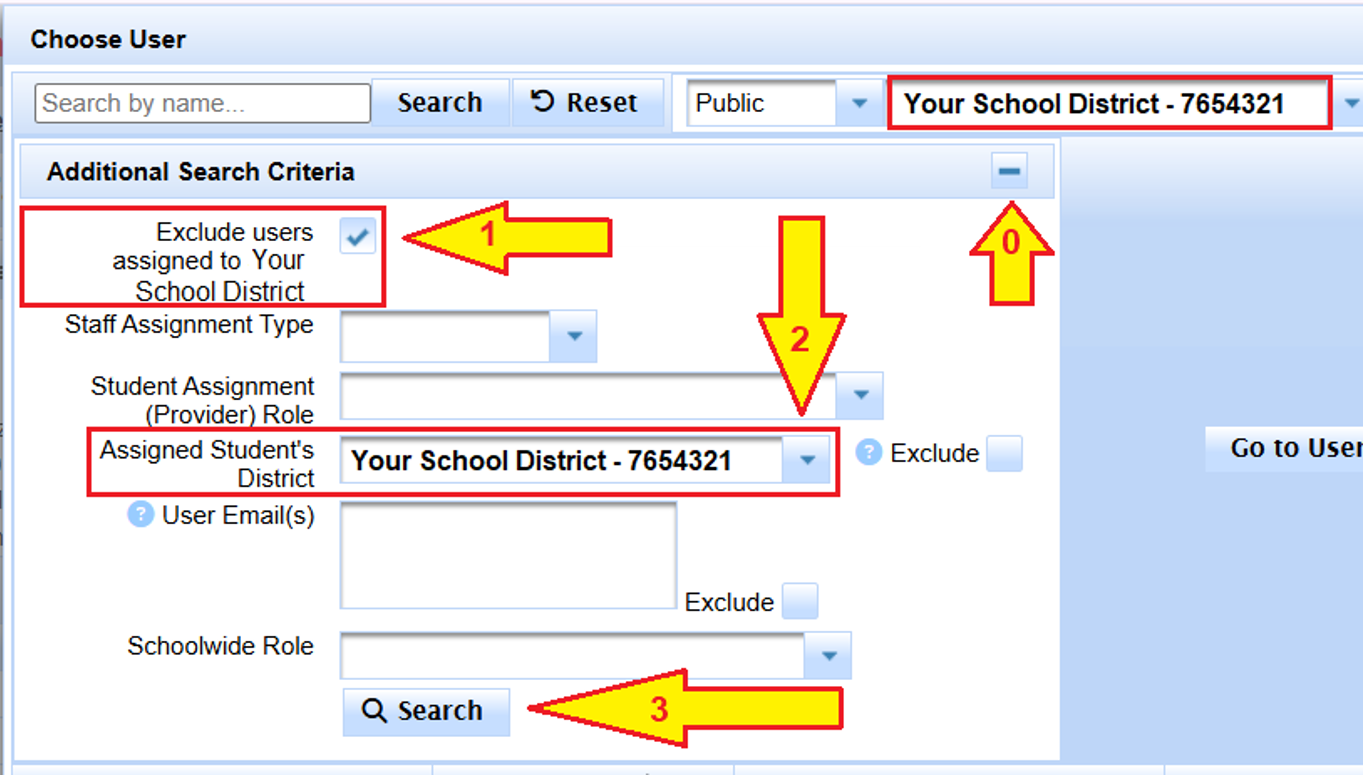
Use these two criteria together to find outside-district user accounts that are still assigned to students in your district.
Expected result:
The Choose User results are filtered to user accounts that are not assigned to your district but still have a student assignment connected to a student in your district.
The Choose User results are filtered to user accounts that are not assigned to your district but still have a student assignment connected to a student in your district.
Review the Results Before Removing Access
Being listed here does not automatically mean the user should be deactivated or removed.
The purpose of this search is to identify accounts for review. Confirm whether the person still has a legitimate reason to work with the student before changing access or assignments.
The purpose of this search is to identify accounts for review. Confirm whether the person still has a legitimate reason to work with the student before changing access or assignments.
For beginning-of-year cleanup, review the returned users and determine whether each person still needs access based on current responsibilities.
- If the user still needs access to the student, leave the appropriate assignment in place.
- If the user no longer needs the student assignment, use Student Assignments to remove or reassign it.
- If the user no longer needs SIRAS access, use Reactivating / Deactivating SIRAS User Account.
- If the person now works in another SIRAS district and the account needs to move, use User Account Transfer Request Process.
What This Action Changes
- Found Set: Not applicable — this searches user accounts, not the student Found Set.
- View: The Choose User results are filtered to the user accounts matching these criteria.
- Data: View-only. Running this search does not change user accounts, student assignments, or student data.
- Persistence: Temporary search result. Any later removal, reassignment, transfer, or deactivation is a separate action.

