


[Testing and Accommodations in SIRAS] [TOMS Export FAQ]
Click Here for Parts 1 - 3 reviewing accommodations data for accuracy
Part 4: Exporting the data. (SIRAS Data Administrator)
Best Practice:
- Staff who do the batch uploads at district or site level must coordinate with staff who do final test updates at student level.
- No staff should be 'fine tuning' student test settings in TOMS until all batch uploads are done.
- Batch updates reset the accommodations in TOMS to whatever is being uploaded.
Determine if you are exporting the whole district or just one site.
If you want to export just one site, use the school house (scope) icon to switch your focus to that particular school.
- Login to SIRAS
- Go to /Tools /Data Export.
- Click on the appropriate Test Accommodations button in ‘Export Presets’.
- After clicking the button, you will see the # found records that are eligible for CAASPP or ELPAC.
- Click on the Generate Export to create the file.
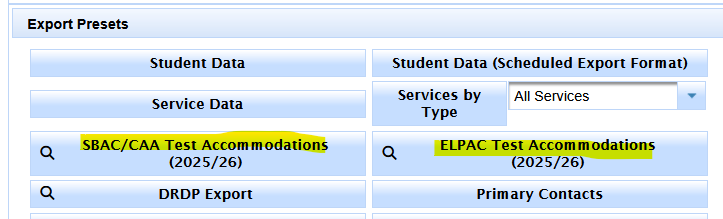
After Preset button is clicked:
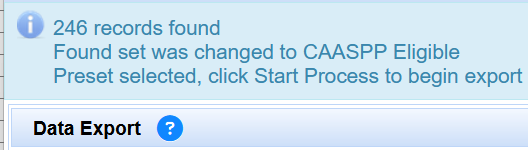 OR
OR 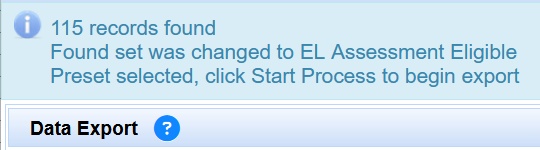
Then click the ‘Start Process – Generate Export button’.
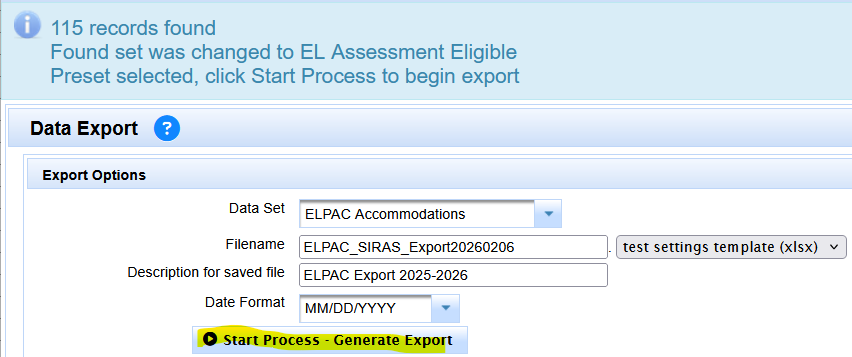
DO NOT CHANGE FILE FORMAT
When the export is complete, you will see the file listed in the ‘My Finished Exports ‘section, under ‘Downloaded Saved Export Files’ with a filename of TOMS_SIRAS_ExportYYYYMMDD.xlsx or ELPAC_SIRAS_ExportYYYYMMDD.xlsx
Download the file. Do NOT open/edit or revise the file. If your browser opens the file for you it mightdouble clicking on it, please do not do this. You may need to right click on it or click the icon to right of filename to show in folder or find a menu of options to locate the file where your browser saved it. This is dependent upon what browser you use and what file save preferences have been set. If your browser changed the name of the file upon download, this is less important, but you may want to revise the name of the file to match the intended filename
TOMS_SIRAS_ExportYYYYMMDD.xlsx or using the naming convention you prefer.
Send the file to your testing coordinator. This file should be sent at the latest 2 weeks prior to testing. Collaborate with your district coordinator.
Special notes for test coordinators:
- Staff doing the uploads must coordinate with staff doing final adjustments in TOMS. No staff should be doing final adjustments in TOMS until batch uploads are completed. Batch uploads replace whatever was in TOMS previously.
- Once the data file has been uploaded to TOMS, someone should verify data was uploaded as intended. If you have questions about the export and upload, contact SIRAS support at [email protected] or CalTAC at [email protected].
- It is recommended that each school site have a list of the supports. At the time of the export, the test coordinator can run an assessment list, sorted by school site. Go to the Search Page by clicking on the magnifying glass. Click the Predefined Queries tab. Click the CAASPP Eligible button to execute the search/query. This will locate all the students who are in the testing group (students with plan type 100 -IEP from grades 3 – 12, except grade 9). Click Search to Student Lists. From the Student List, click the Predefined Lists tab. Select CAASPP Assessment List. Go to the Edit List tab to group your search by School Attending.
- Print-on-demand is set by having the LEA CAASPP coordinator contact the California Technical Assistance Center (CalTAC). Configuring this accommodation in the upload file will not automatically activate it for the assigned student. All requests must be approved by CalTAC and the CDE. Contact [email protected]
- If Universal Tools have been turned off, refer to the IEP to know which tools to turn off.
- TOMS has linked Embedded Text-to-Speech for math and science. If selected in subject, the student will have Text-to-Speech for both subjects in the testing interface.
- If an accommodation requires permissive mode, Siras will automatically include Permissive Mode in the export.
- The TOMS export file does not assign students to the California Alternate Assessment (CAA). This must be done by posting a different file and/or manually adjusting the “test mode” in TOMS. If you change the test mode after posting this Test Settings file, then you will reset the settings to the default of NONE.
- Students must be actively enrolled with the district in CALPADS (SENR record) and have a current Special Education program (SPED record) with a disability code in CALPADS to post accommodations.
- Only LEA or Site Coordinators can post these files to TOMS, so Special Ed. staff and CAASPP/CALPADS staff may need to work on posting the file together. The file will go through an initial validations process. If there are ANY errors (student not enrolled with district in CALPADS, no current disability code in CALPADS) then the entire file may be rejected. Coordinators will have to either remove the lines where errors have occurred and repost and/or work with CALPADS coordinators to correct the CALPADS information and try again another day.
For assistance or questions about the query, assessment list or the data export, contact [email protected].

