


After an eligible and participating student's meeting is finalized, many MIS Summary fields are locked for general users. A District SPED Clerk, District Admin 1, School SPED Clerk, or School Admin 1 may have permission to unlock the MIS Summary when a verified Current-data correction is needed.
SIRAS path: Student Info → MIS Summary → Unlock
If the information came from a completed IEP event, first determine whether the correction belongs in Current data, the finalized meeting/history, or both.
Who Can Unlock the MIS Summary?
General providers normally cannot unlock protected MIS Summary fields after the Initial Evaluation is complete. If a provider identifies incorrect information, the provider should contact the district or school SIRAS administrator who is responsible for the correction.
For role details, see SIRAS User Access Roles and Permissions.
Unlock the Record
- Open the student's MIS Summary.
- Confirm the information that needs correction and the source that verifies the correct value.
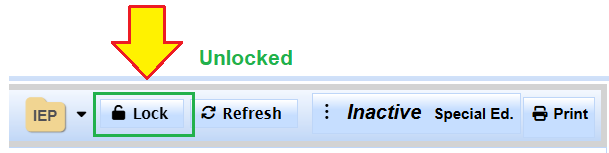
- Select Unlock at the top of the MIS Summary.
- Edit only the fields that need correction.
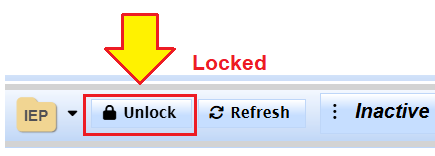
When the page is unlocked, the control changes to Lock.
What Unlocking Does
- Unlock changes the editing state of protected Current-data fields.
- Unlocking by itself does not change student data.
- Edits made while unlocked change the student's Current record and should reflect verified information.
During an Initial Evaluation
While an Initial Evaluation is still in progress, general-user providers may be able to update certain Current fields, including demographics, Program Setting, Degree of Support, % in General Education, and Special Transportation. After the Initial Evaluation is completed, those fields may become protected.

