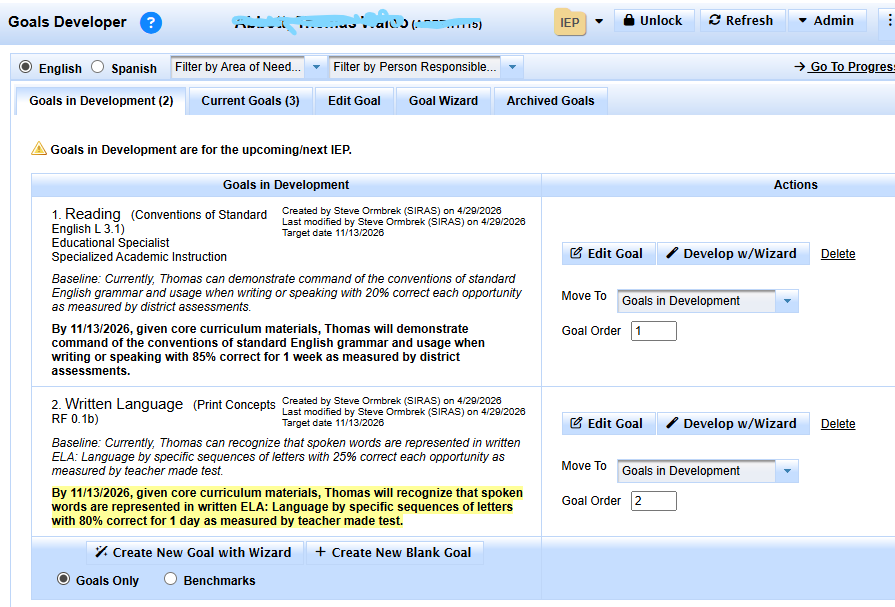
Play Training Video (Develop Benchmarks)
Play Training Video (Goal Wizard)
Play Training Video (Using the Common Core Standards & Goal Stems)
GoalWizard
If you choose to develop a goal with the Goal Wizard you will be taken directly to the screen where you develop the goal. As you develop your goal, you will be guided to include all of the required elements that make up a compliant goal. Begin at the top of the screen and work down.
The first field is the Target Date for the goal. When you open the calendar, it will default to one year from the IEP date. If you have not yet set a date for the IEP, the target date will default to one year from today's date.
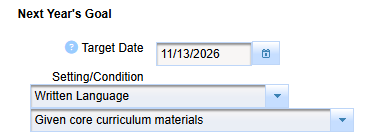
Once you have your target date, select the Setting/Condition for the goal. Global Setting will give you a list of "places" or settings where you might want the student to demonstrate the goal. Choosing one of the domains or subjects on the list. The area of need options will provide “givens” or what does the student need in order to complete the goal.
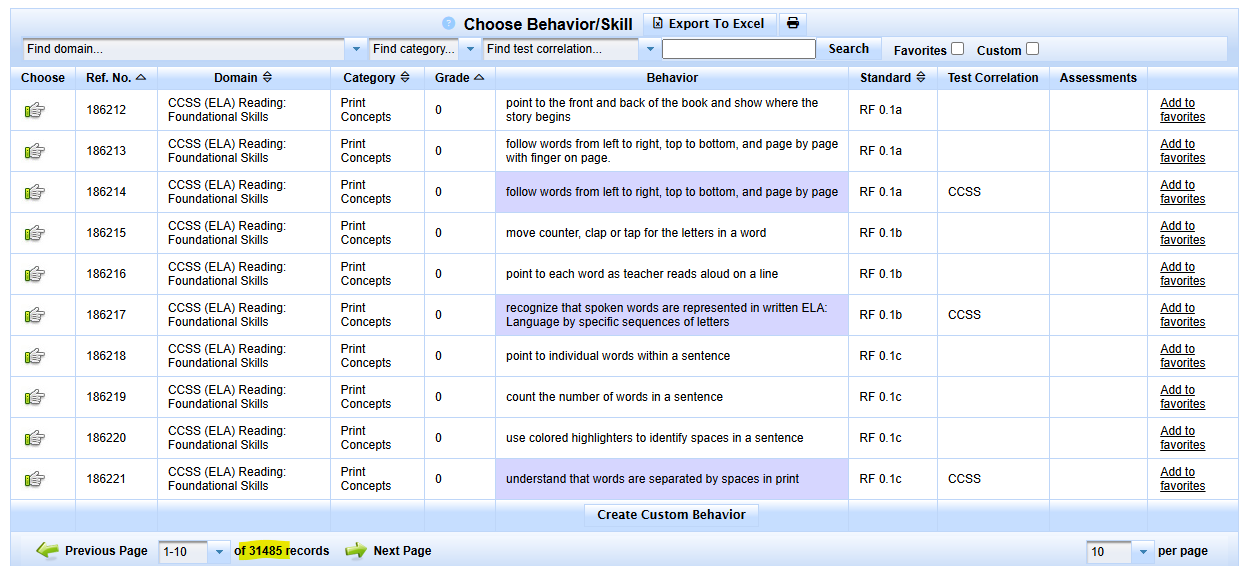
The next step is to select the Behavior. Because we have thousands of behaviors you will need to use the filter to narrow down the behavior.
First select the Domain (and Category and/or grade level) for the goal. Skills or Behaviors will be listed with 10 per page; use the green arrows at the bottom to scroll back and forth between pages. To select a goal, click on the hand to the left of the goal (Remember, “Talk to the hand.”). As soon as you select a behavior, the goals list will collapse out of the way. If you made a mistake on your selection, click on "Choose a different behavior" and the behavior list will come back up.
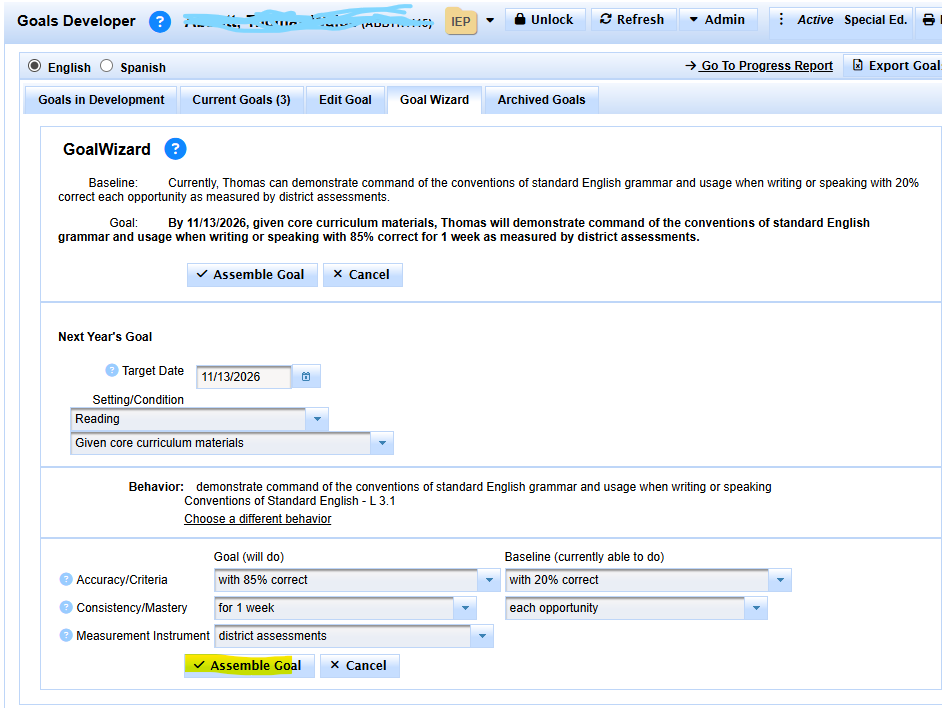
Once you have selected your behavior for the goal, you need to choose the Accuracy (how well the student will perform the skill) and Consistency (how frequently or how long over time) as well as the Measurement Instrument to be used. It is important to state Accuracy in the same terms for baseline and goal (e.g. # of errors, # of prompts, # correct, percentages) so that comparisons of progress to baselines are logical. In most cases Consistency will be stated in the same or similar terms as well, although the period for the baseline may be shorter than for the annual goal.
As you add information, you will see the goal and baseline being developed at the top of the page. Once you are finished, select Assemble Goal button at the bottom. That puts the elements of the goal together and takes you to the Goal Editor screen where you can make any changes you want to the goal. To replace any of the blank lines with a number, just double click on the line and then type in the number and click on the space bar. After you have made the changes you want to the goal and benchmarks, click SAVE, and it will take you back to the Goals Developer. Then you can develop your next goal the same way.
If you are developing goals with benchmarks (called objectives on the IEP page), be sure you list the benchmarks in the order that you would expect them to be achieved. The benchmark to be mastered first should be at the top of the list and the benchmark to be mastered just before the goal should be at the bottom. Otherwise, the Progress Report for the goal will be very confusing to the reader. Be sure to include a separate benchmark for each reporting period so that there is a place to report toward that goal at each reporting period. If you do not have benchmarks corresponding to the progress report dates, you will not be able to do a progress report on that goal. If you find that you it appears you will need more than 4 benchmarks for a student, then you need to decide which reporting period to skip (either the one just after the IEP or the one just before the next IEP
1. Select the Setting/Condition by fist selecting the Area of Need and then the Setting and/or Condition:
2. Select the Behavior by first choosing the Domain, then the Category and if appropriate, the Grade. Then click the 'hand' the behavior that you want to be part of the goal or objective:
3. Enter the 1st Goal's Accuracy/Criteria, Consistency/Master and Measurement Instrument. Then enter the 2nd Baseline's (what the student can do concerning the chosen behavior now) Accuracy/Criteria, and Consistency/Master.
4. Click the Assemble Goal button
5. In the Goal Editor, make adjustments to the assembled goal, add Associated Services and Person Responsible.
6. Click Save/Close button
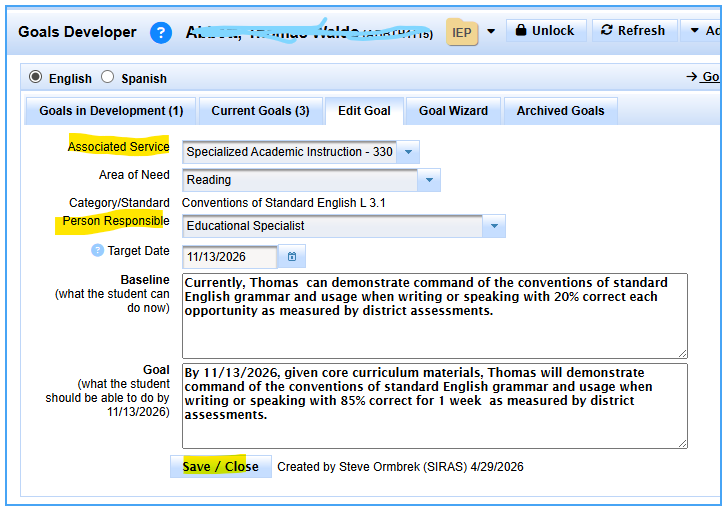
7. When you open the Goal or goal and Benchmark form in the IEP Manager, this goal will be auto entered on the Goal and Benchmark page.