


Correcting Form After Signature Lock

Mar 20, 2026
Signature Lock in SIRAS
Steps for editing a SIRAS form that requires a new parent/guardian signature after parent signs electronically and form is locked.
Example: 6A Notice of Meeting (Parent signs they cannot attend/Edits Needed – changes to purpose of meeting and/or participants).
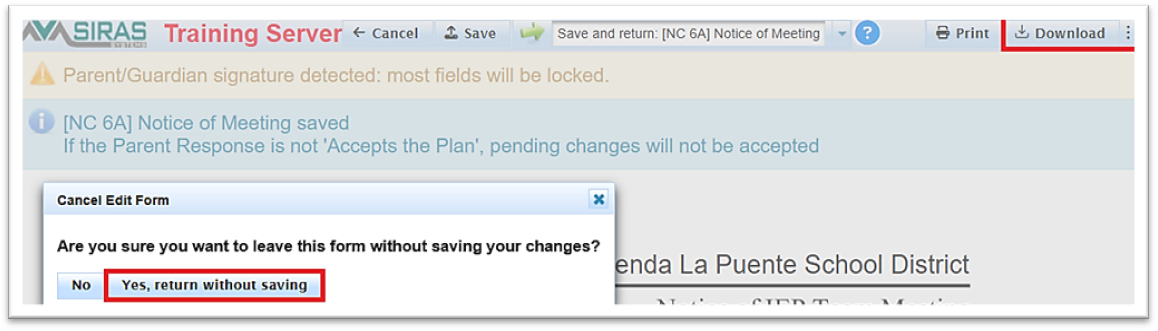
- User opens the signed form and click’s the “Download” button. Click “Cancel” and “Yes, return without saving” button.
- Go to the “Uploaded Documents” tab to upload the signed signature form (this will keep a historical record of our attempt).
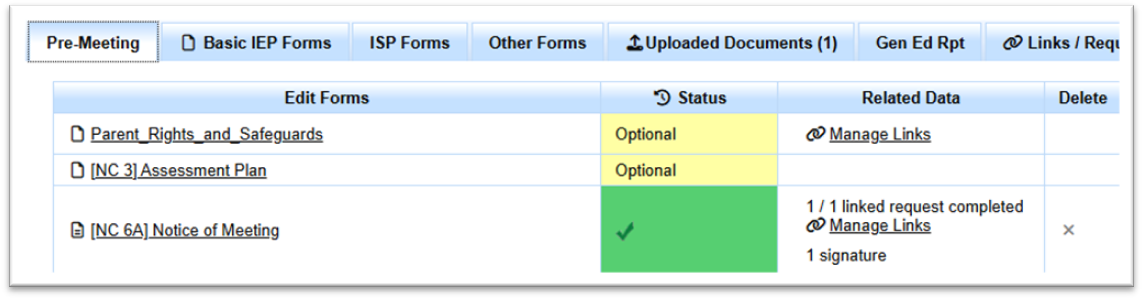

 Go to “Links/Requests” tab and click the red “x” to delete old link.
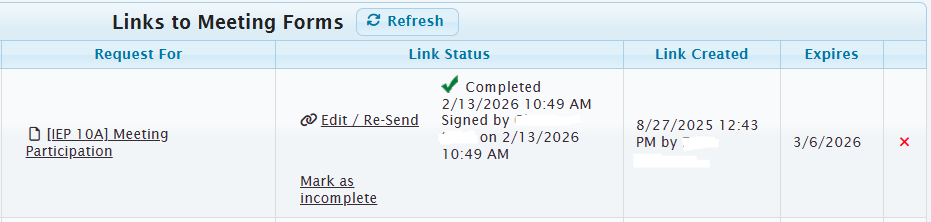
- Open the form again. Click “Remove Signature” and delete the date of parent/guardian signature.
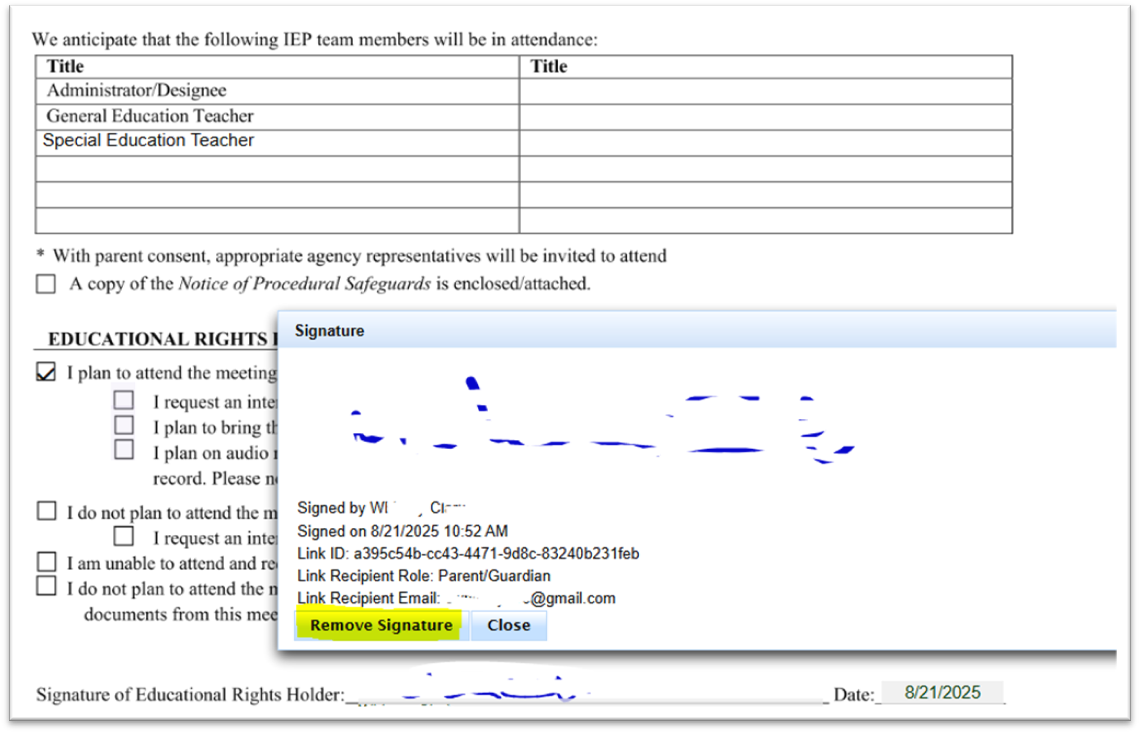
*See below, both the signature and date need to be removed.
- Click green arrow to save and return

- Add Scheduling Notes – Notice of Meeting on XX/XX/XXXX needs to be rescheduled due to…include date of when note was added.
- Update the Meeting Date/Time on the IEP Manager window.
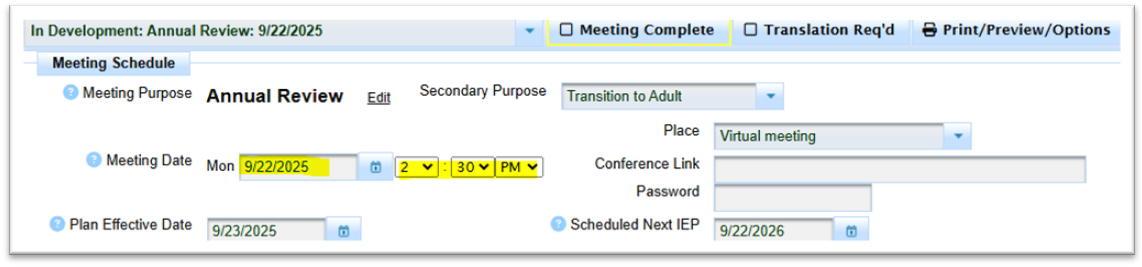
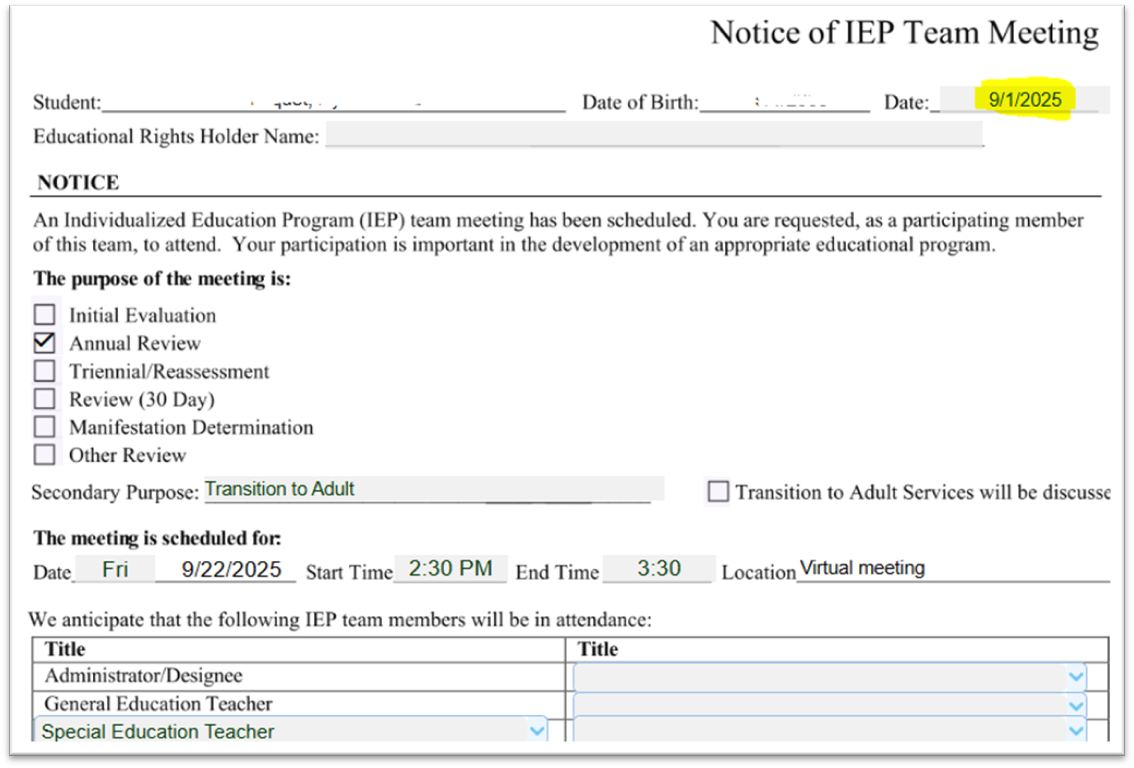
Open the form and update any necessary information (*update date at the top right corner).- Click the green arrow to save and return.

- Next to form click “Manage Links”. Send link for new parent/guardian signature.
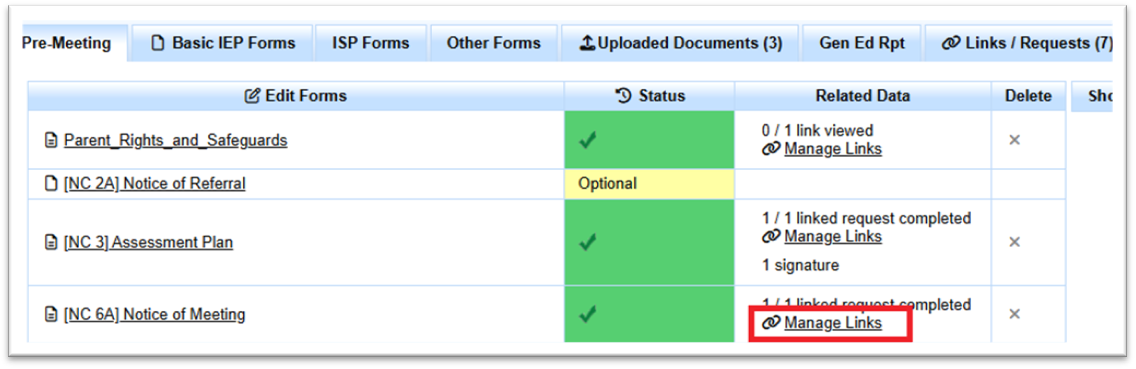
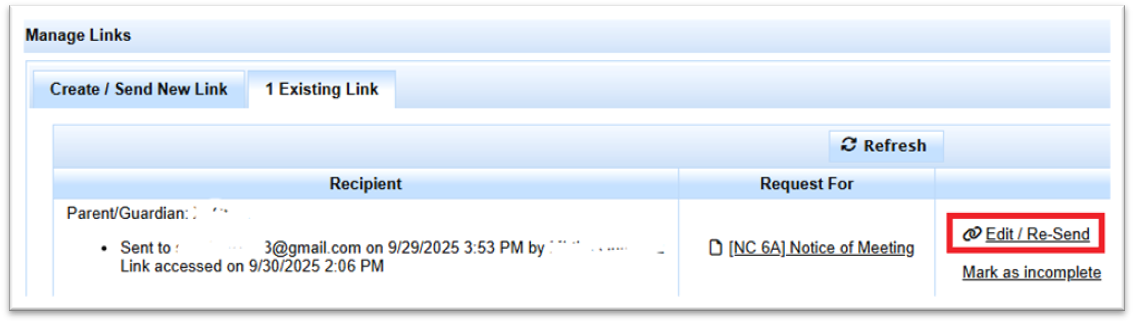

Example: 6B Notice of Meeting Continued (IEP meeting continued, parent signs they cannot attend/Edits Needed – changes to purpose of meeting and/or participants).
User opens “6B Notice of Meeting Continued” form, Click “Add Page” to add.

