


The SSID list search is a powerful tool.
It takes a .csv file that has an SSID column, parses it and creates an SSID list query automatically.

Cilck the ID List tab in the middle right of the dialog box.
Then Click the Upload SSID File (CSV) button at the bottom of the dialog box.
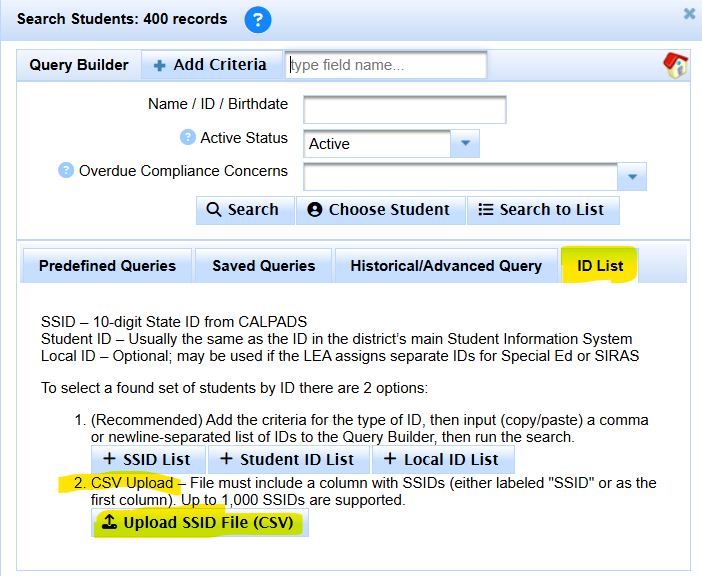
When the little dialog box comes up, click '+ Choose'

Navigate to where the file is downloaded and select it in the File Upload dialog box.

Verify the file name and click the upload button.

Once you click upload the Search Dialog will come back.
Verify the (found set) ## exactly matches the number of SSIDs in the file.
IF NOT, contact [email protected] for assistance.
If it does, click the Search to List button

After search to list, we want to save the list.
Click on the Modify button up top.

- Then in the Search Box, click on the 'Saved Queries' Tab
- Find the 'Save Query As' box
- Then type something like '2025_IEP_Implementation_List' into the 'Save Query As' box
- Then click Save New Query

If you have read this far and saved your query, congratulations!
Well done!!
Stay tuned, this page will be updated very soon with instructions on how to share this query with your district if appropriate.

Once the query is shared, you can share it with all users or admin users only.

Make your own file:
This function provides a way to select found set of Students by providing an uploaded CSV (comma-separated value) file containing SSIDs.
SSID CSV files can be generated from CALPADS and other sources.
Get or prepare an excel/numbers type document
Have the list of the SSIDs in the first column, and have the top row be titled SSID
Then save it as CSV.
- Go to Search
- Click on SSID
- List
- Click upload
- Select file
- Upload File
- Search to list
- This list can then be saved for later.
CSV preparation:
If you have an excel like or numbers like spreadsheet, make sure the SSIDs are listed in the left hand column with SSID as the column title.

Save this list as a .csv File


