STUDENT NOTES
Use SIRAS notes to log parent contacts, antidote notes, medical issues, details on meeting delay reason, etc.
List Notes:
Go to the Student List under the Reporting menu, select the 'Predefined Lists' tab, select the 'General Lists' area, then select 'Notes List'. This will create a list of all the notes for each student (in your current found set) within a list of multiple students.
When notes are in a student list, all notes for the student are included on one line. The summary 'notes' box will contain the category, added by, and note date preceding the note text.
Search Notes: Using the SIRAS Search tool the notes feature becomes a powerful organizational tool.
In the Search page (magnifying glass icon above) under Search Criteria select 'Notes'.
Enter a keyword that your district or school has been using in the notes like 'Something Flag' or 'Alert Reminder'.
Then search the 'Notes' field, and it will find all the students with that key word in one of their notes.
Click on 'Search'.
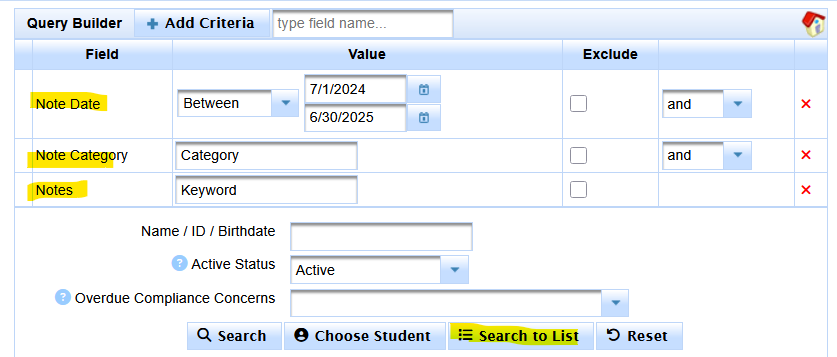
- Add Criteria of 'Notes' to search within the notes text.
- Add Criteria of 'Note Category' to search the students that have a note with that category.
- Add Criteria of 'Note Date' to search on dates of notes. Specific dates or ranges of dates.
Print All button: Will pint all the notes for the selected student.
Print link: Print out the selected note.
Export: The summary 'Notes' field can be exported as well.