


Please verify if settign all DRDP to unrated has specific context.
Please read this article to verify if setting All Unable to Rate is appropriate for you.
Find the DRDP first.
Then navigate to the student info menu/Assessment menu
1. Login to SIRAS and find DRDP Eligible student first
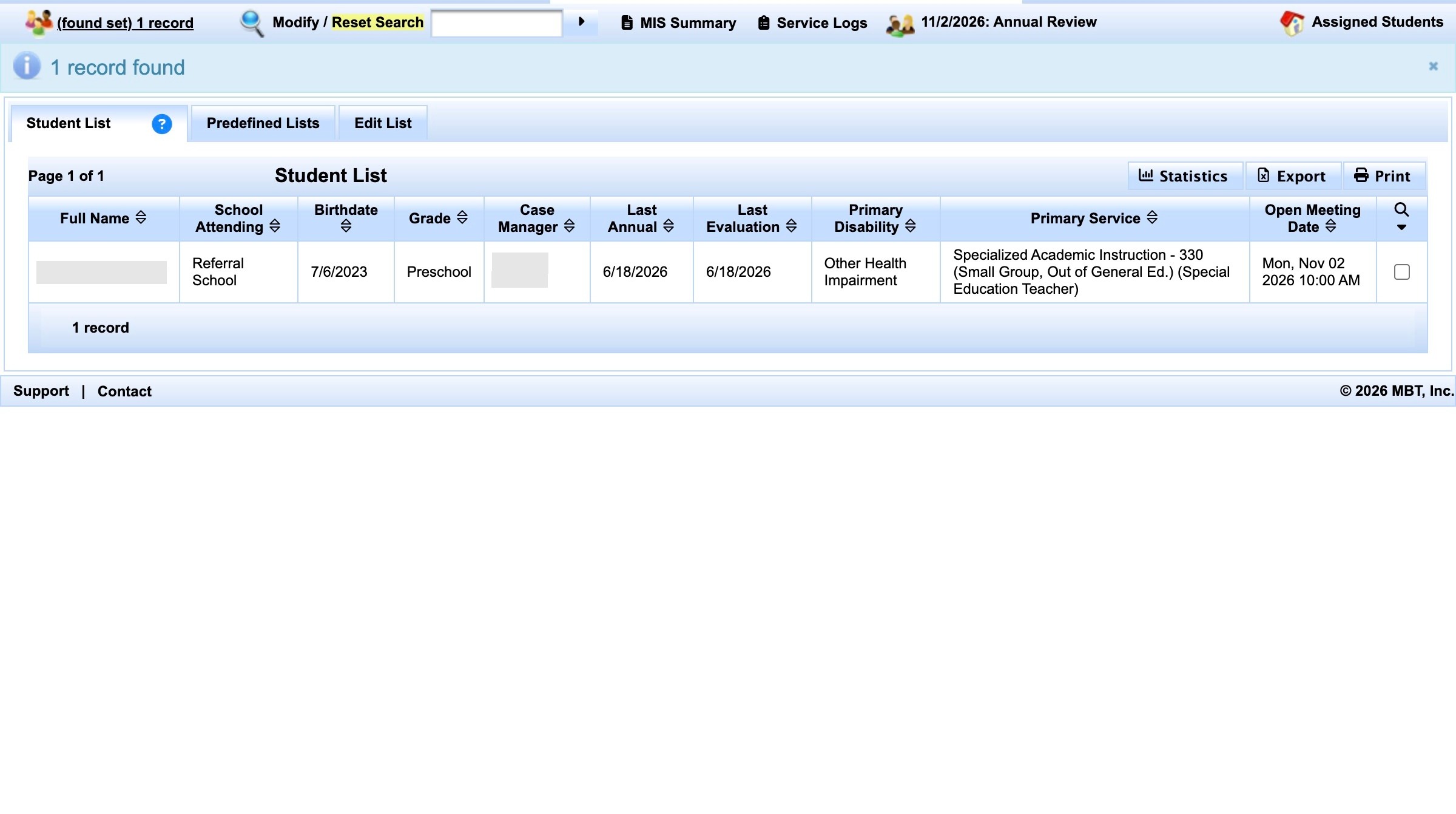
2. Click the student name link. Click the black triangle on the end of the name to access student info menu.
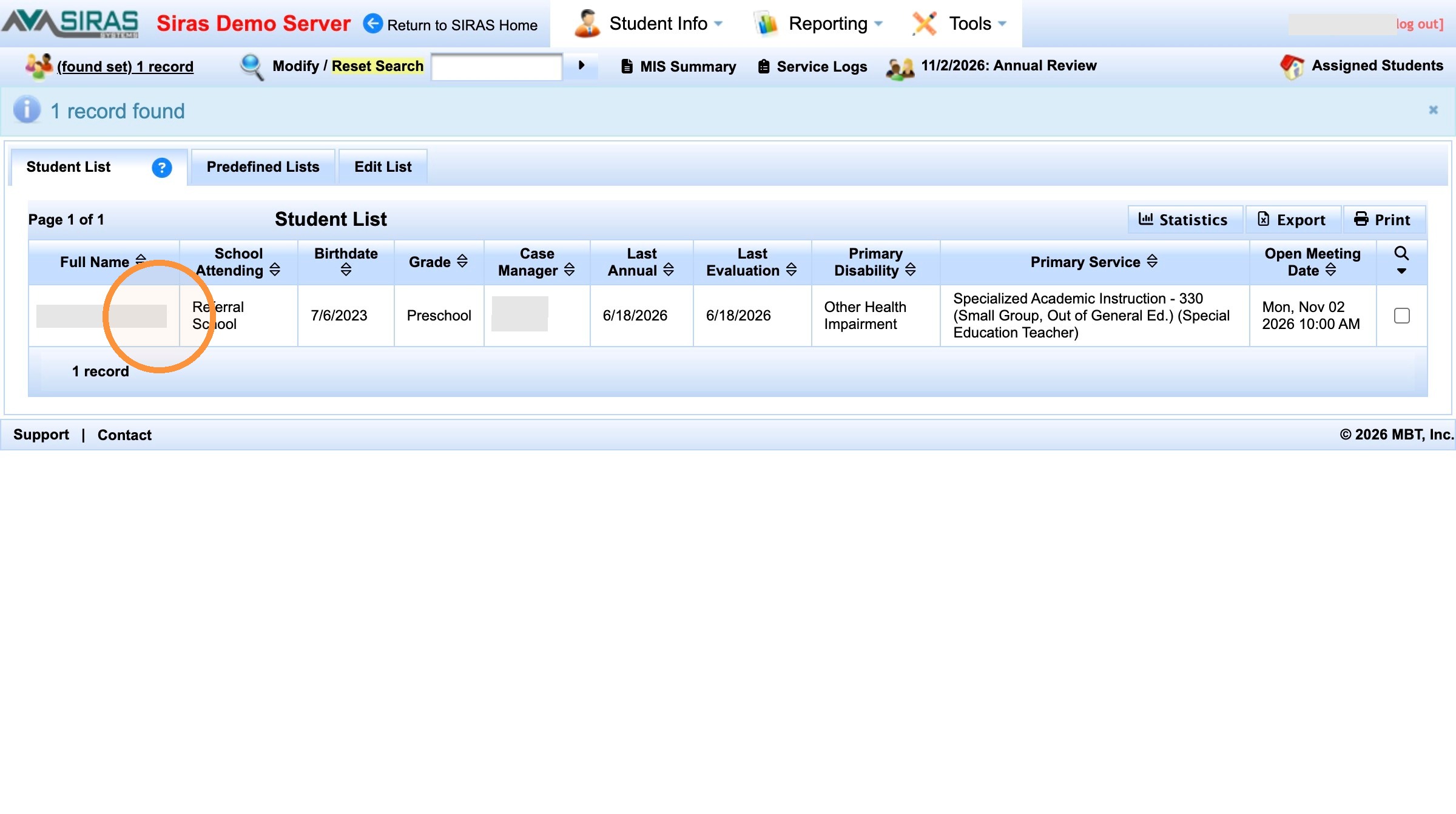
3. Click "Assessment Info"
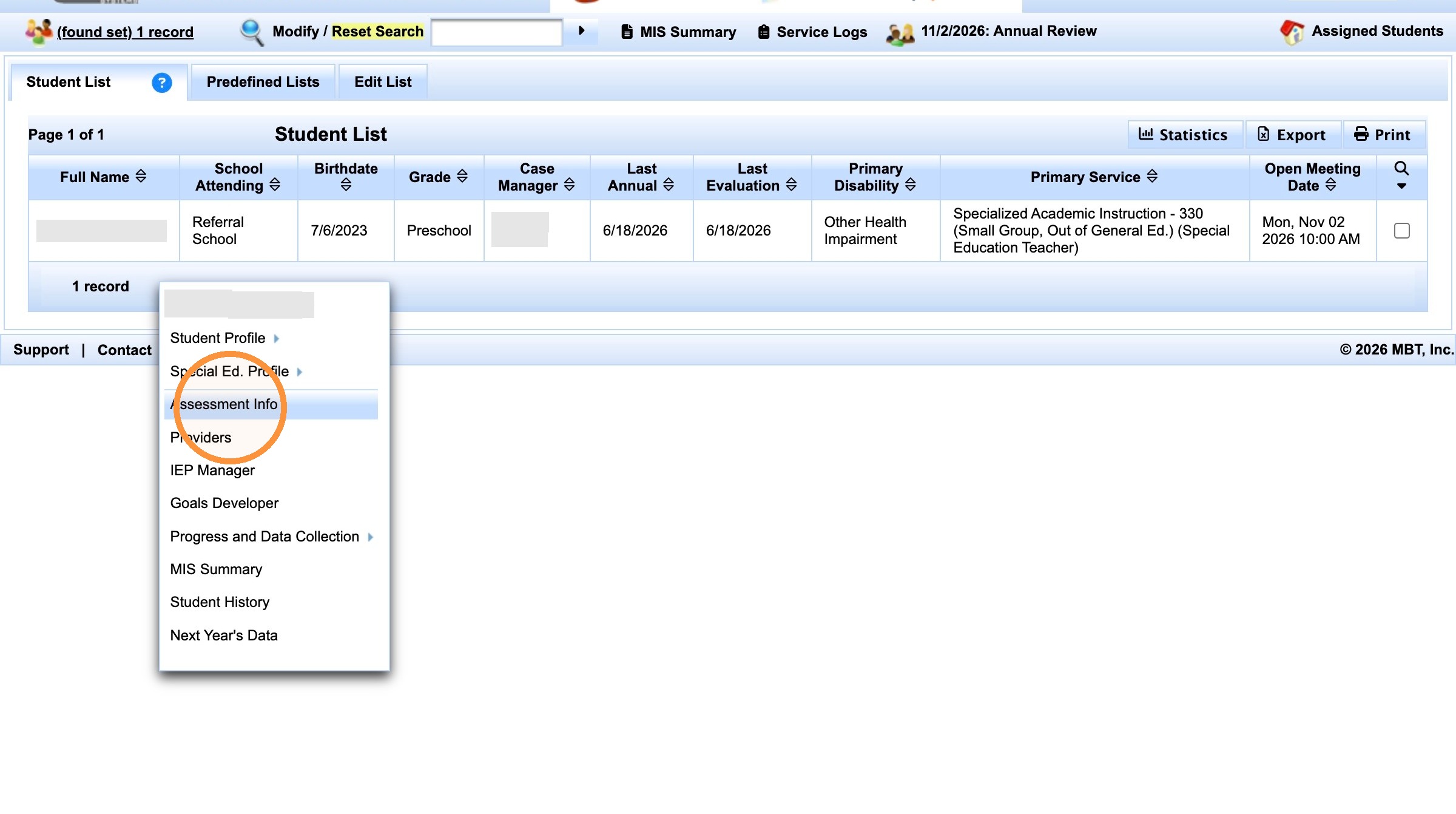
4 click "Create DRDP"
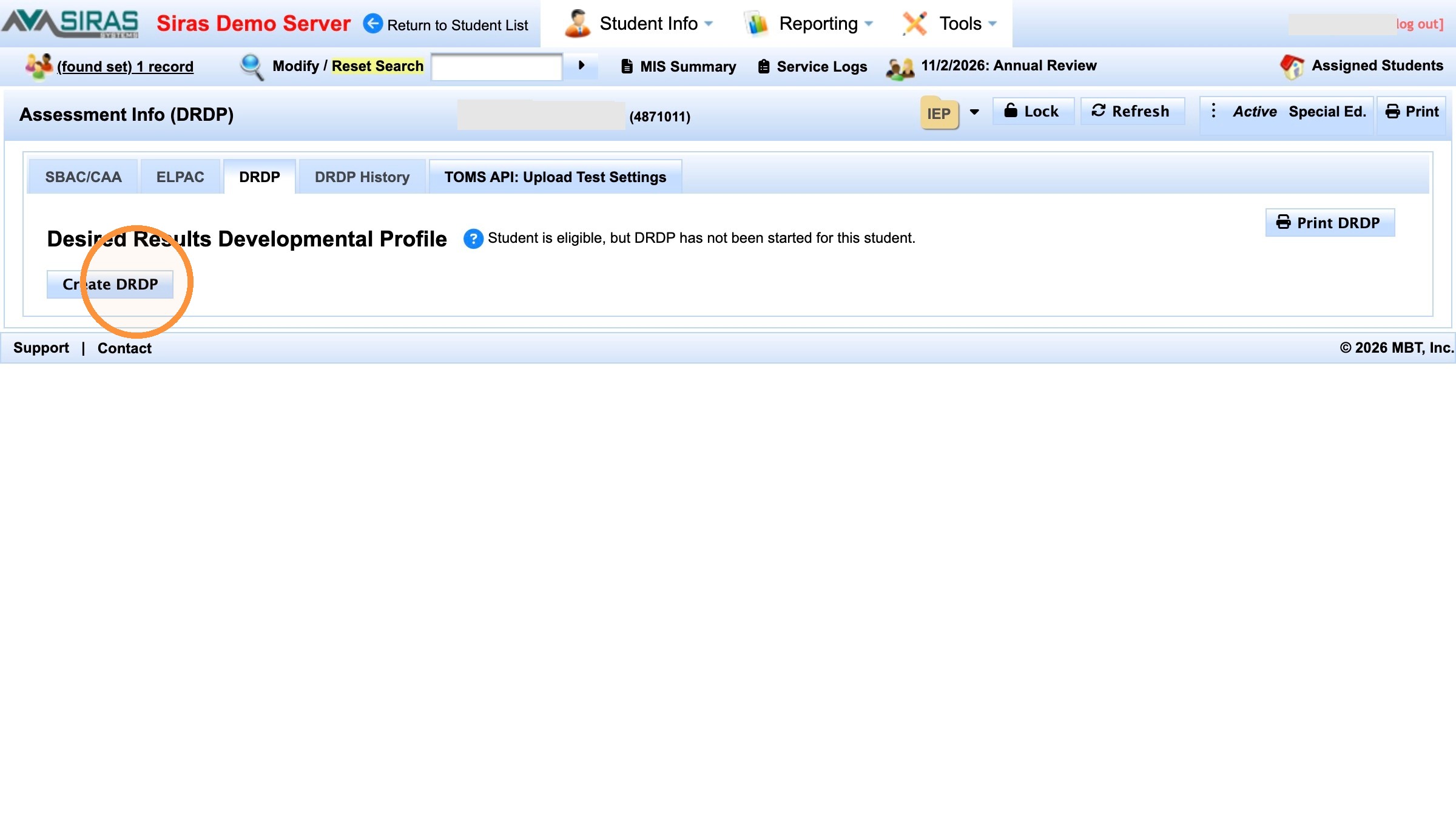
5 - 10, Verify district enrollment date and Fill in the rest DRDP information at the top of the page.
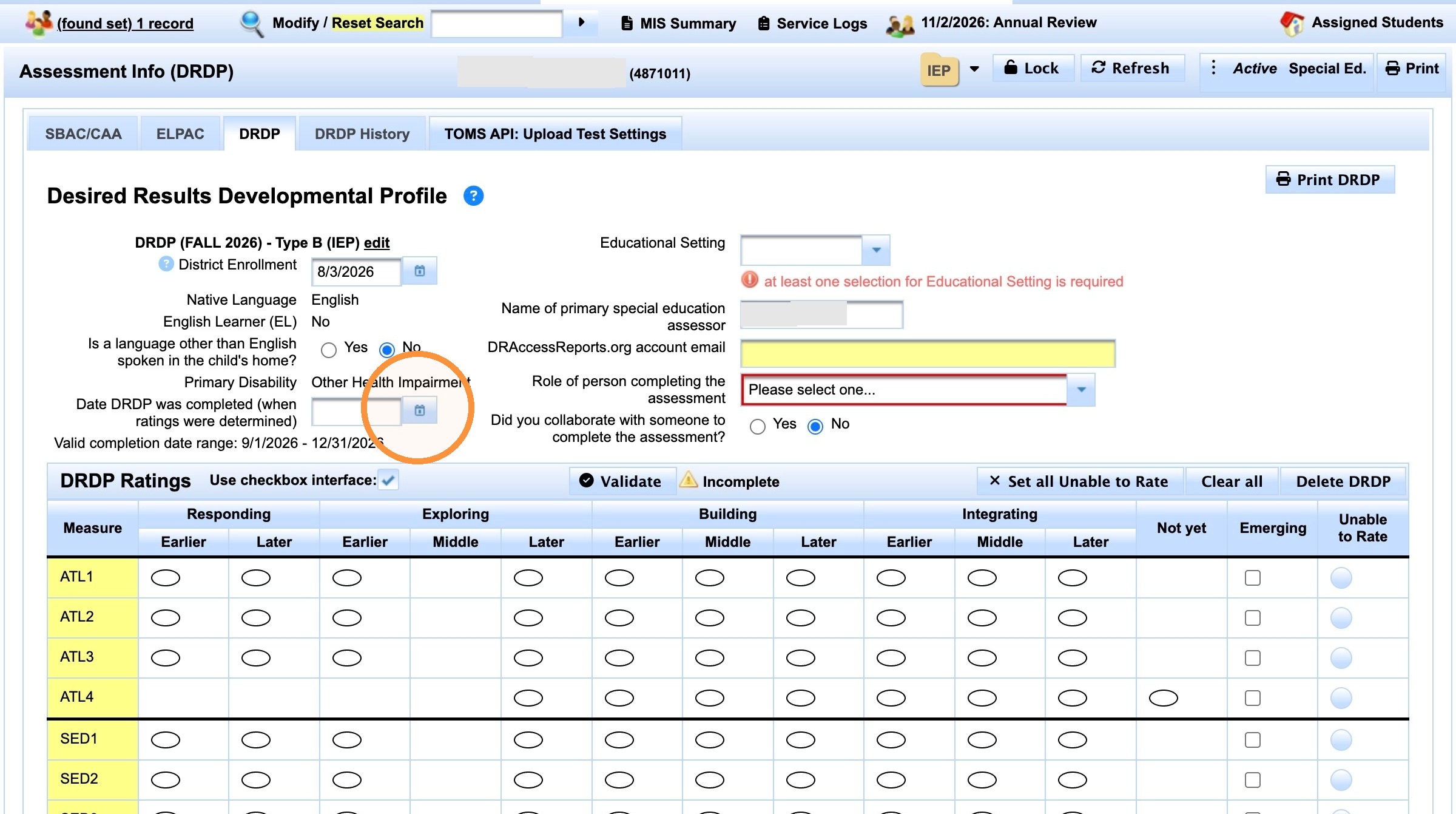
7. Starting with the Date Completed
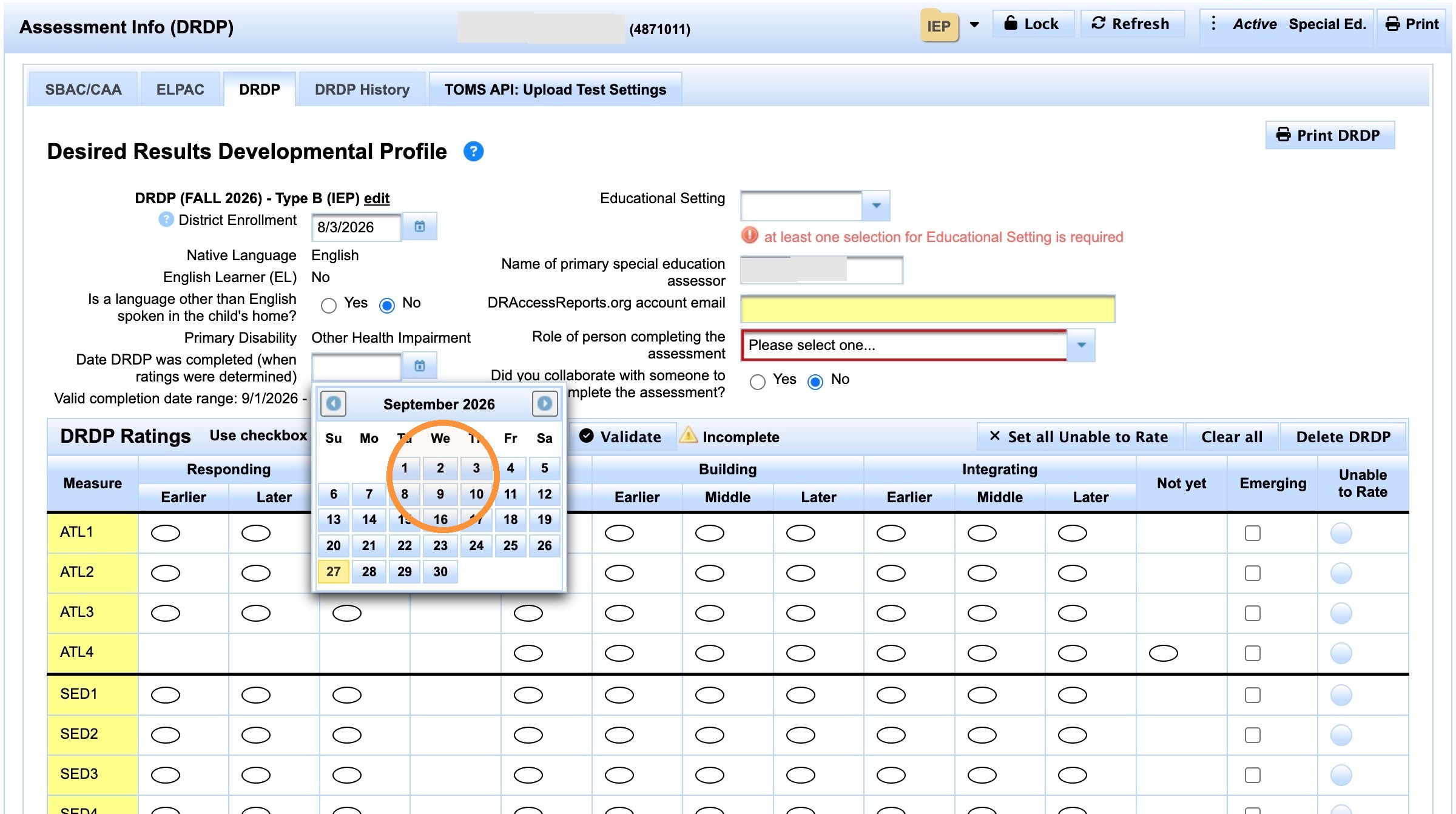
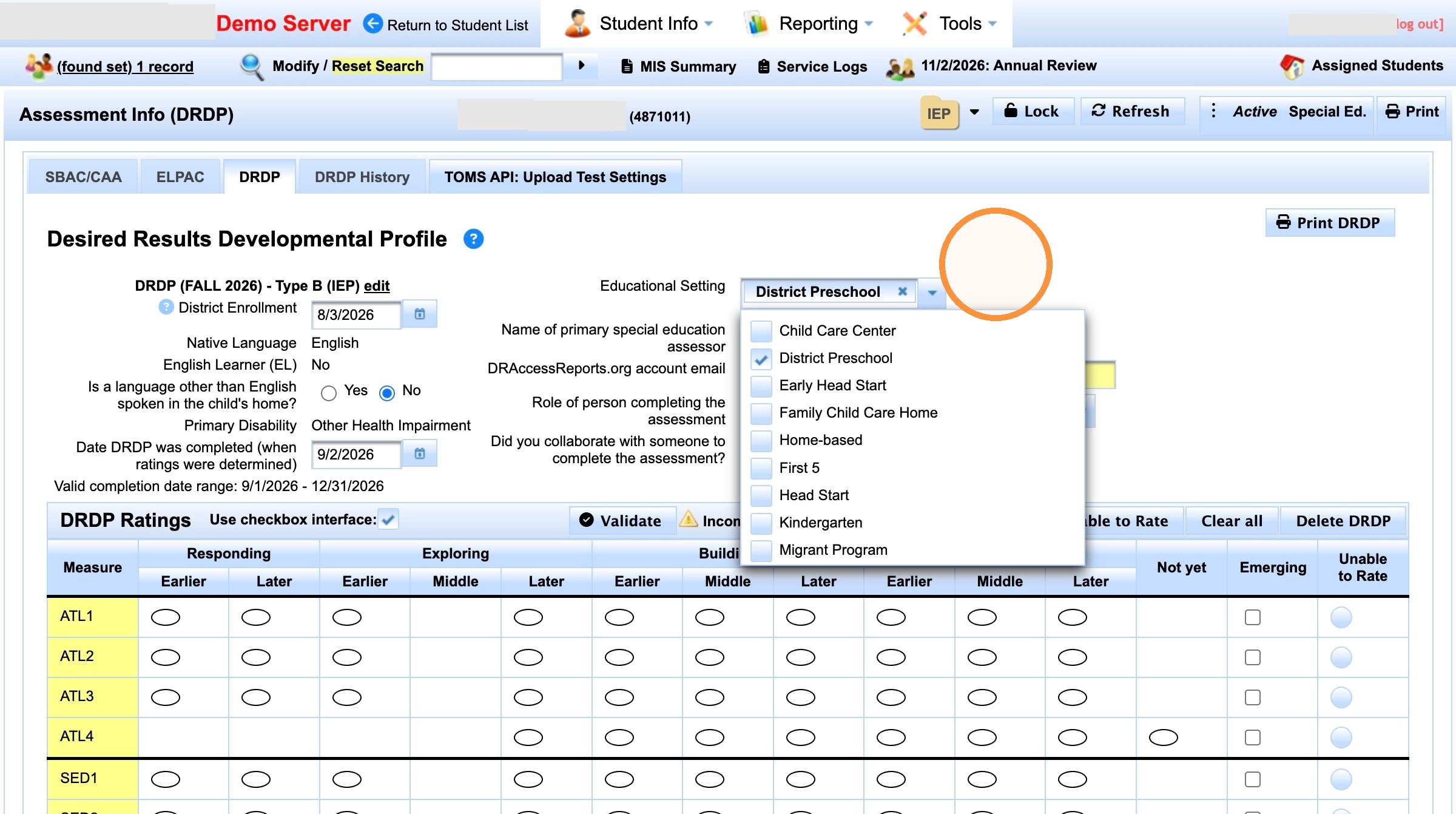
Educational setting can have multiple values as appropriate
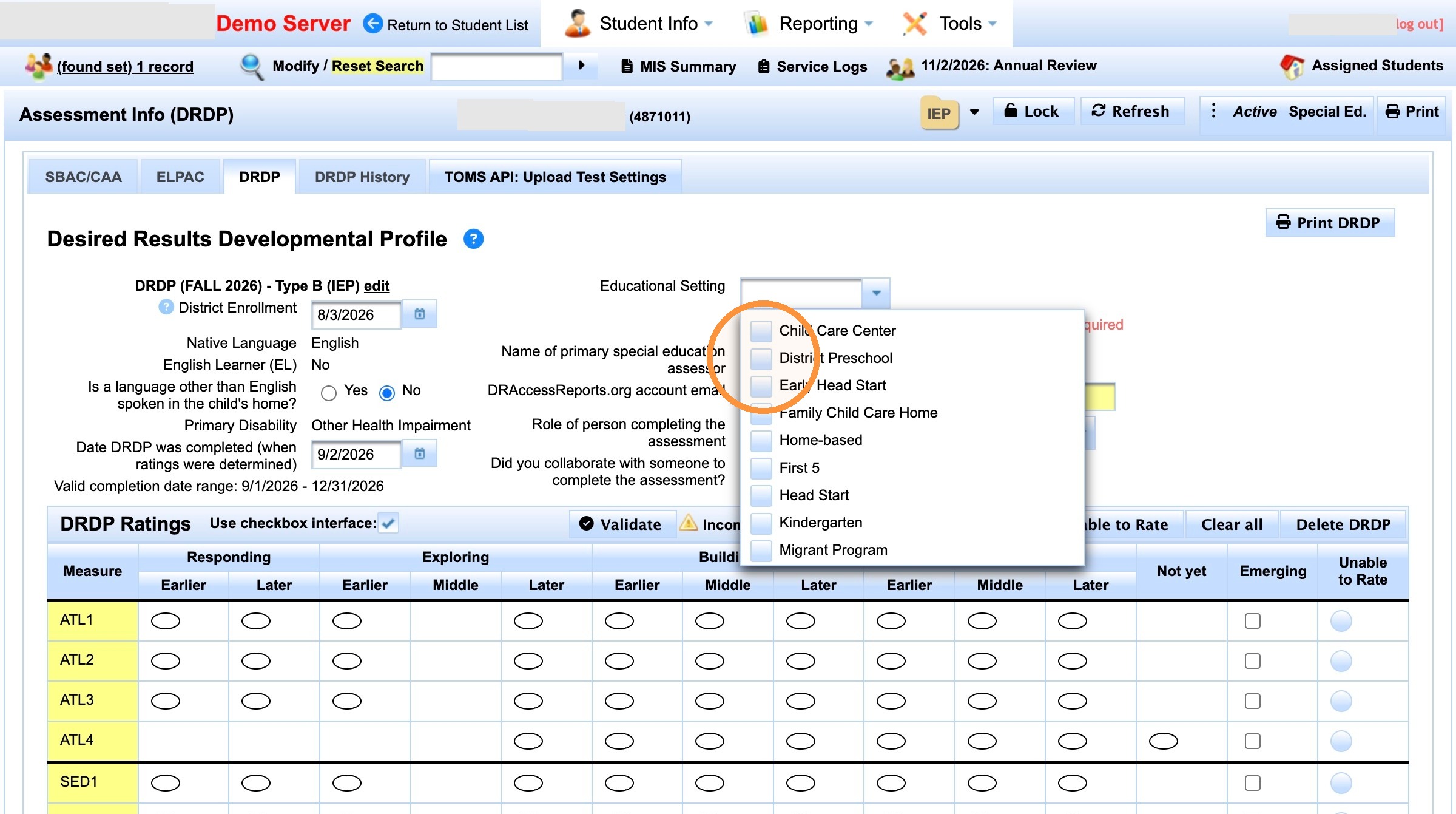
10. Click "Desired Results Developmental Profile Print DRDP DRDP (FALL 2026) - Type B (IEP) edit District Enrollmentui-button Native LanguageEnglish Englis..."
11. Verify this is your work / district email.
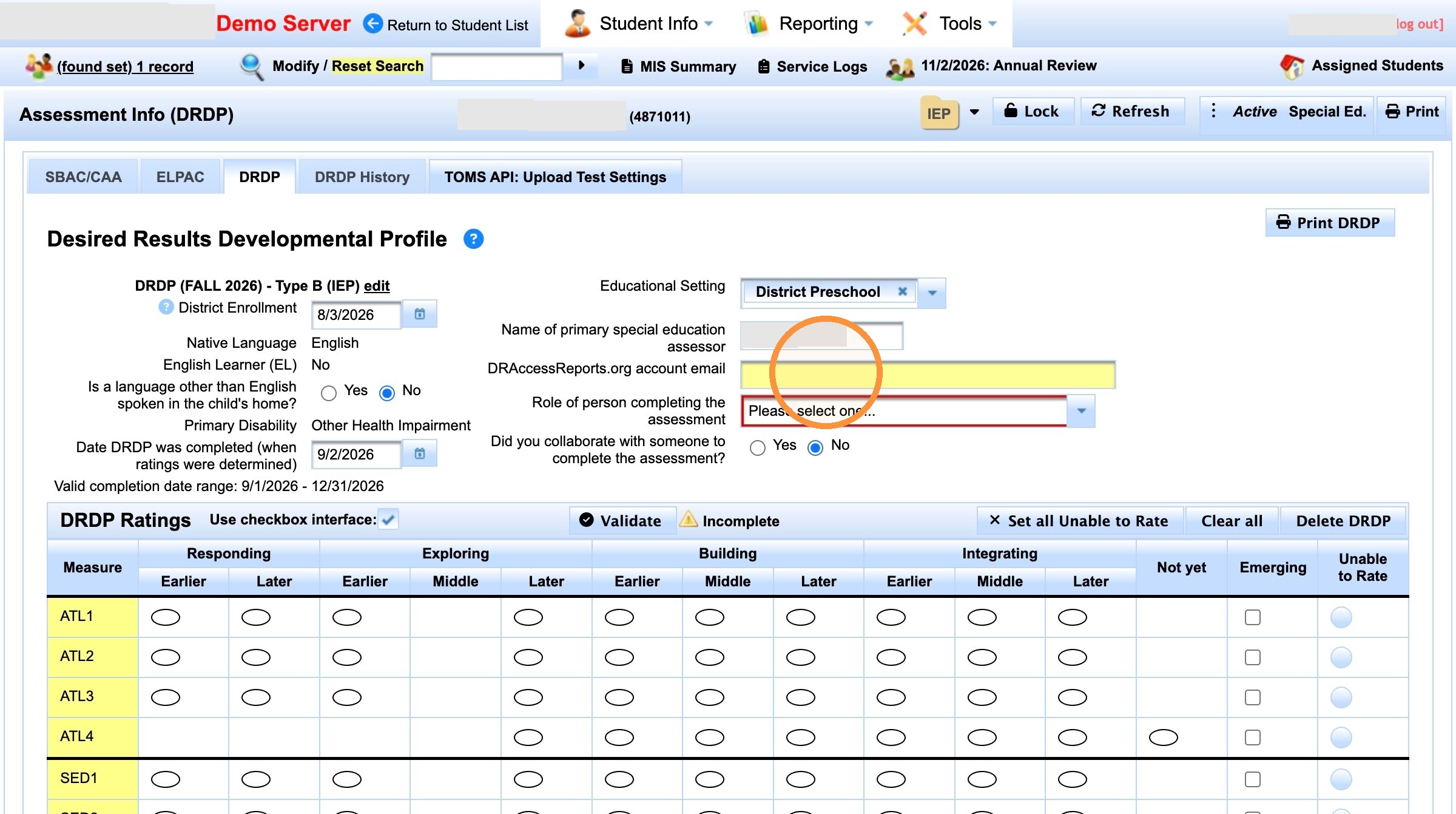
12. Click "Please select one..." for Role of Person
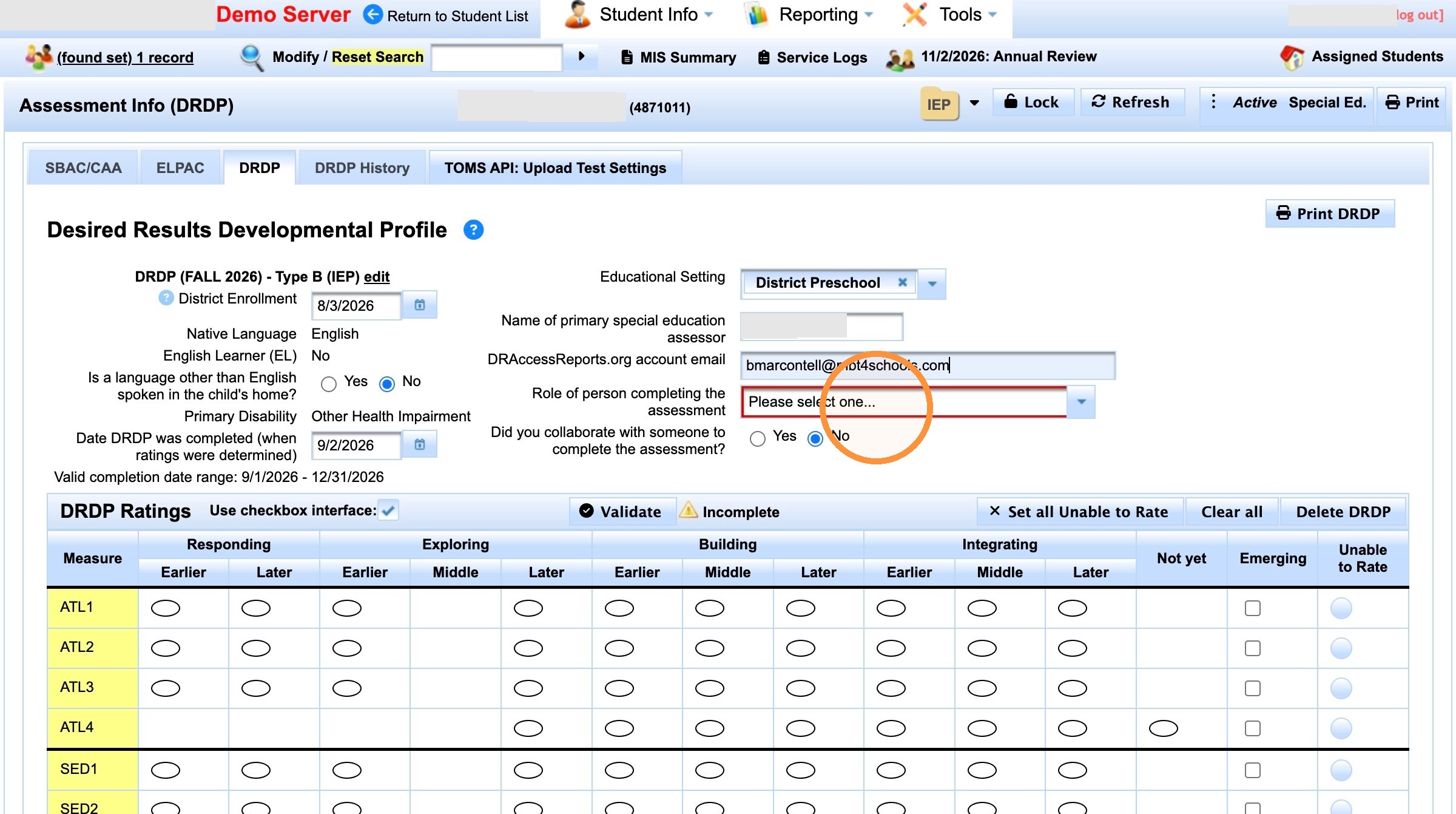
14. Click the "Yes" field if this was a collaboration with other staff.
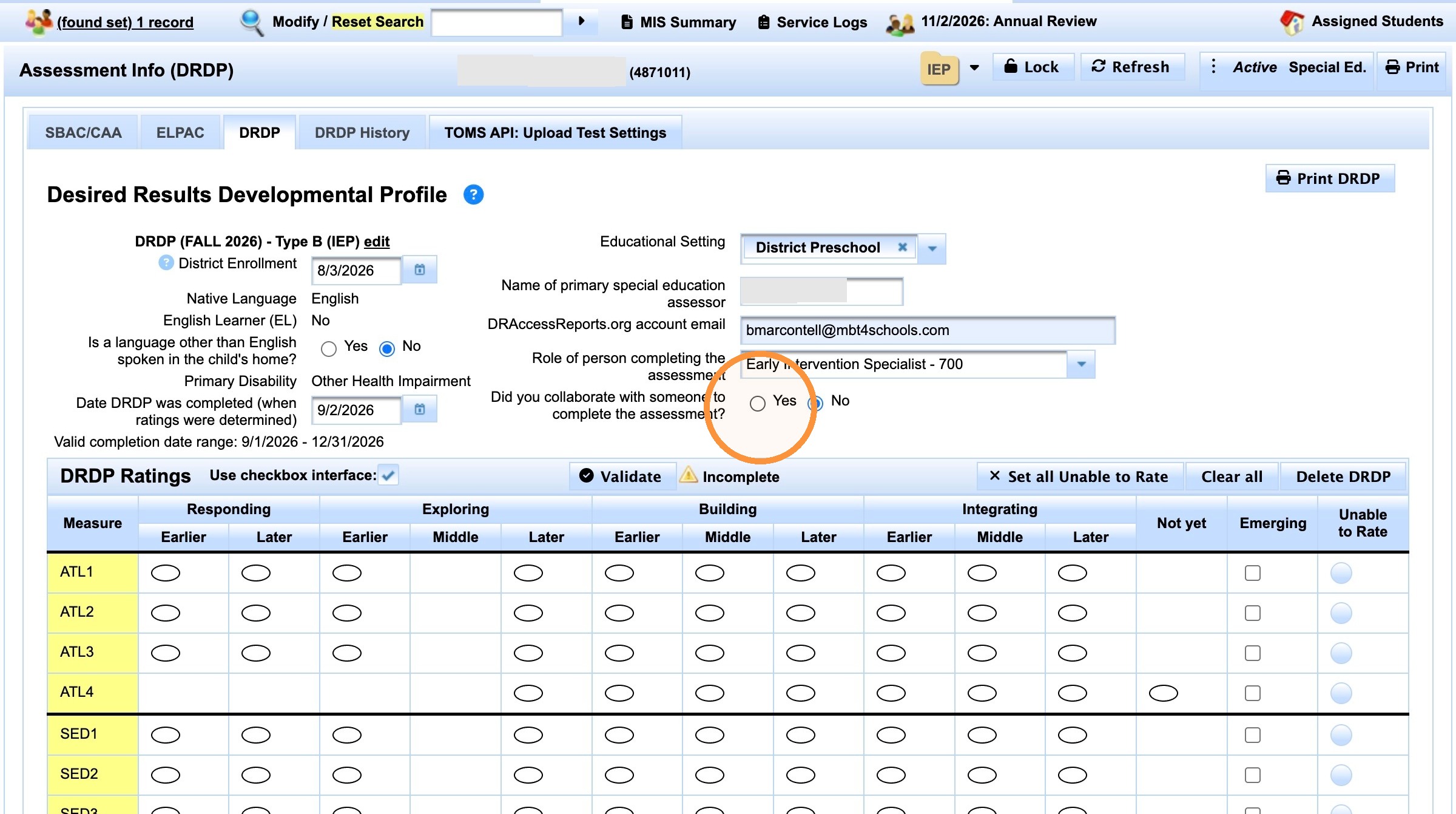
If yes, you can add the persons title there.
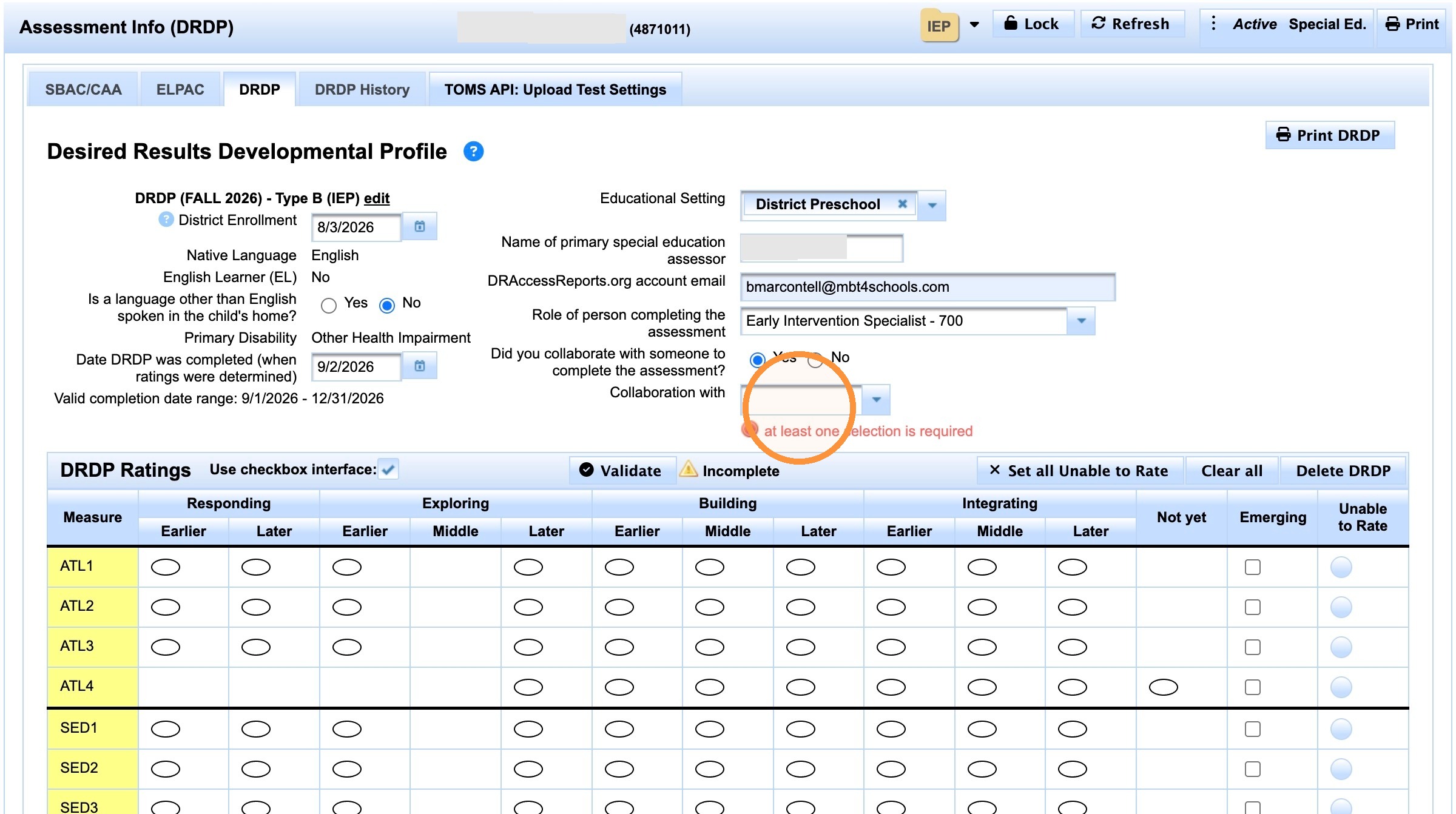
Options for collaborator title
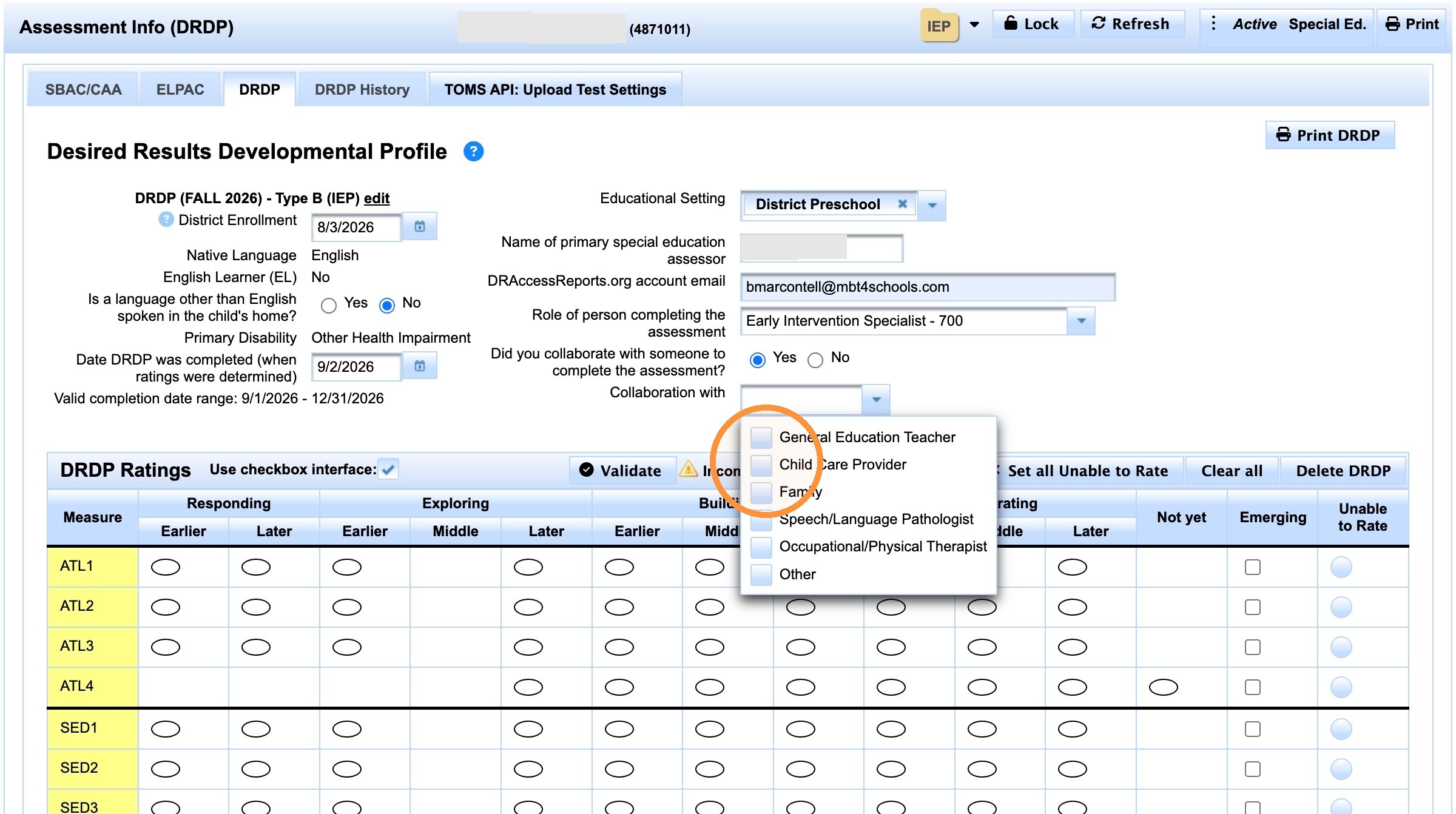
20. Start clicking into the corresponding ratings
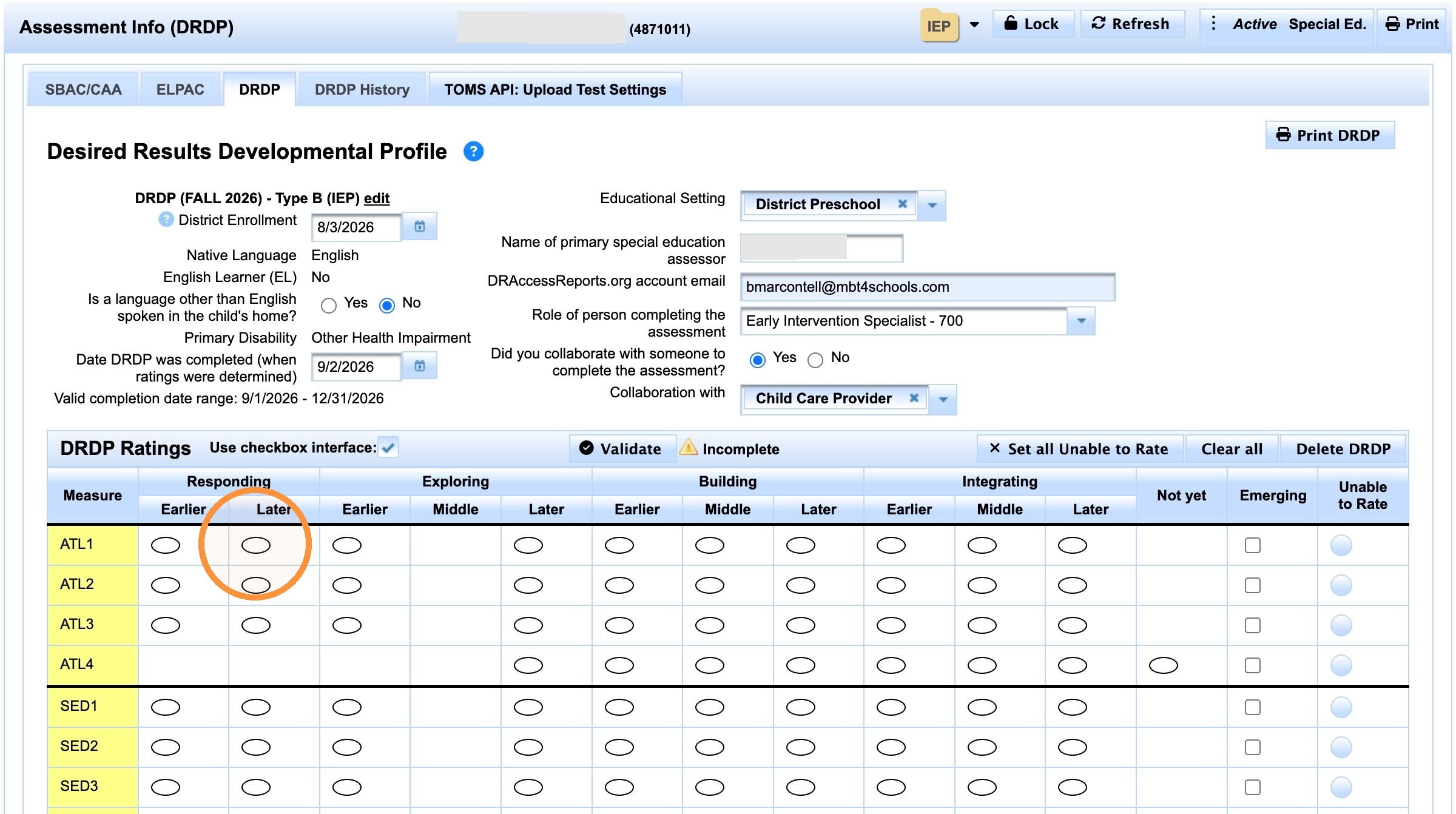
Keep going all the way down.
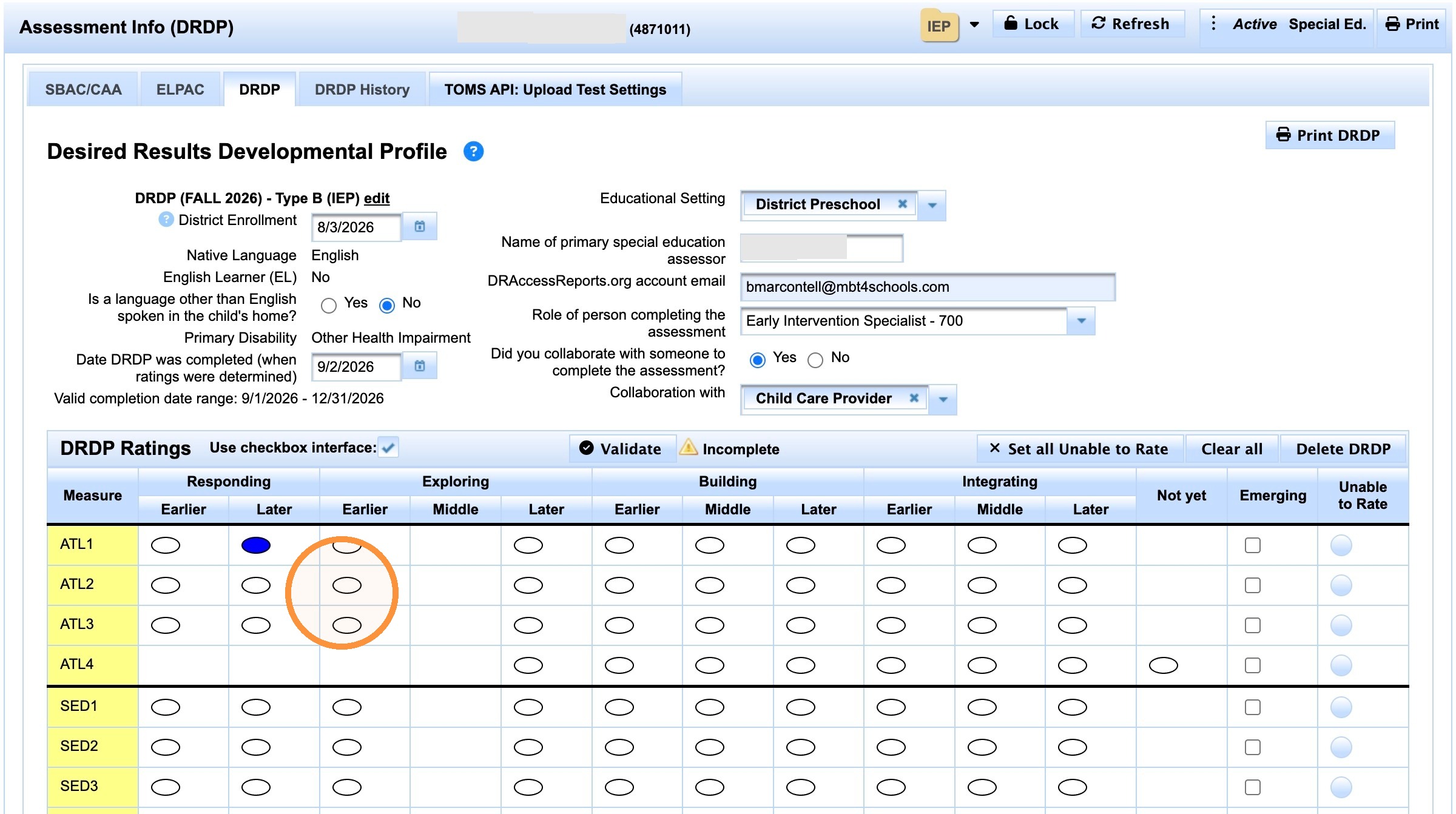
22. Click here.
23. Click here.
24. Click the emerging checkbox if any rating is emerging.
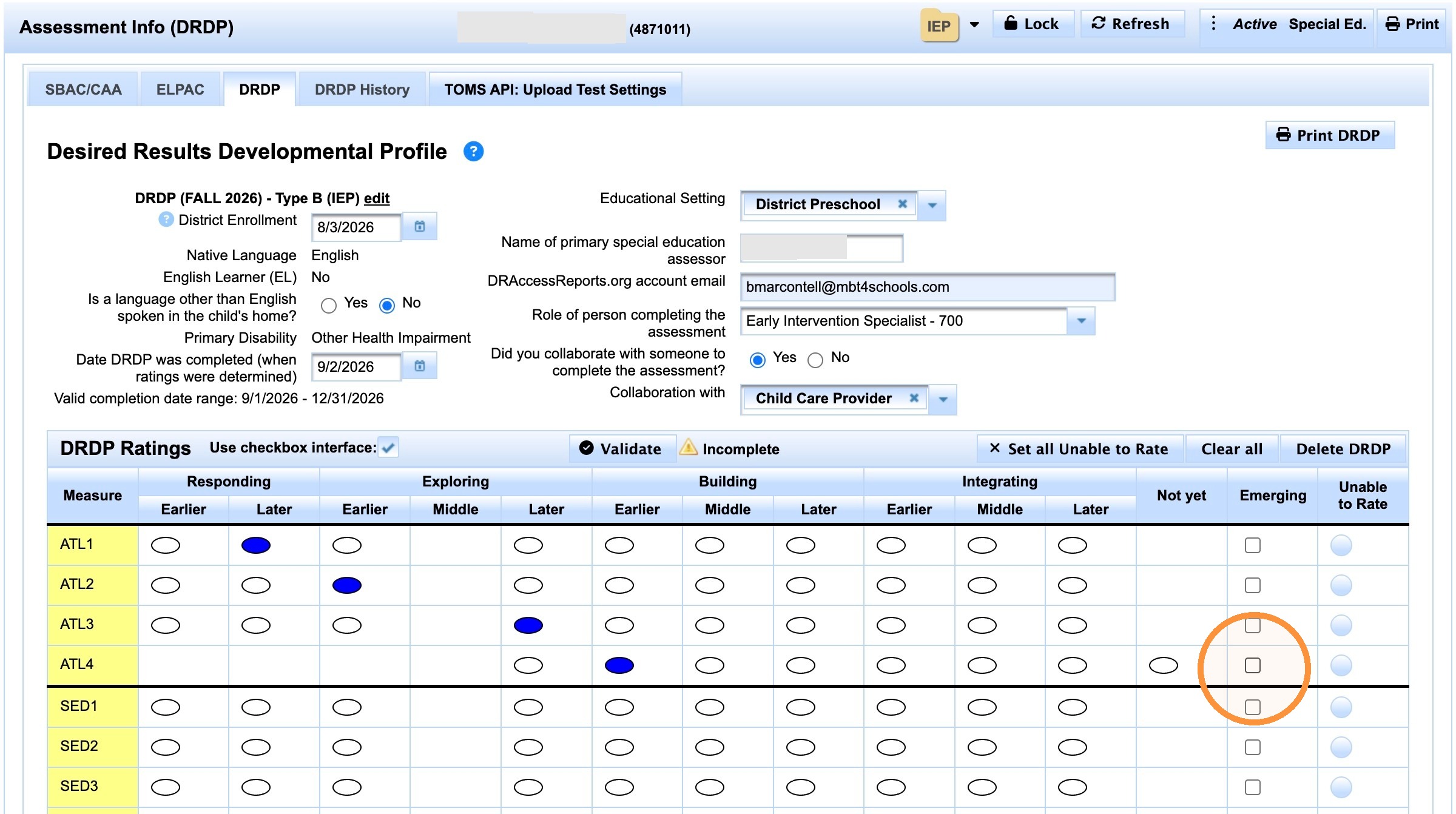
2Keep going all the way down to the bottom
55. Click "Return to top"
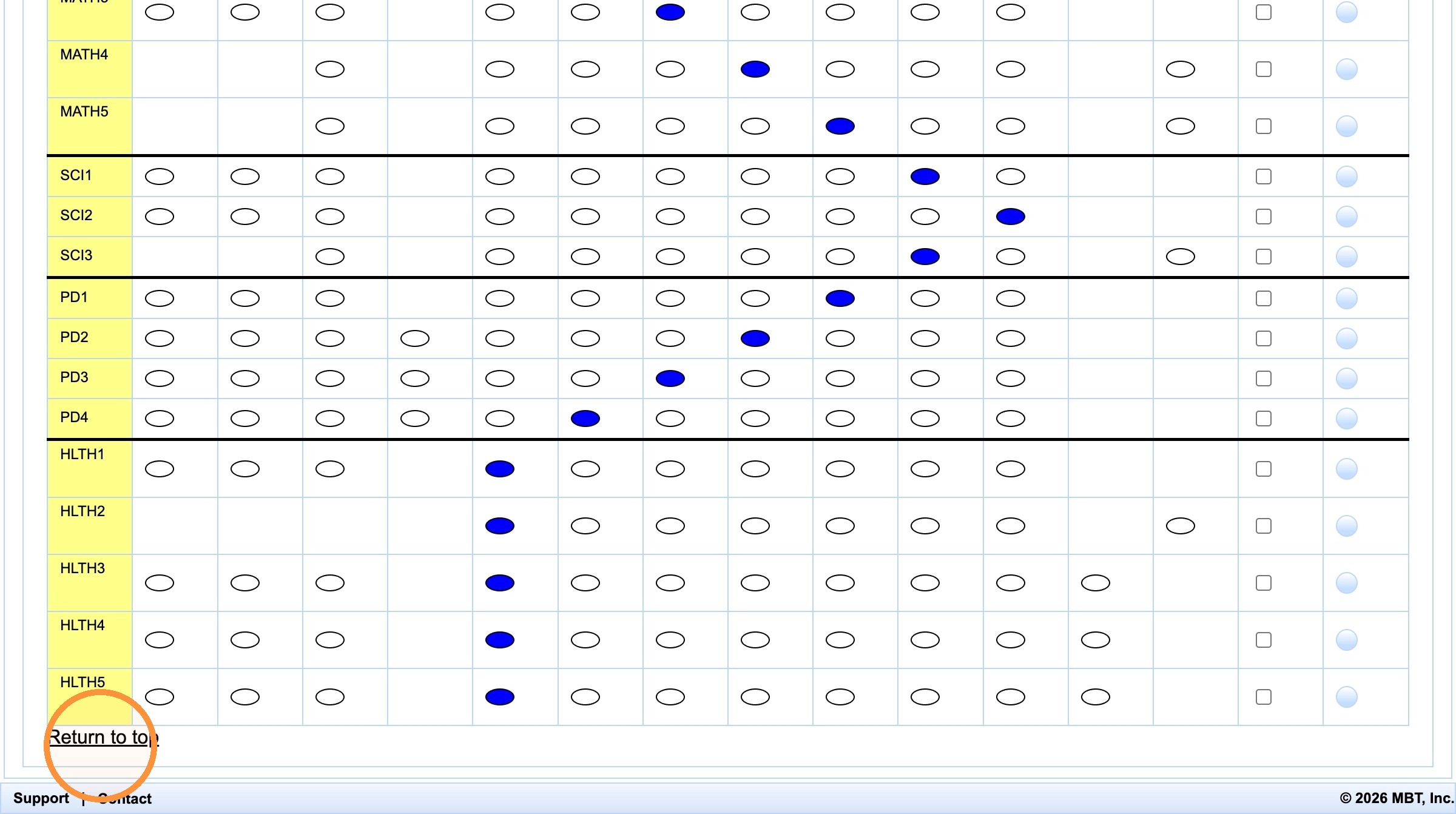
56. Click "Validate"
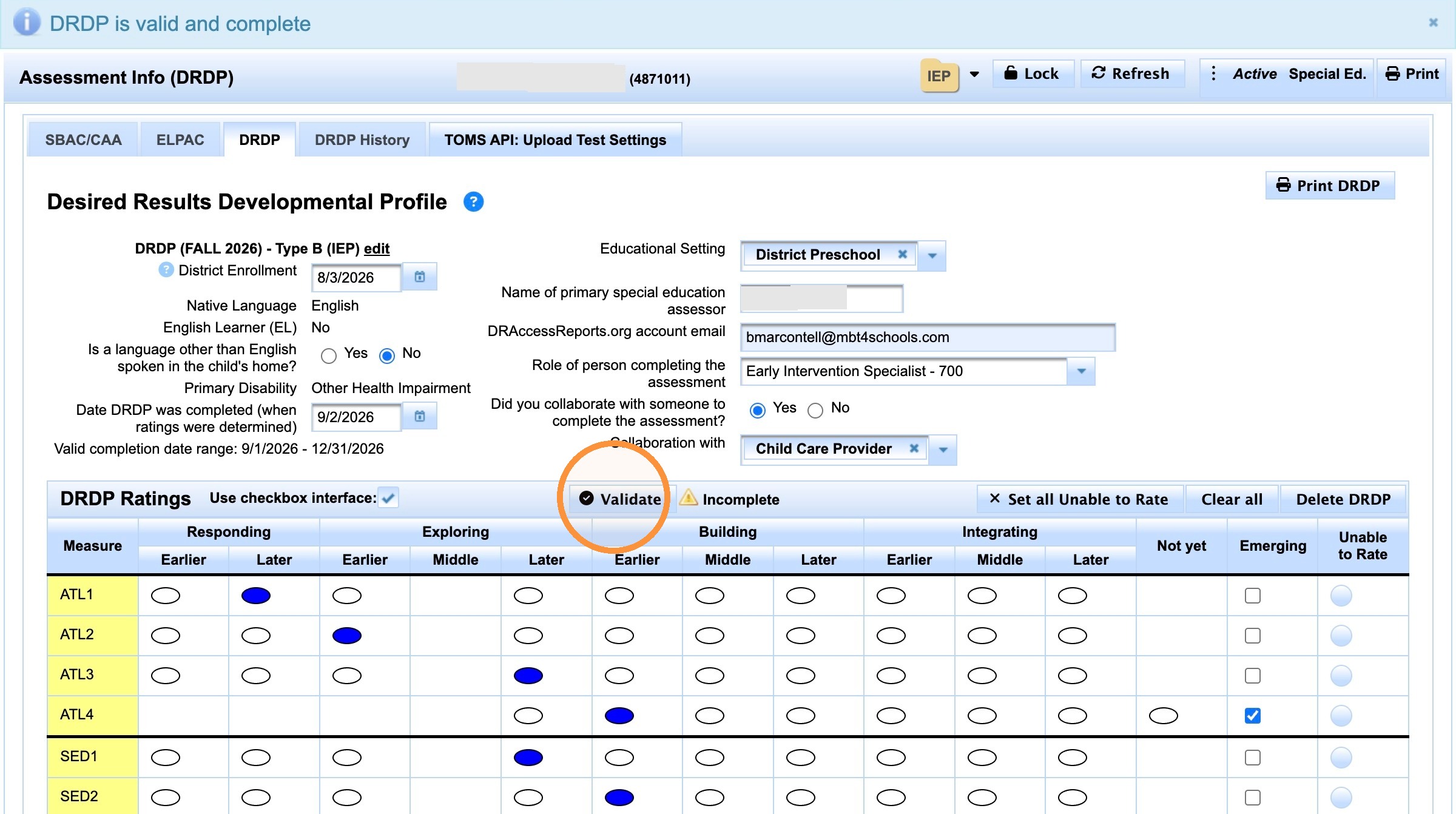
Assuming there are no errors, you are done and have completed entering the DRDP assessment ratings set!
Congratulations!
Another show me instruction set for related task
How to Bulk Set Unable to Rate for DRDP Assessments
Learn how to efficiently manage your DRDP assessment entries by using the bulk set feature. This guide helps streamline your data entry process, ensuring that 'Unable to Rate' statuses are applied consistently and quickly across your records.
1. Login to SIRAS
Find the student and be on the DRDP page.
2. Complete all the information above as required before going to the ratings area below.
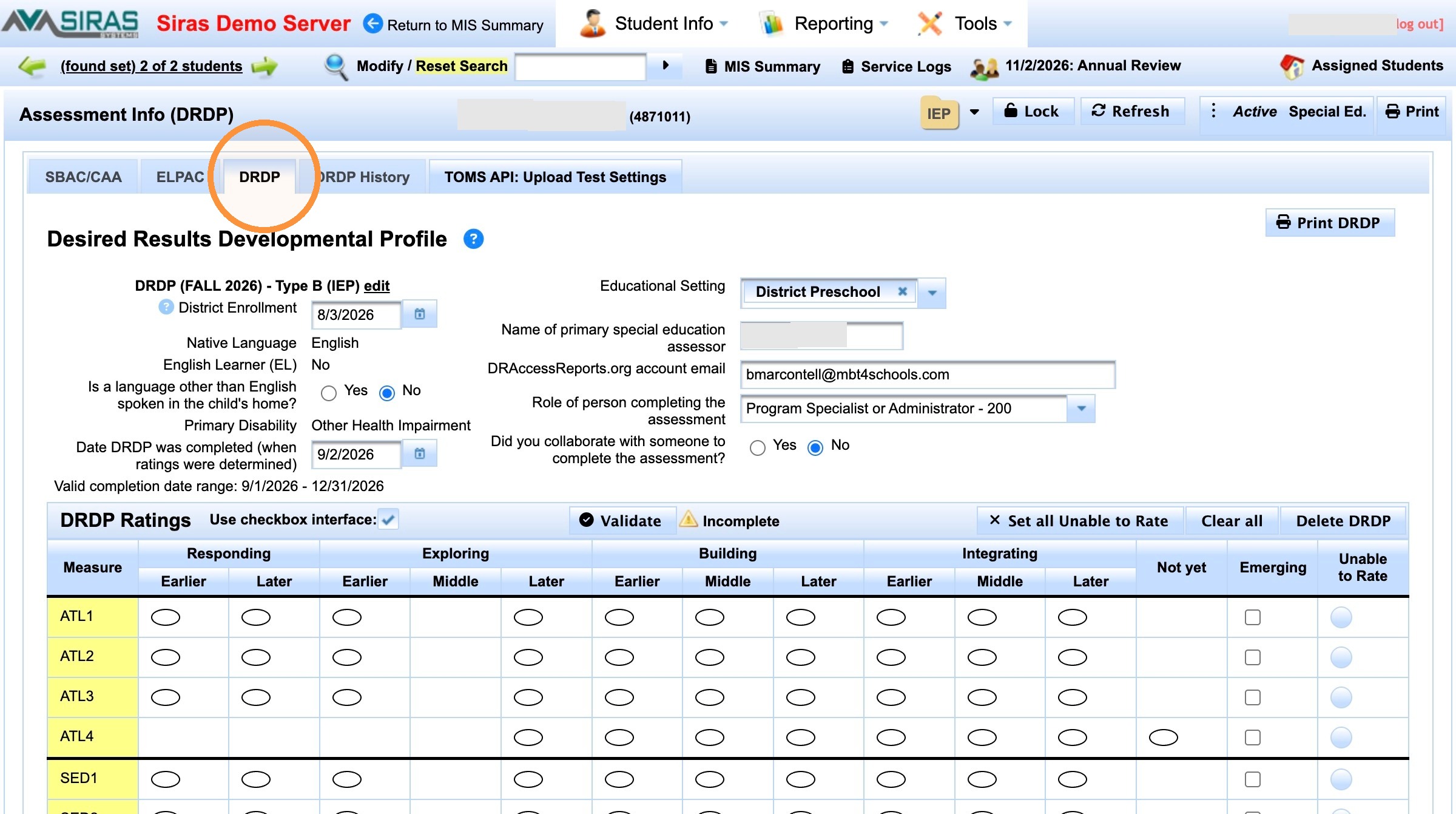
4. Starting from confirming district enrollment date, complete this top section.
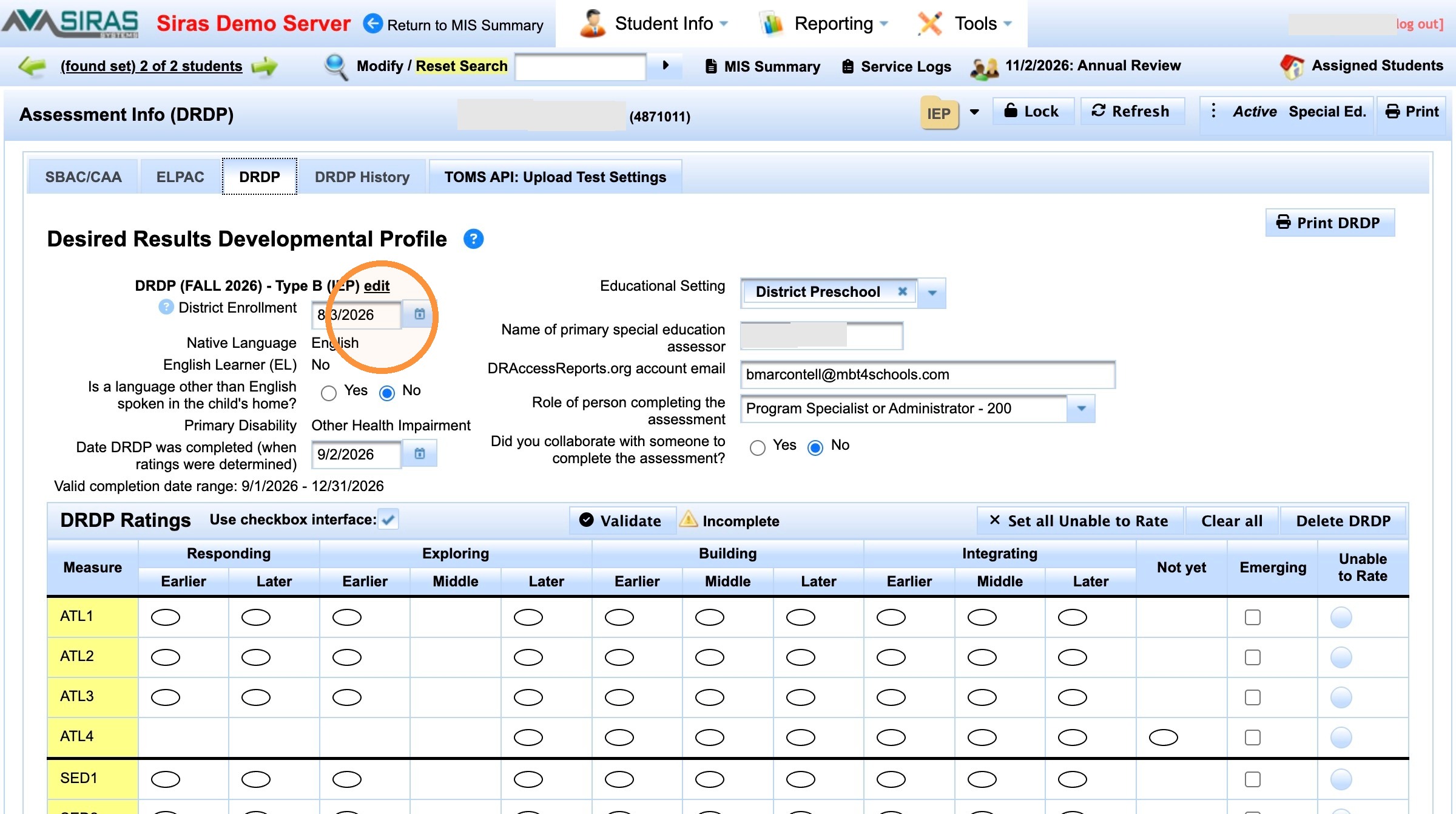
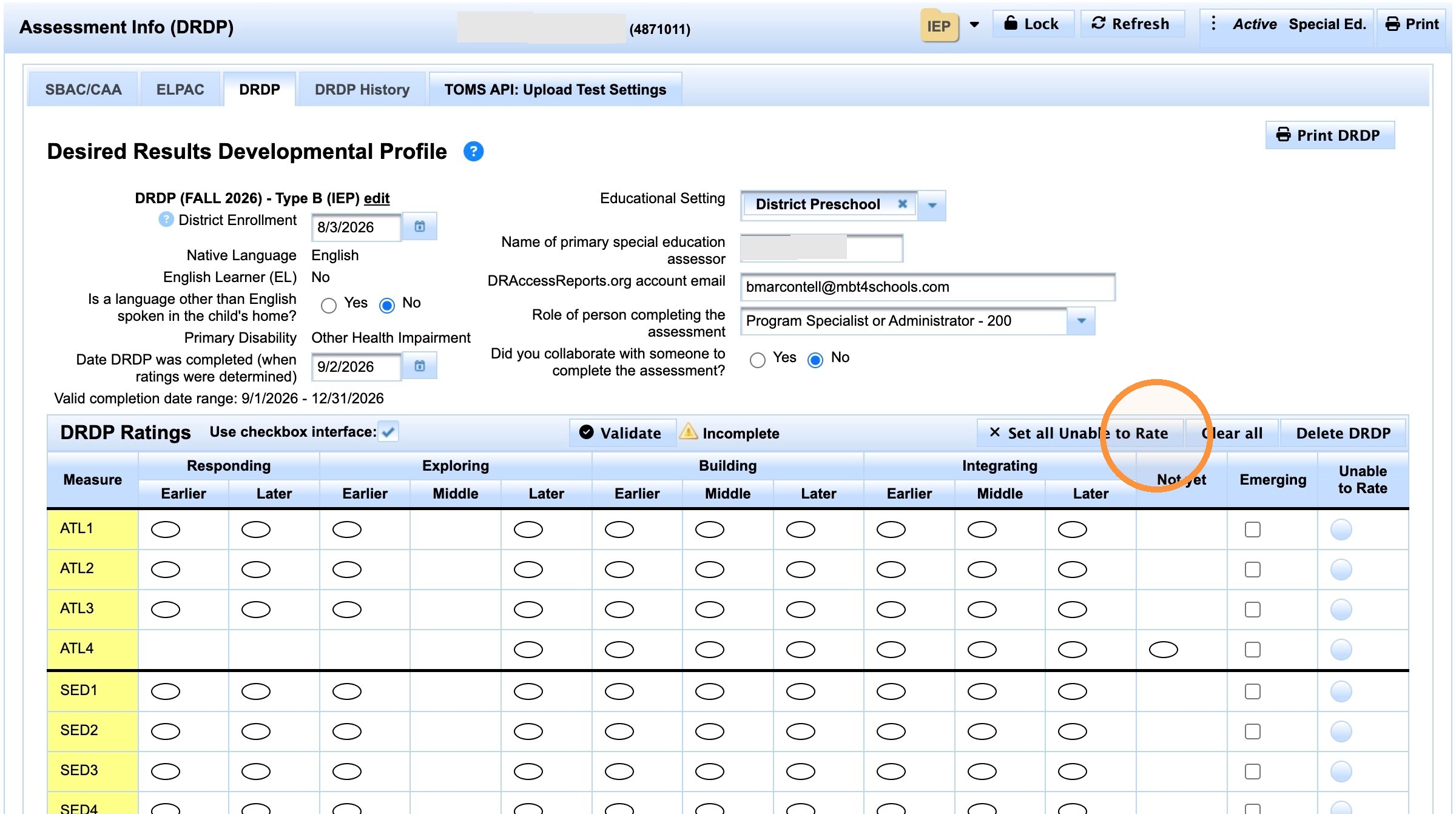
Once the top section is done, look in the border between the top section and the ratings on the right hand side for the 'set all unable to rate' button.
7. Click "Set all Unable to Rate"
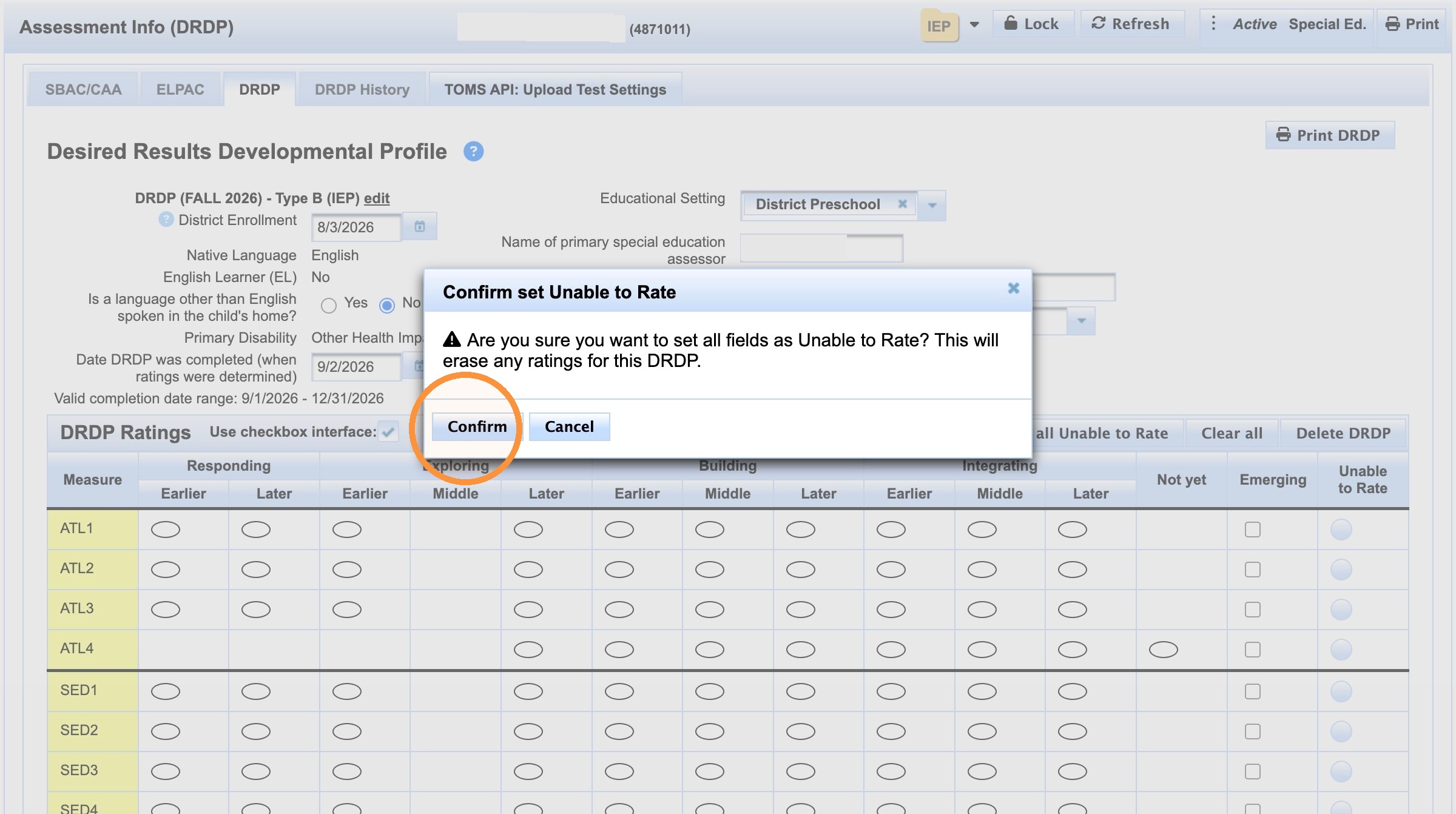
8. Click "Confirm"
9. Click "Validate"
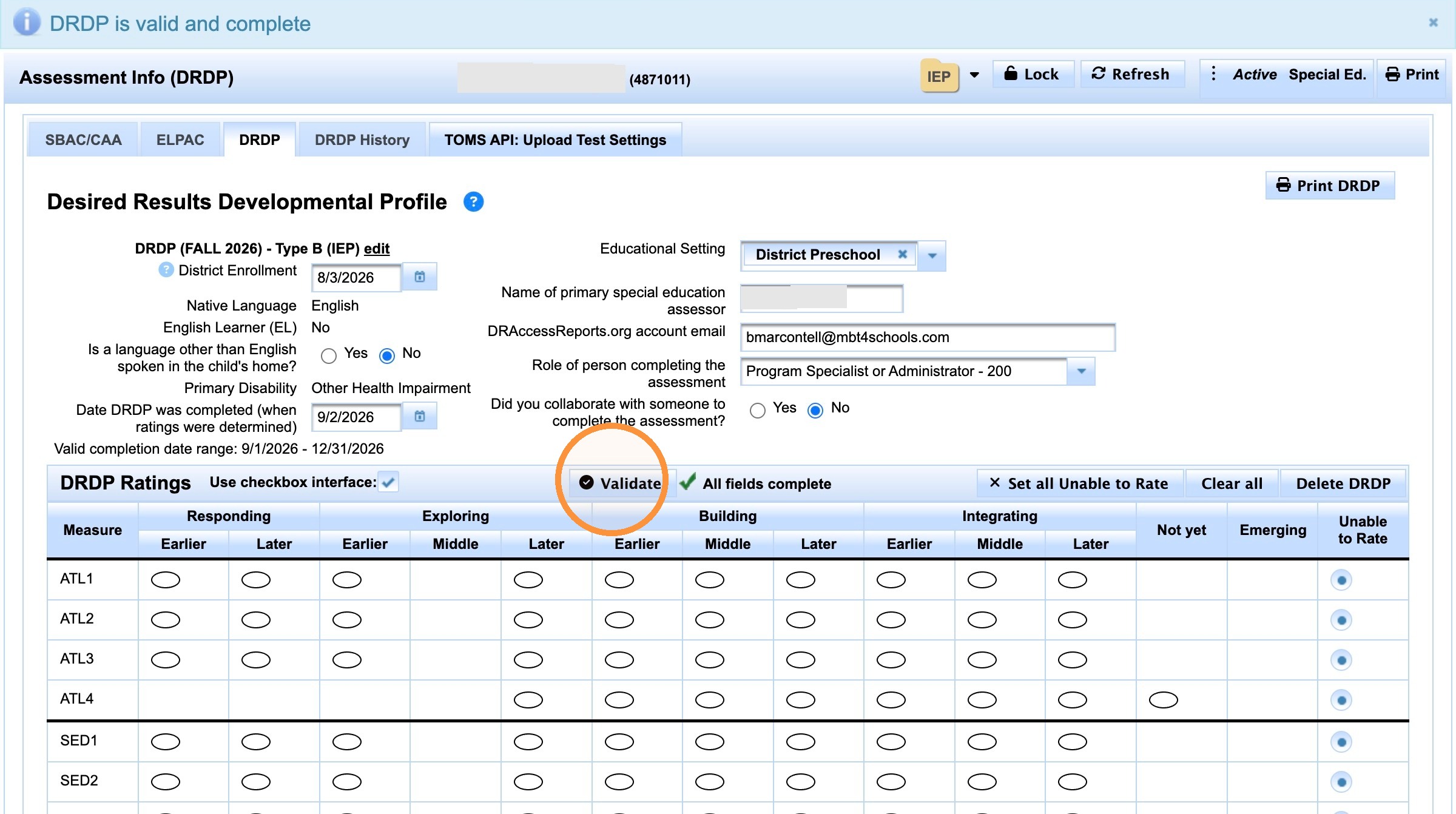
Assuming it validates you are done.

